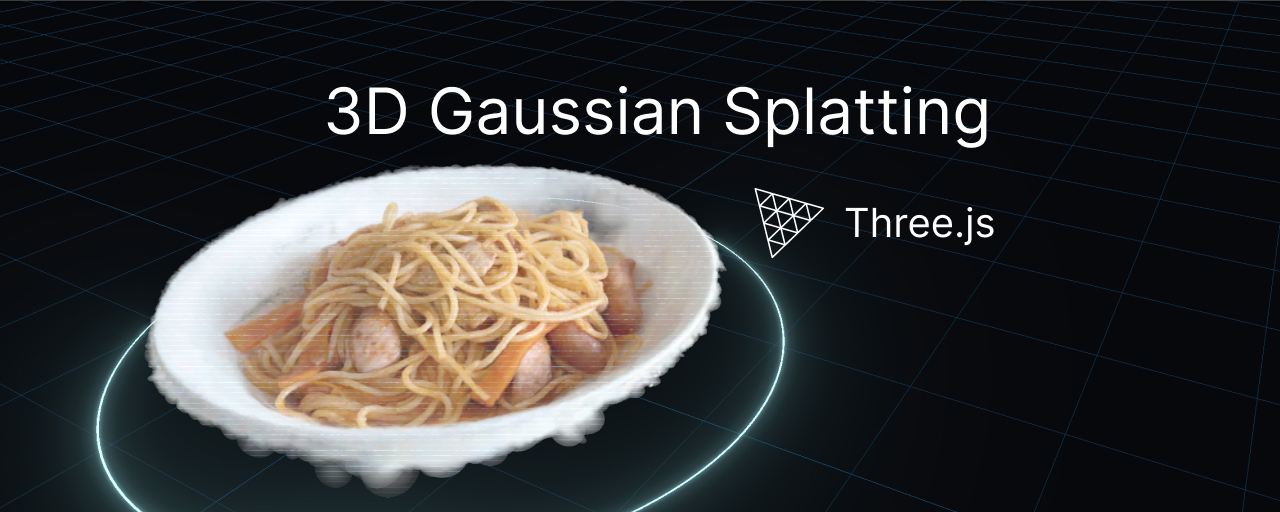
Three.js r186, released on September 8, 2026, added built-in support for displaying 3D Gaussian Splatting (3DGS) data. 3DGS is a technique for reconstructing three-dimensional objects from photographs. Just a few dozen seconds of capturing an object with a smartphone can produce 3D data you can view from all around.
This article takes you through the process, from capturing an object with a smartphone to displaying it in Three.js.
The demo below summons a scanned plate of spaghetti from a magic circle. It reuses the code from our earlier article, “Creating an RPG-style save point effect with Three.js,” unchanged, adding a 3DGS model as the object being summoned. Press the [SUMMON] button to repeat the effect as many times as you like.
The [Load .spz] button lets you load your own spz file, and the [Flip] button flips the model upside down.
Displaying 3DGS with Three.js alone
Three.js includes a GaussianSplat class for working with 3DGS, along with loaders for its file formats. Here is the code needed to display a model.
// Loading the file returns a BufferGeometry
const geometry = await new SPZLoader().loadAsync("./model.spz");
// Pass it to GaussianSplat and add it to the scene like any other object
const splat = new GaussianSplat(geometry);
scene.add(splat);
Dedicated loaders are available for four common 3DGS file formats: .spz, .ply, .splat, and .ksplat. Each returns an instance of BufferGeometry. Pass that instance to GaussianSplat to display it.
This feature is implemented for WebGPU, so you need to use WebGPURenderer. It does not work with WebGLRenderer. For instructions on using WebGPURenderer, see “Getting started with Three.js on WebGPU.”
You can try it directly in your browser with the official webgpu_gaussian_splat example.
What is 3D Gaussian Splatting?
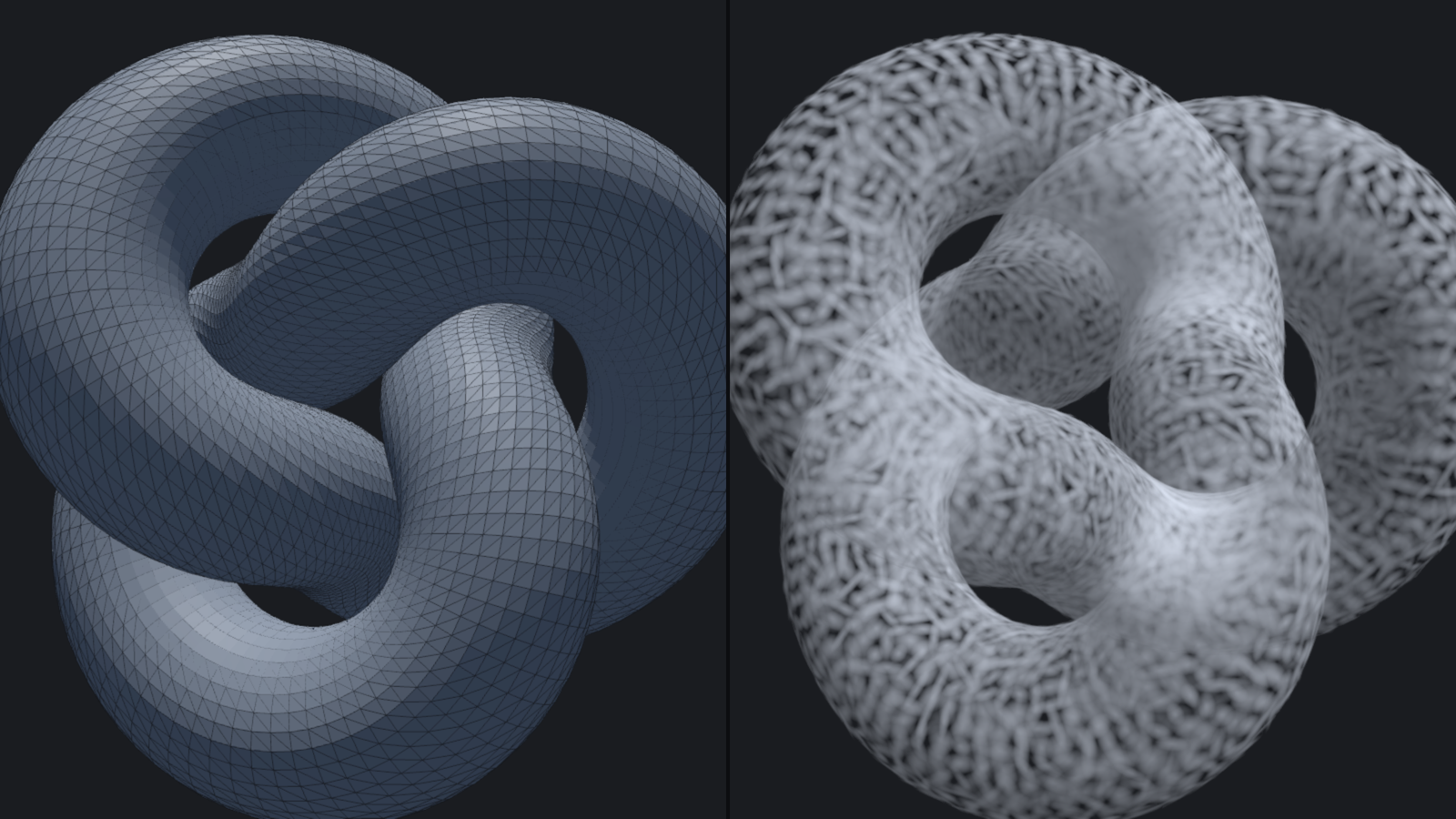
Conventional 3D meshes build surfaces from large numbers of triangles and apply images to them. Instead of triangles, 3DGS uses semitransparent particles called splats, each with a position, size, orientation, color, and opacity. Each splat is most opaque at its center and fades smoothly toward its edges. The name comes from the Gaussian distribution used for this falloff.
Splats are not uniform spheres. Their shapes vary depending on what they represent: a thin disc on a flat surface, for example, or an elongated shape along a narrow branch. During rendering, they are drawn as ellipses on the screen and layered from back to front.
This resembles a point cloud, but point clouds consist of points with only positions and colors. Up close, gaps become visible between the points, making them look scattered. 3DGS splats have size and orientation, allowing neighboring splats to overlap smoothly and appear as a continuous surface without gaps.
Because 3DGS does not build surfaces, it works well with subjects that lack clearly defined outlines, such as hair and leaves. It can also reproduce the appearance of glossy surfaces, though not mirror-like objects that reflect their surroundings.
▼ The same shape represented as a triangle mesh (left) and a collection of splats (right)
Capturing with a smartphone
A smartphone app is an easy way to capture a subject. There are quite a few apps that can generate 3DGS data. For this tutorial, we will use Scaniverse Classic, the personal-use feature of Niantic Spatial’s Scaniverse app. It is free, processes everything on the smartphone, and can export both .ply and .spz files.
The steps are as follows.
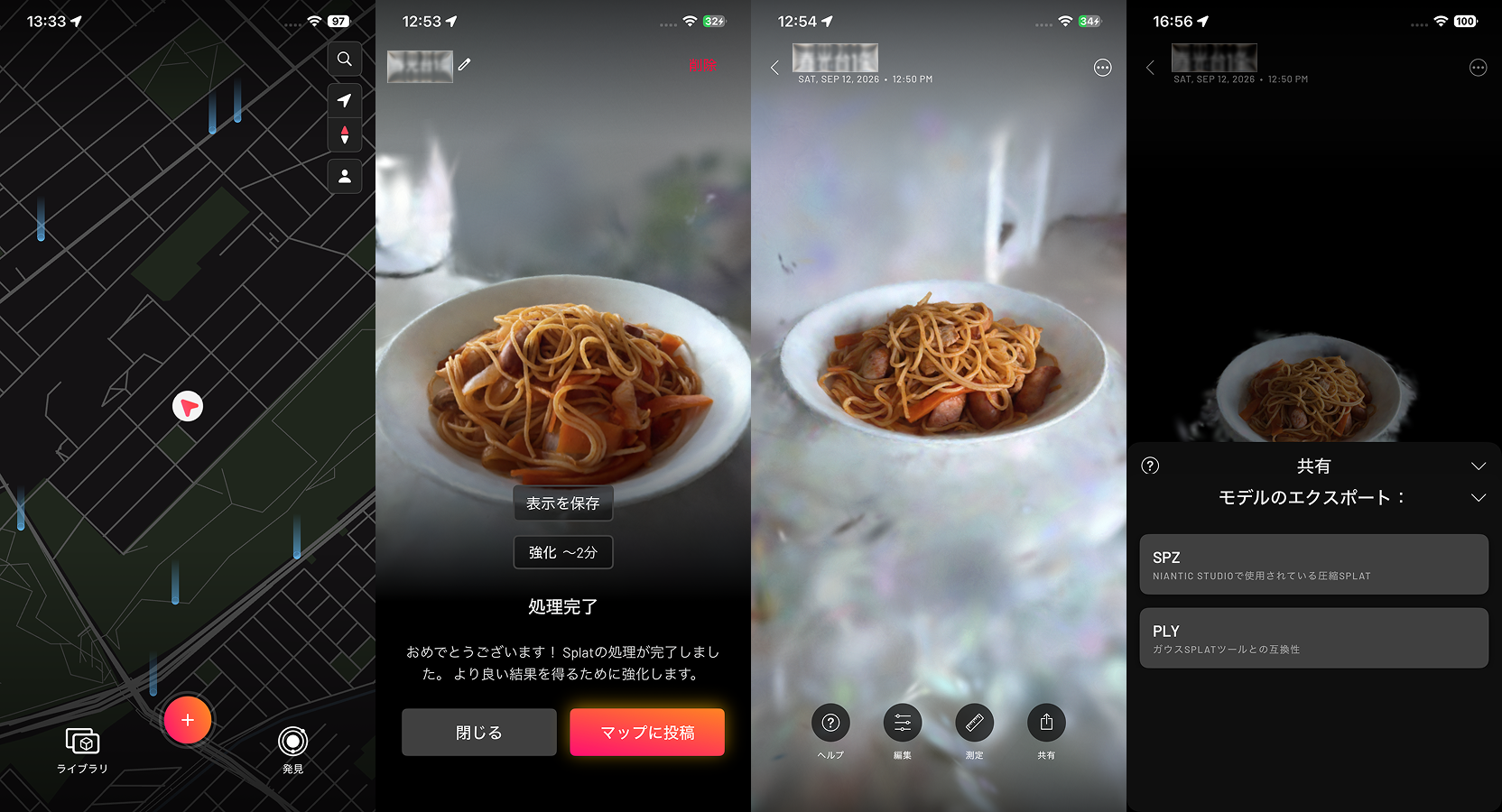
- Launch the app, tap the [+] button, and select Splat mode.
- Slowly walk all the way around the subject. Changing the camera height over two or three passes helps reduce missing areas at the top and bottom.
- When you finish capturing, processing begins on the device. It takes a few minutes to complete.
- A [Post to Map] button appears. Simply close the screen if you do not plan to post the scan.
- The scan still includes the surroundings, so use the editing tools to crop it.
- Select [Export Model] from the sharing menu and export in
.spzformat.
▼ Scaniverse screens. From left to right: the map shown on launch, processing complete, the captured result, and the export options in the sharing menu
Good subjects stay still, are not too glossy, and allow you to move all the way around them. Mirrors, glass, plants moving in the wind, and plain white walls are harder to capture. For your first attempt, choose something such as a small object on a desk that you can walk all the way around. Even then, it may take a few attempts. Each capture takes only tens of seconds, so try changing your pace or your distance from the subject and rescan until you get a feel for it.
We recommend exporting in .spz format. SPZ is a compressed format for 3DGS released by the developers of Scaniverse. Files are approximately one-tenth the size of the same data saved in .ply format. The Three.js SPZLoader class supports SPZ versions v1 through v4, so you can load your exported files directly.
Removing unwanted splats with SuperSplat
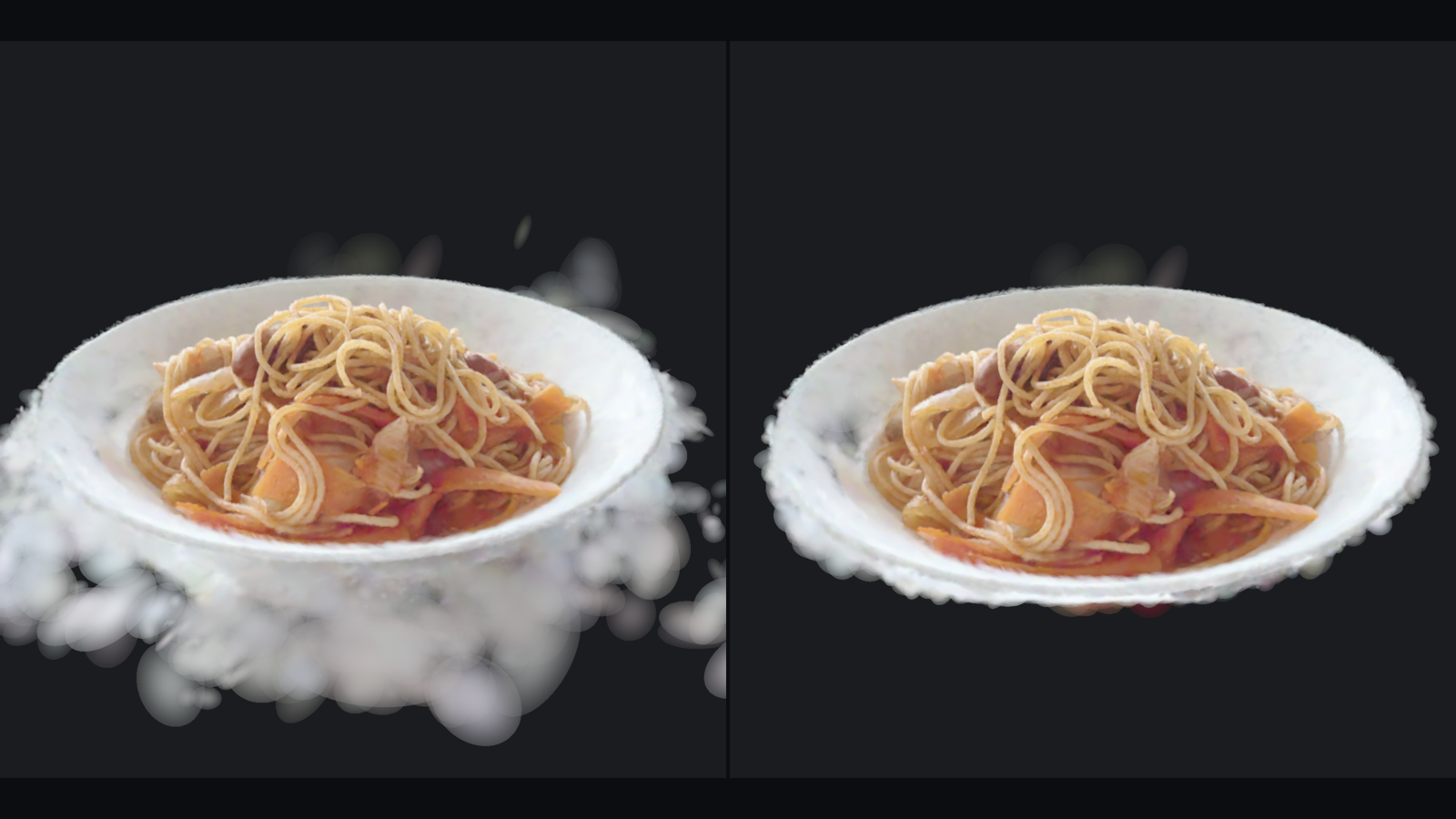
If your exported data still contains splats from the floor or background, delete them to isolate the subject. Also remove floaters: stray splats that appear to float around the subject like noise because of reconstruction errors.
For cleanup, we will use SuperSplat, a free browser-based editor. Load the file, select and delete unwanted splats around the subject, then export it again as .spz. Removing floaters around the subject can make a substantial difference to its appearance.
Selecting splats takes a little practice, just like capturing them. You can reload the file if you delete too much, so work through the cleanup gradually. Exported data may sometimes appear upside down. You can correct this when adjusting the orientation in the next section.
▼ Before cleanup (left), floaters are visible beyond the rim of the plate. After cleanup (right), they have been removed
Displaying the model in Three.js
Now we will display the captured file on a web page. Here is the basic code.
import * as THREE from "three/webgpu";
import { SPZLoader } from "three/addons/loaders/SPZLoader.js";
import { GaussianSplat } from "three/addons/objects/GaussianSplat.js";

// Use WebGPURenderer to display 3DGS
const renderer = new THREE.WebGPURenderer();
renderer.setSize(window.innerWidth, window.innerHeight);
document.body.appendChild(renderer.domElement);
// WebGPURenderer initializes asynchronously, so wait before starting to render
await renderer.init();

// Scene and camera creation omitted

// Load the .spz file
const geometry = await new SPZLoader().loadAsync("./model.spz");
// The loader returns a BufferGeometry, which we pass to GaussianSplat
const splat = new GaussianSplat(geometry);
scene.add(splat);

renderer.setAnimationLoop(() => {
  renderer.render(scene, camera);
});
The following demo adds orientation and camera-position adjustments to this code, as discussed below. It is a minimal example that simply loads and displays the model.
Lights do not affect brightness; try a dark background
3DGS data stores the lighting conditions at capture time as color. That is why the code above contains no lights, and adding them would not change the model’s brightness. To adjust brightness, change the lighting when capturing the subject or adjust the renderer’s exposure using the toneMappingExposure property.
Choose a background color that suits the subject. Captured splats fade softly at their edges, which can make the outline appear to dissolve against a white background. A darker background often gives the shape a more defined appearance.
// Splats fade softly at their edges, so a dark background often makes the shape look more defined
scene.background = new THREE.Color(0x111111);
Adjusting the orientation
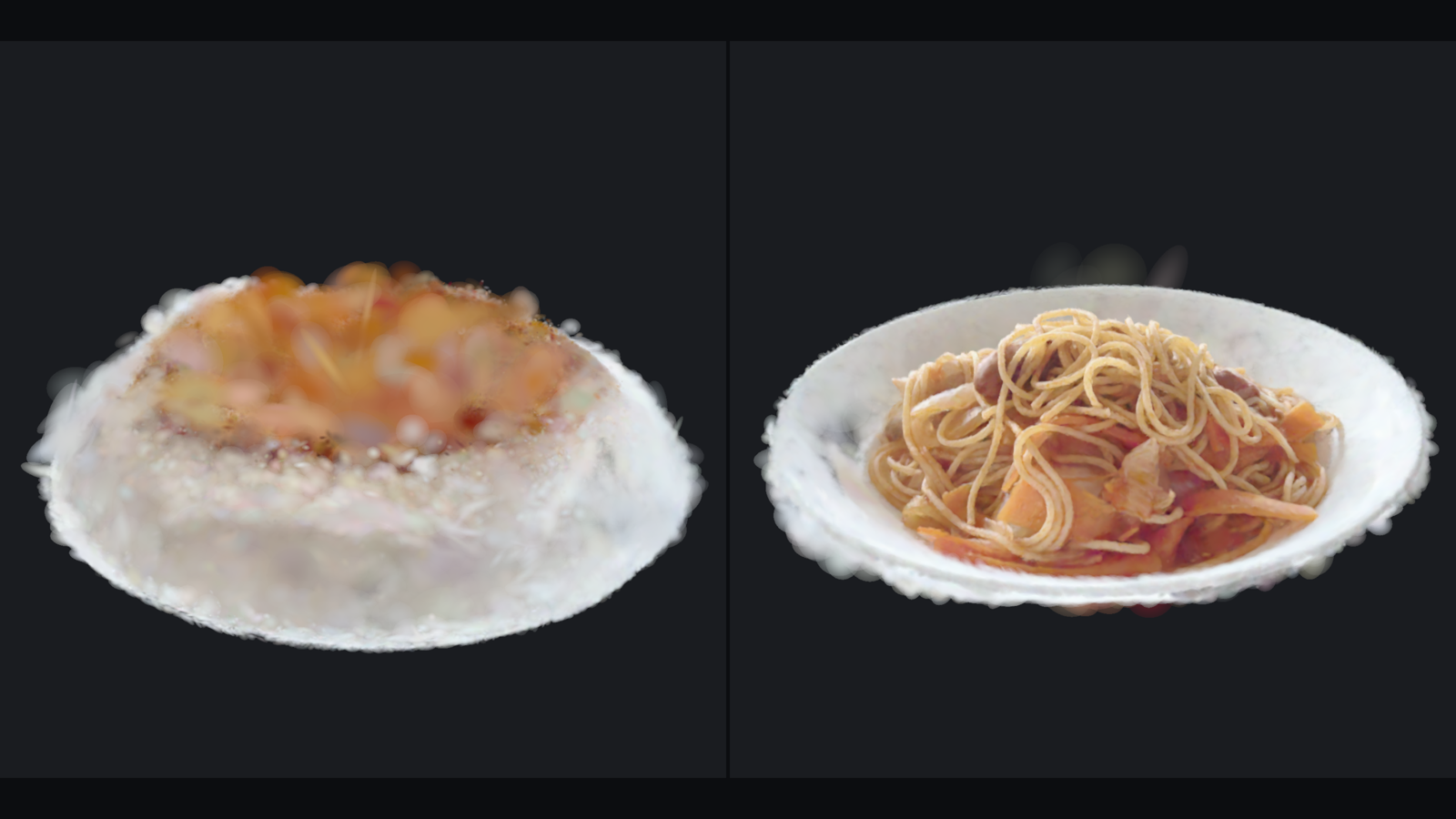
Immediately after loading, the model may be upside down or positioned far from the origin. This happens because capture apps and file formats use different coordinate systems. Even the official Three.js examples apply a rotation to some models but not others.
If the model is upside down, rotate it 180 degrees around the X axis.
// If the loaded model is upside down, rotate it 180 degrees around the X axis
splat.rotation.x = Math.PI;
▼ Immediately after loading (left), the plate is upside down, hiding the spaghetti. After correcting the orientation (right)
Colors change with the viewing angle
In addition to a color for each splat, 3DGS data contains coefficients that allow the color to change depending on the viewing direction. These are called spherical harmonics coefficients, and they record information about how the subject appeared from different angles during capture.
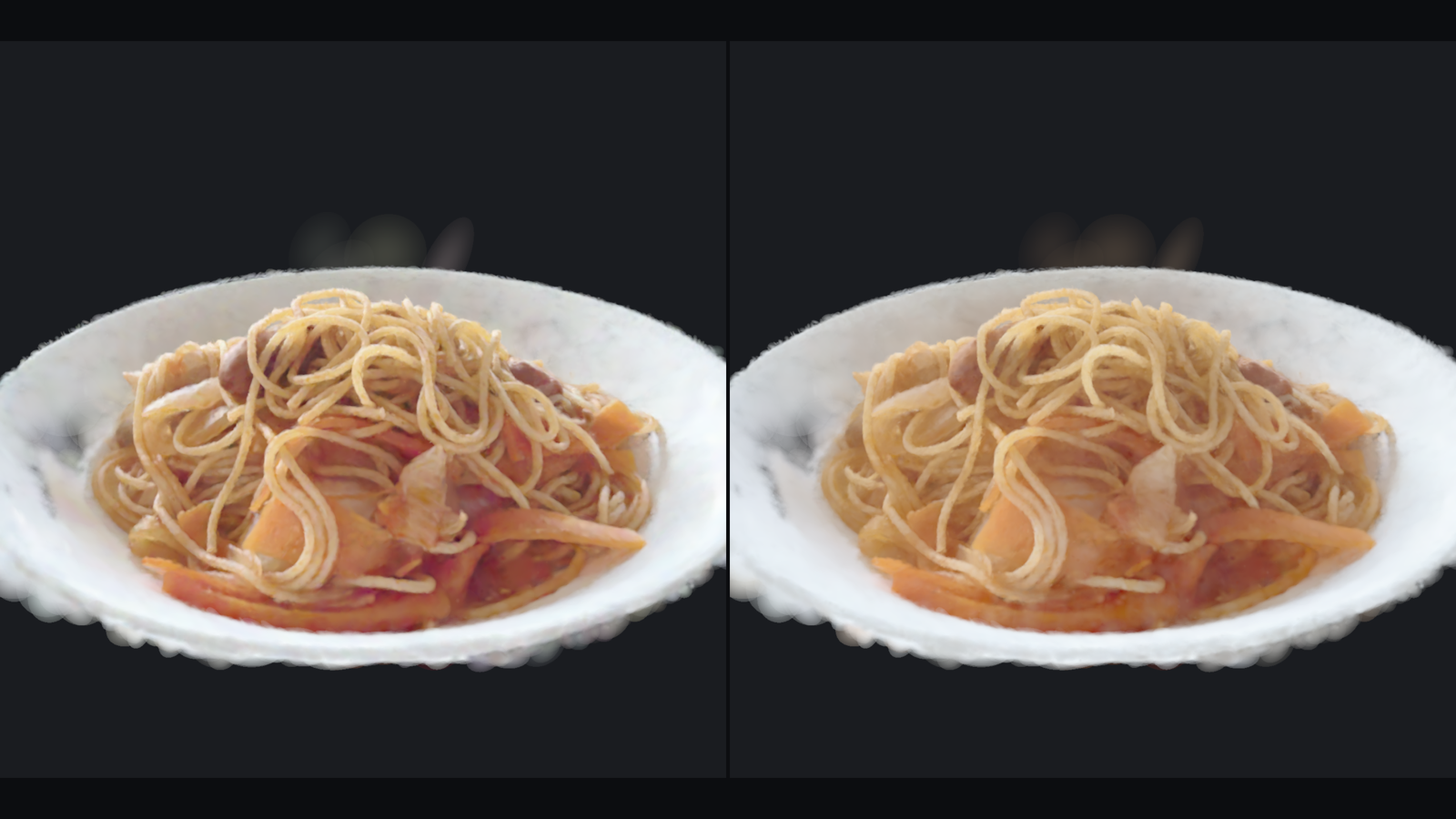
Three.js supports these coefficients, so colors change with the viewing angle simply by loading the data. The effect is easiest to see on subjects with highlights, such as metal, wet surfaces, and glossy fruit. On matte fabrics or paper, the difference is barely noticeable.
▼ With spherical harmonics (left) and without them (right). Without them, the noodles and plate lose some of their sheen, making the overall appearance flatter
These coefficients also record the appearance at capture time; they do not calculate physically accurate reflections. This is also why the model does not respond to lights in the scene.
Current limitations
Although this feature is useful, it has some limitations as of September 2026.
Not suited to large scenes
The Three.js implementation does not include a mechanism for switching to coarser data based on distance from the camera, known as level of detail (LOD), or for loading only the necessary parts progressively, known as streaming. As a result, the entire file must finish loading before it can be displayed. Pay attention to loading times and memory usage when working with data that contains large numbers of splats or has a large file size.
Depth-based post-processing does not work correctly
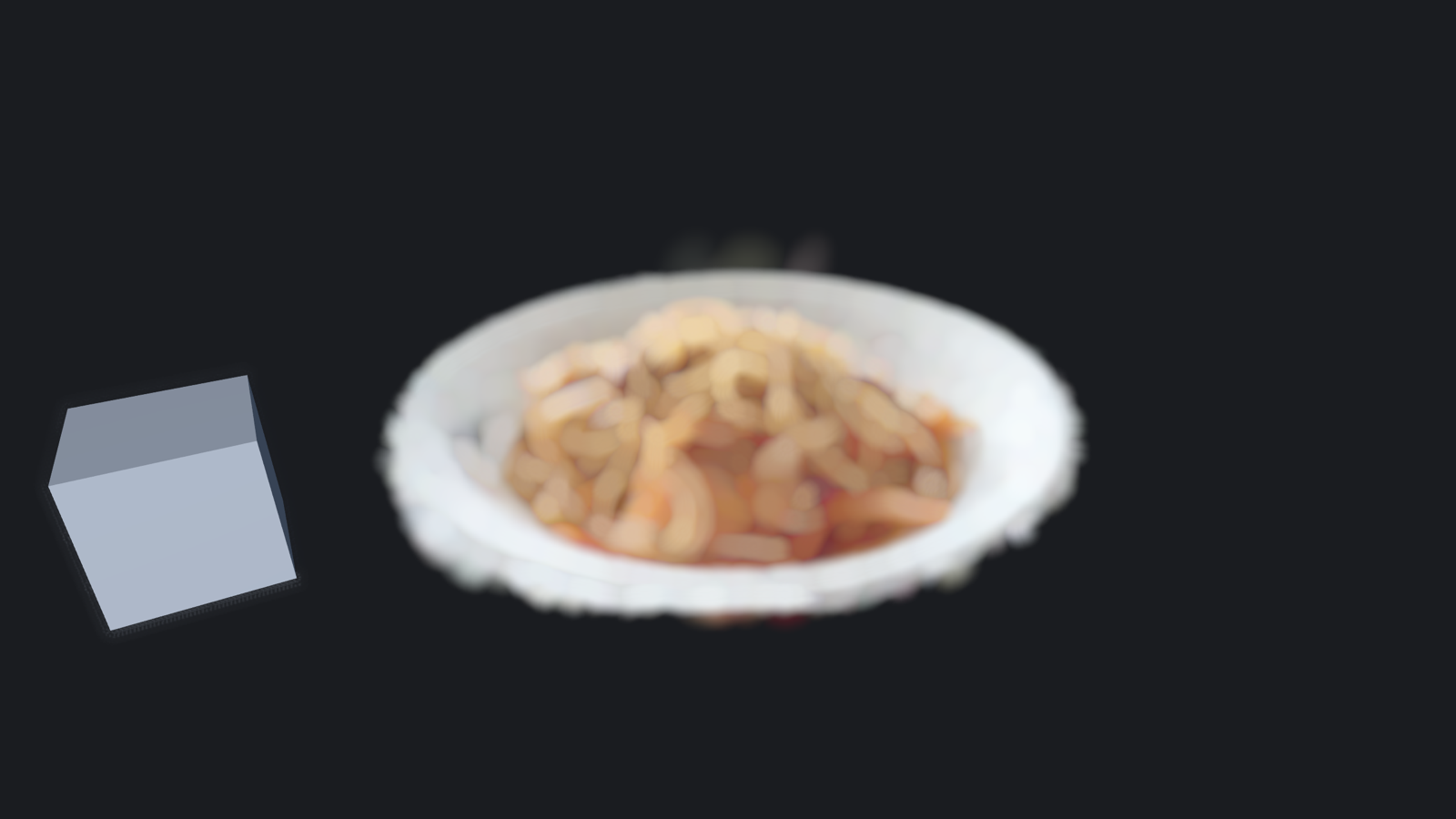
Depth of field can be applied, but areas containing splats are treated as having the same depth as the background. Even when you focus on the subject, the splats blur as though they were part of the distant background. The same issue affects ambient occlusion and other post-processing effects that rely on depth.
▼ A cube and the spaghetti are placed at the same distance and brought into focus with a depth-of-field effect. Both should appear sharp, but only the spaghetti is blurred because it has no depth information
Sidebar: Libraries for large scenes
For now, displaying large scenes calls for a dedicated library.
Spark is a 3DGS library for Three.js that supports LOD and loads only the parts of a scene that are needed. It displays a coarse version immediately, then adds detail as the camera moves, allowing even very large scenes to be displayed smoothly.
PlayCanvas is a separate engine from Three.js, so using it means switching engines. It provides a compressed format called SOG, along with Streamed SOG, a variant that supports LOD.
Conclusion
The process itself is straightforward. Most of the time goes into trial and error during capture. The appearance effect in the opening demo is created by replacing the shader that calculates the splats’ colors and opacity using Three.js Shading Language (TSL).
For simply displaying a model, you can also export an HTML viewer from SuperSplat. This lets you publish without writing code, which is sufficient when all you need is to share a capture. But when you need to integrate it into an existing scene or build your own camera controls and interactions, displaying it in Three.js is a good option.
It is rewarding to see a 3DGS model you captured yourself appear in a Three.js scene with just a few lines of code. I would like to create more examples myself.