Chrome DevTools for agents allows AI agents to modify code while inspecting what is displayed in Chrome. They can also verify changes using screenshots, the console, and Lighthouse.
By connecting to a running Chrome instance, an agent can reuse login sessions for web services, along with cookies, session storage, and local storage. Even for admin interfaces that require authentication, a human can log in first and then hand the investigation over to an AI agent. This article explains how to set up and use Chrome DevTools for agents through practical demos.
What is Chrome DevTools for agents?
Chrome DevTools for agents is a set of tools that allows AI agents to use Chrome DevTools. It consists of three components:
- An MCP (Model Context Protocol) server for controlling Chrome
- A CLI (command-line interface)
- Agent skills, which provide AI agents with instructions for using the tools and following task-specific workflows
Agent skills are not required to use the MCP server or CLI, but installing them can help the agent handle browser operations and resolve connection issues.
Chrome DevTools for agents is the successor to Chrome DevTools MCP, which was introduced in 2025. It was renamed in May 2026, when version 1.0 was released.
What can Chrome DevTools for agents do?
With Chrome DevTools for agents, you can delegate the following browser operations and checks to an AI agent:
- Click elements and enter text on a page
- Capture screenshots and inspect elements
- Test mobile layouts by changing the viewport width
- Investigate console and network errors
- Run Lighthouse
See the official tool reference for details on the available tools.
MCP server or CLI: which should you use?
Chrome DevTools for agents provides two ways to interact with Chrome: the MCP server and the CLI. Both allow an AI agent to inspect and operate a page, run checks, and decide what to do next based on the results. The main difference is whether browser operations are invoked as MCP server tools or executed as commands in a terminal.
| Item | MCP server | CLI |
|---|---|---|
| How an AI agent uses it | Directly calls typed tools exposed by the MCP server | Runs the chrome-devtools command in a terminal |
| Repeating decisions and actions | Receives the result of a tool call and selects the next tool | Receives the result of a command and selects the next command |
| Running multiple operations | Generally calls a separate tool for each operation | Can combine multiple operations in a shell script |
| Intermediate results | Can return structured results and images directly to the AI agent | Can save results as JSON or files and return only the required information to the AI agent |
| Screenshots | Returns an image directly or saves it to a file | Saves it to a temporary file or a specified path for the AI agent to inspect |
| Available features | Supports the tools exposed by the MCP server | Generally supports the same features, although some are limited |
Setting up the MCP server
Node.js LTS, npm, and Chrome are required. See the official setup instructions for details. Configure Chrome DevTools MCP for each AI agent as follows.
Claude Code
- Launch Claude Code and run the following slash commands in order. First, add the Chrome DevTools for agents marketplace registry:
/plugin marketplace add ChromeDevTools/chrome-devtools-mcp
- Install the plugin from the marketplace:
/plugin install chrome-devtools-mcp@chrome-devtools-plugins
- This plugin includes the MCP server and Agent skills. Restart Claude Code after installation to apply the configuration.
Codex CLI
- Run the following command in a terminal:
codex mcp add chrome-devtools -- npx chrome-devtools-mcp@latest
This command registers the MCP server with Codex. It is different from installing the Chrome DevTools CLI described later in this article.
For Windows, see the official documentation.
- Restart Codex after running the command to apply the configuration.
Verify the setup
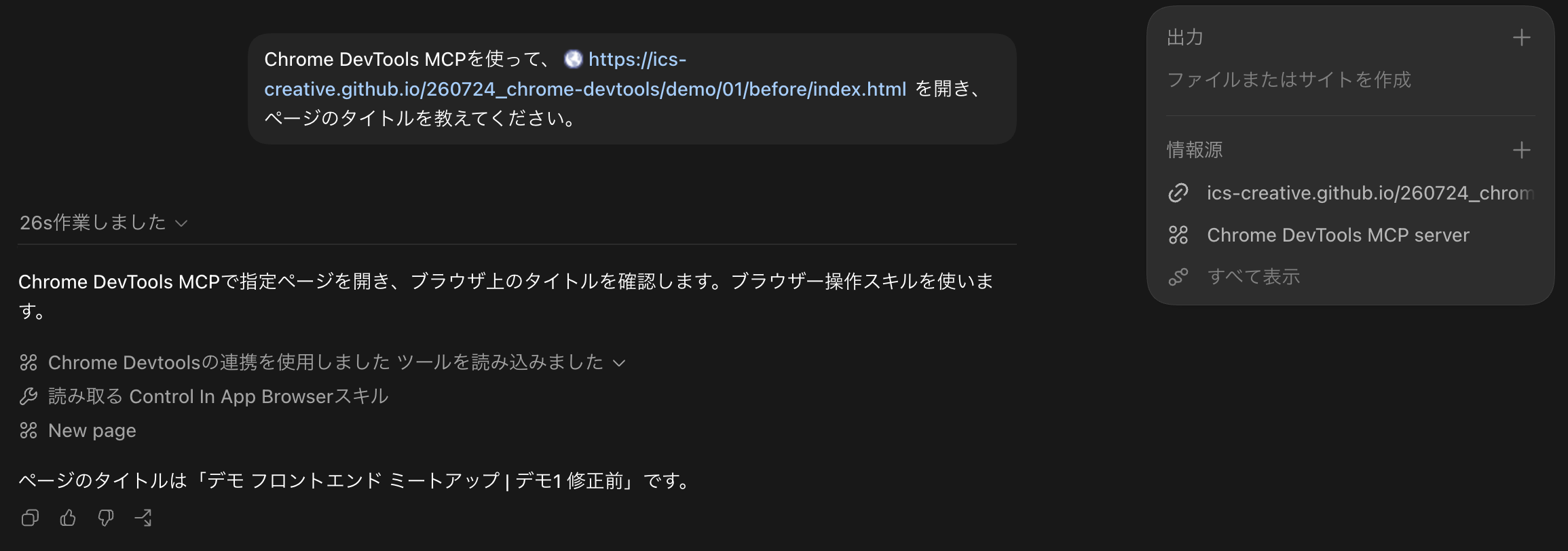
Both Claude Code and Codex can use the MCP server with the configuration above. Ask the AI agent to perform the following task to verify that it works:
Use Chrome DevTools MCP to open
https://ics-creative.github.io/260727_chrome-devtools/demo/01/before/index.html
and tell me the page title.
If the configuration is correct, a browser instance separate from your regular Chrome session will open and load the specified page. The setup is complete when the AI agent returns the page title or similar information.
Optional: connect the MCP server to a running Chrome instance
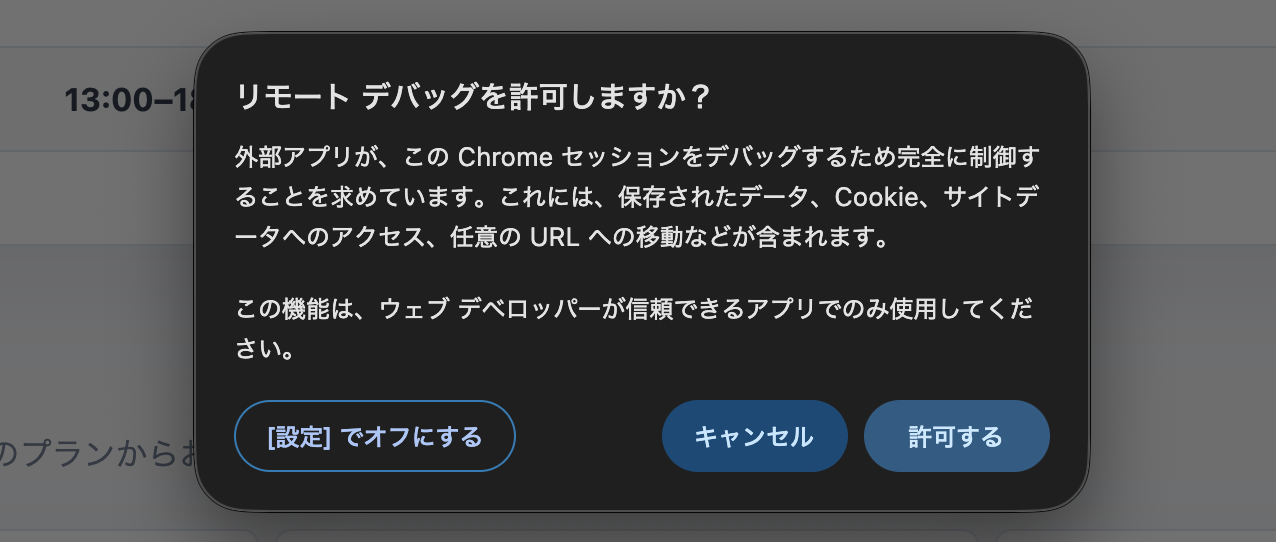
Follow these steps to reuse open tabs and authenticated sessions. Use this feature only with an AI agent you trust, and take care when handling sensitive information.
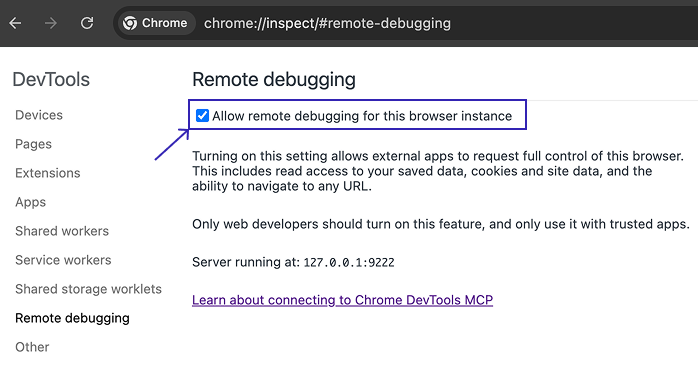
- Open
chrome://inspect/#remote-debuggingin Chrome and enable remote debugging.
- Configure the MCP server with
--autoConnect.
To configure it for a Claude Code project, add the following content to a .mcp.json file in the project root:
{
  "mcpServers": {
    "chrome-devtools": {
      "command": "npx",
      "args": ["chrome-devtools-mcp@latest", "--autoConnect"]
    }
  }
}
For Codex, add the following content to ~/.codex/config.toml:
[mcp_servers.chrome-devtools]
command = "npx"
args = [
  "chrome-devtools-mcp@latest",
  "--autoConnect",
]
- When you ask the AI agent to perform an operation, Chrome displays a dialog requesting permission to connect. Review the details and allow the connection.
Main configuration options
Chrome DevTools for agents provides options for changing how Chrome starts, the viewport size, the available tool categories, and other settings. When using a configuration file, add these options to the MCP server’s args array. See Configuration in the official repository for all available settings and supported combinations.
Setting up the CLI
Install Chrome DevTools CLI with the following commands, as described in the official CLI documentation:
npm i chrome-devtools-mcp@latest -g
chrome-devtools status # check if install worked.
After installation, the chrome-devtools command is available from a terminal or an AI agent.
Optional: connect Chrome DevTools CLI to a running Chrome instance
The CLI can also connect to a running Chrome instance. As with the MCP server, enable remote debugging and run the following command. As of July 2026, the CLI automatically enables --isolated when --userDataDir is omitted, so specify --userDataDir together with --autoConnect.
chrome-devtools start --autoConnect \
  --userDataDir="$HOME/Library/Application Support/Google/Chrome"
The value of --userDataDir is not the Chrome application itself, but the directory that stores cookies and other user data. Open chrome://version in Chrome and check the parent directory of the path shown under Profile Path. The location differs by operating system. For details, including the Windows location, see Chromium’s official User Data Directory documentation.
Demos
The following sections introduce two demos based on a simple registration site for a meetup event. When asking an AI agent to make changes, it is important to define the expected appearance and verification criteria clearly. The information entered into the demo forms is not sent to an external server.
The demos in this article use the CLI.
Demo 01: inspect the page and autonomously fix layout issues
In this demo, the AI agent implements the following changes:
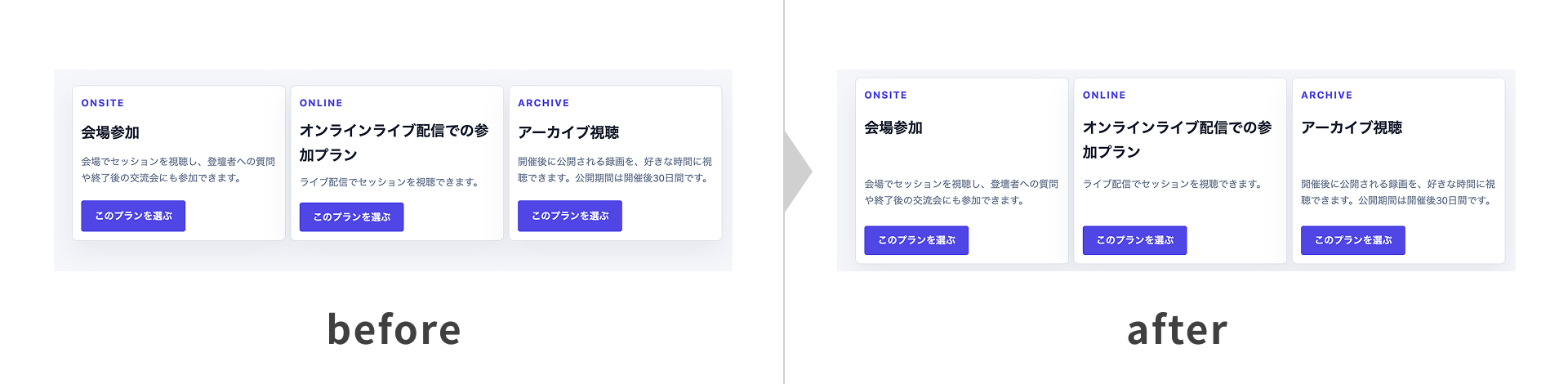
- Align the heights of corresponding elements across the cards
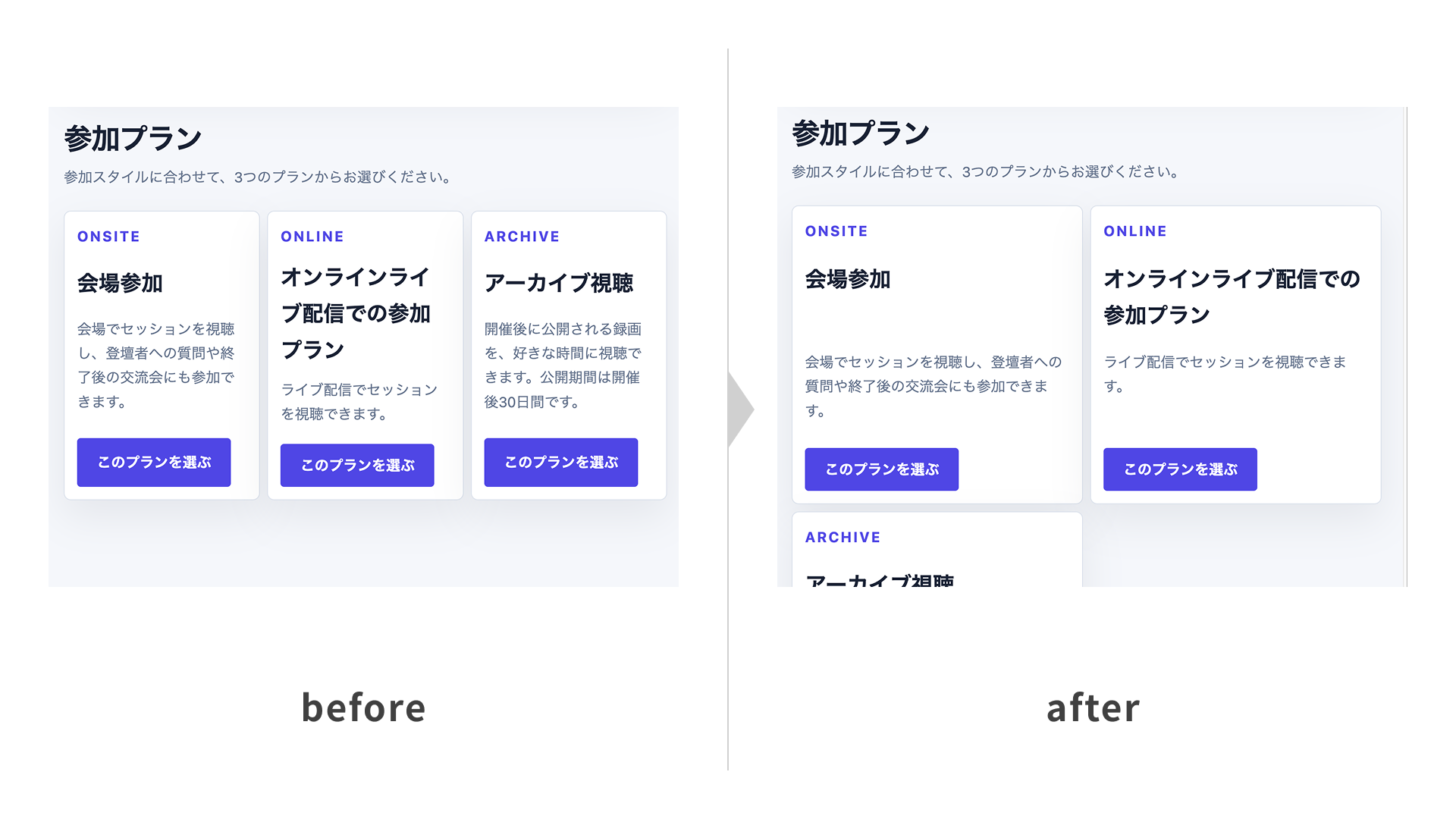
- Wrap the cards when their width becomes too small
The following video shows the AI agent implementing the changes. It resizes the browser and verifies the updated layout.
▼ Before
▼ After
The before-and-after image below shows that corresponding elements across the cards now align to the same height.
The following image confirms that the cards wrap correctly. Although the prompt did not specify the implementation details, the CSS uses the min() function inside minmax() to prevent horizontal scrolling. That extra care is reassuring.
.plans {
  /* Prevent horizontal scrolling even when a child element is narrower than 320px. */
  grid-template-columns: repeat(auto-fit, minmax(min(320px, 100%), 1fr));
  /* ...other declarations omitted */
}
In this demo, Chrome DevTools CLI automates the following tasks:
- Identify the target page among the open pages
- Inspect the page’s DOM structure and rendered content
- Reload the page
- Resize the browser and emulate a mobile viewport
- Measure element sizes, positions, and layout
- Detect horizontal scrolling and overflowing elements
- Take screenshots
- Verify the layout on desktop and mobile
The following prompt was used for this demo:
Use only Chrome DevTools CLI.
Inspect the open event registration page.

- Use subgrid so that corresponding elements in the three plan cards have matching heights.
- Wrap the cards before their width falls below 320px.
- After making the changes, reload the page and verify the layout at widths of 1280px and 375px.

Take screenshots. If you find any layout issues, fix them and check again.
Demo 02: operate a form automatically and verify submission behavior
In this demo, the AI agent implements the following changes:
- Require a name and email address
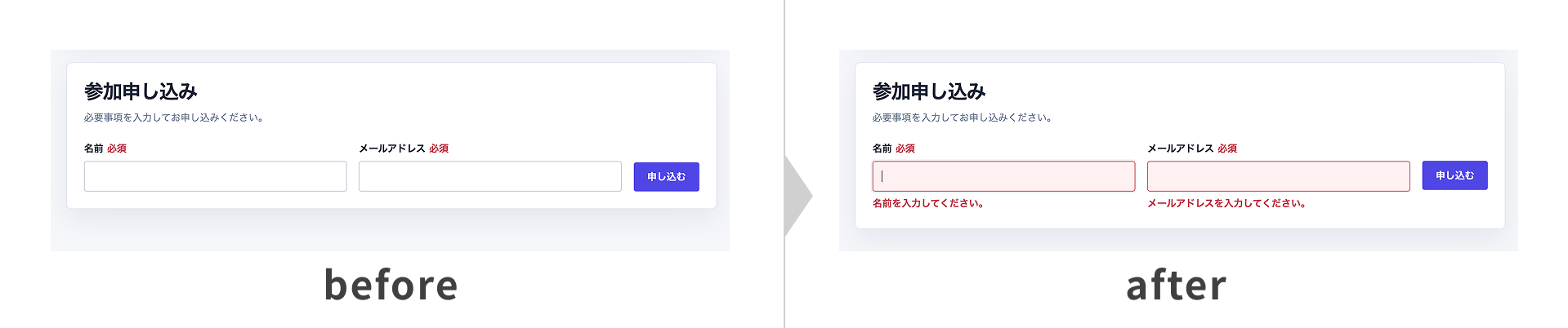
- Display validation errors when required fields are empty
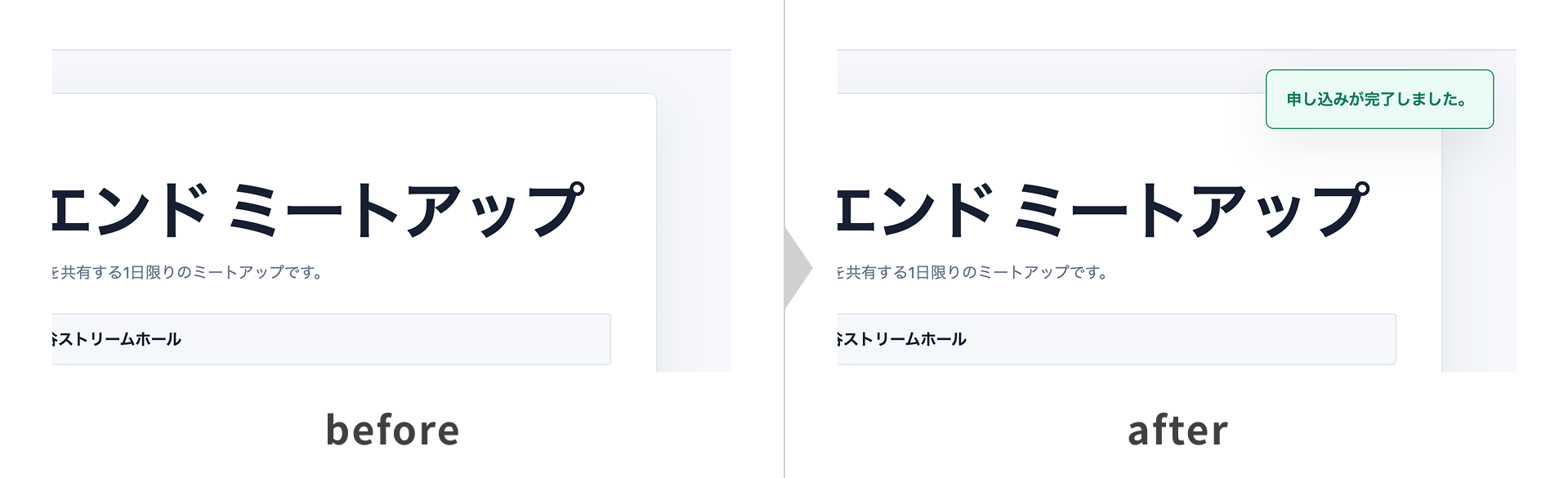
- Display a toast notification after a successful submission
- Test every combination of valid and invalid values
The following video shows the AI agent implementing the form and running submission tests. It locates the necessary elements on the page and autonomously proceeds from entering values to submitting the form and verifying the results. Because the agent can also handle post-implementation testing, a human does not need to operate each form field individually and report the result.
▼ Before
▼ After
The before-and-after images show the validation errors and the toast notification displayed after a successful submission.
▼ Validation errors
▼ Toast notification
In this demo, Chrome DevTools CLI automates the following tasks:
- Capture the current state of the open page
- Enter valid and invalid values into the form
- Submit the form with each input combination
- Verify error messages and focus movement
- Check for layout issues with screenshots
- Verify the toast notification’s appearance and dismissal over time
- Switch between mobile and desktop layouts
- Check the console for errors and warnings
- Reload the page and repeat the checks after fixing issues
The following prompt was given to the AI agent:
Use Chrome DevTools CLI.
Inspect the open event registration page.

Implementation
- Add validation to the registration form.
- Make the name and email address required, and display validation errors when either field is empty.
- When the values are valid, display a toast notification in the top-right corner confirming that the form was submitted.
- Slide the toast in from the right, then slide it out to the right after three seconds.
- Do not send data to a server or navigate to another page.
- Clear the form values after submission.

Testing
- After implementation, submit the form with every combination of valid and invalid values.
- Review the screenshots and console. If you find any layout issues or errors, fix them and test again.
Other prompt examples
In addition to the demos above, an AI agent can handle investigations and fixes such as the following:
Check the console for errors, identify their causes, and fix them.
Run Lighthouse and summarize what is lowering the scores and how to improve it.
Investigate accessibility issues and fix those that can be addressed.
Column: comparing token usage between the MCP server and CLI
For reference, the Demo 01 changes and visual checks were run three times with each interface, and the median token usage was compared.
| Metric | MCP server | CLI | CLI reduction |
|---|---|---|---|
| Token usage | 296,744 | 176,241 | 40.6% lower |
For this fixed task, the CLI used about 41% fewer tokens in total. The MCP server required seven to eight tool calls for the series of browser operations, whereas the CLI combined multiple operations into one to three shell calls. This result does not mean that CLI commands are inherently lighter in every case. It shows that batching operations can reduce the amount of intermediate output returned to the AI agent.
The result will vary depending on the task, how operations are grouped, and how the AI agent proceeds. Treat it only as a reference value. The measurements are original to this article and were collected under the following conditions:
- Codex CLI 0.145.0
- Model:
gpt-5.6-sol - Reasoning effort:
medium - Chrome DevTools for agents 1.6.0
Column: choosing between the MCP server and CLI based on official guidance
With the MCP server, an AI agent directly invokes tools for navigation, clicking, text input, screenshots, and other operations, then continues based on the results. An official case study uses the MCP server for interactive UI verification involving real data and authenticated operations.
The CLI, meanwhile, is presented as a token-efficient alternative that can combine multiple operations into a script. The same official case study switches to the CLI for long, repetitive flows.
Conclusion
Letting an AI agent handle verification in the browser reduces the need for a human to inspect the page and provide further instructions. This can streamline HTML coding and visual adjustments. The range of coding tasks that AI can handle will continue to expand.
Other options for browser automation include Playwright MCP and the Safari MCP server. Playwright MCP is suitable for operations and investigations across multiple browsers, as well as reproducible tests. The Safari MCP server is useful for checking rendering and compatibility in Safari. These tools are complementary rather than mutually exclusive, so choose the one that best fits the target browser and purpose.