
Stylelint is a static analysis tool, known as a linter, that can detect and automatically fix problems in stylesheets. Using it helps improve the code quality of CSS and SCSS files. More specifically, it offers the following benefits.
- Detect syntax errors across all stylesheets in a project
- Prevent implementations that are likely to cause problems, such as duplicate selectors or duplicate properties
- Enforce rules like the following to standardize coding style and keep code consistent
- Require
font-weightvalues to use keywords such asbold - Require pseudo-elements to use two colons, such as
::before
- Require
At ICS, projects often involve multiple developers, so Stylelint helps keep stylesheets consistent. It is especially useful in projects that involve a lot of HTML markup and stylesheet work.
This article introduces how to set up Stylelint and the settings needed for practical use.
This article covers Stylelint 17.14.0 and Node.js 24.
Setup steps
First, here are the steps for installing Stylelint in a project and running it.
Because this article uses Node.js and npm, install Node.js before trying the steps below.
The sample introduced here is also available in the following repository.
1. Initialize the Node.js project
From the terminal, move to the directory of the project where you want to introduce Stylelint. After moving there, run npm init to initialize npm.
npm init --yes
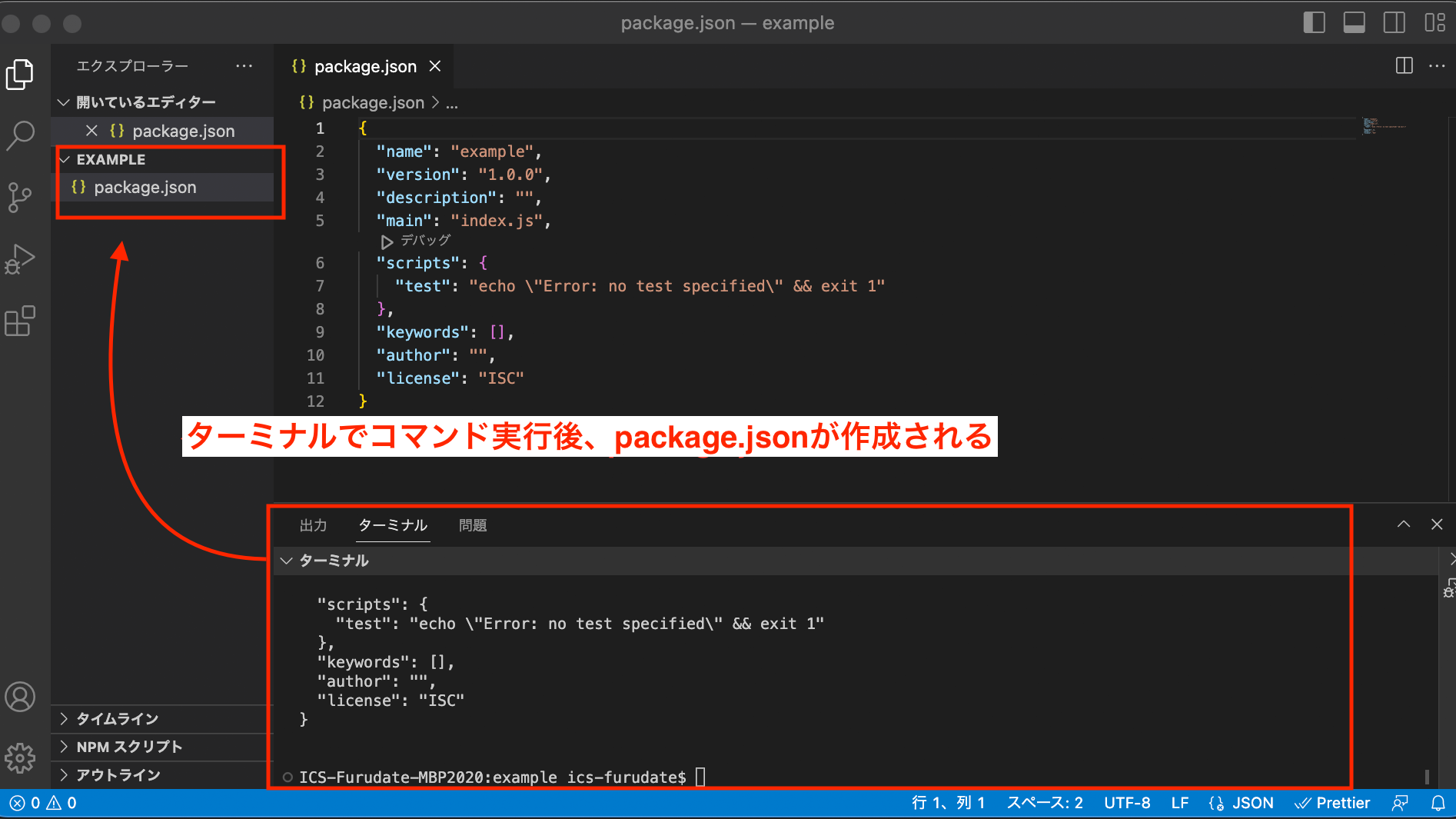
When the command finishes, a package.json file is created in the project.
The image below shows an example of opening the project in Visual Studio Code and initializing it.
After running the command in the terminal panel, package.json is created.
2. Install Stylelint from npm
Next, run the following npm command to install Stylelint in the project.
npm install -D stylelint
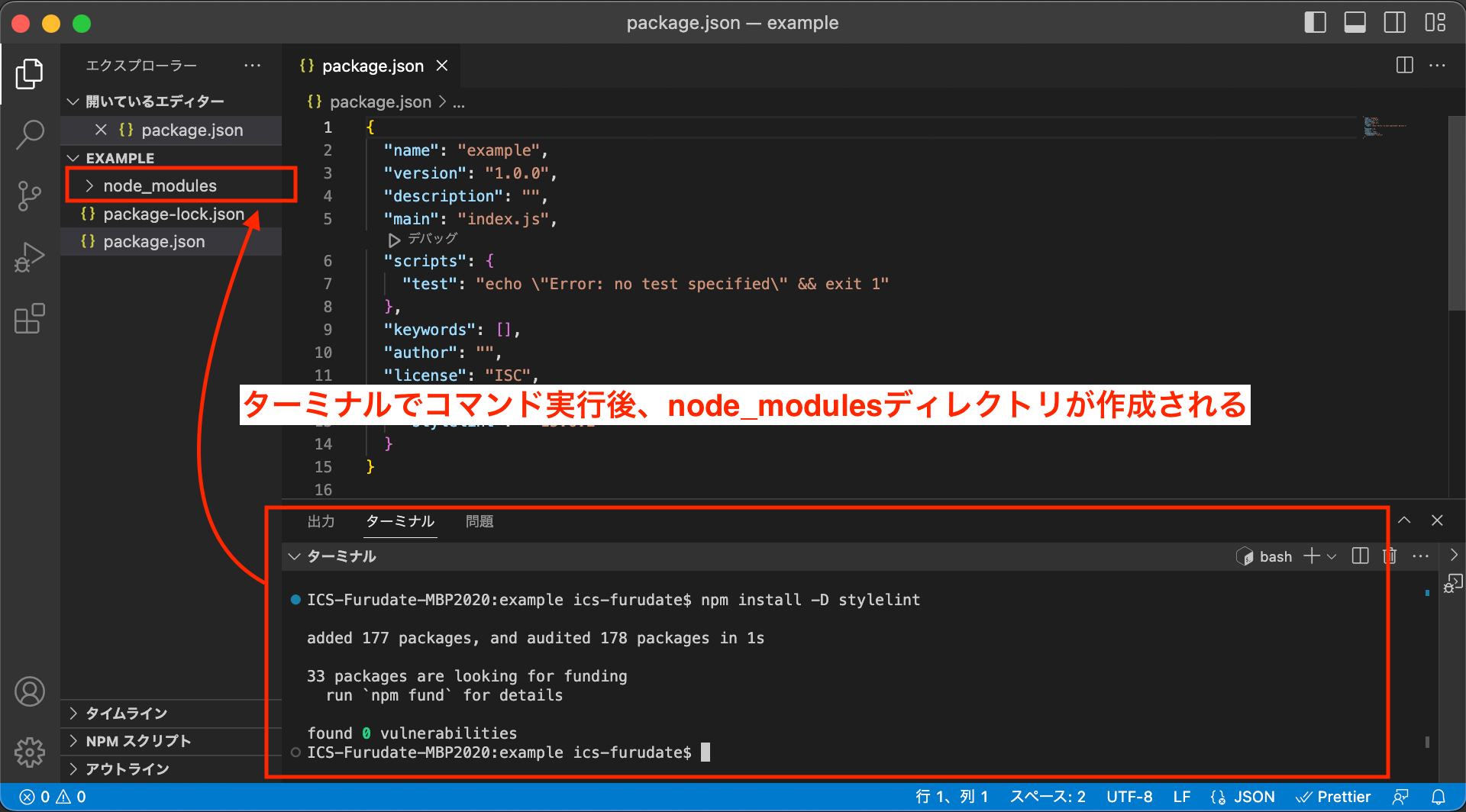
When installation finishes, the information in package.json is updated, and Stylelint is added under the node_modules directory.
After running the command in the terminal panel, the node_modules directory is added.
3. Prepare a configuration file
Stylelint needs rules that define what kind of code should be treated as an error, so prepare a configuration file and define the rules.
When Stylelint runs, it automatically detects a stylelint.config.mjs file and treats it as the Stylelint configuration file. Other extensions, such as stylelint.config.js, can also be used for the configuration file.
For this example, create stylelint.config.mjs in the same directory as package.json, and add the no-duplicate-selectors rule, which disallows duplicate selectors.
stylelint.config.mjs
export default {
  rules: {
    "no-duplicate-selectors": true,
  },
};
4. Prepare a CSS file and run Stylelint
The environment for running Stylelint is now ready. Create an index.css file that violates the prepared rule, and check whether Stylelint detects the error.
index.css
body {
  color: red;
}

/* If Stylelint is working correctly, this duplicate selector will cause an error */
body {
  color: blue;
}
After preparing the CSS file, run Stylelint against index.css with the following command.
npx stylelint index.css
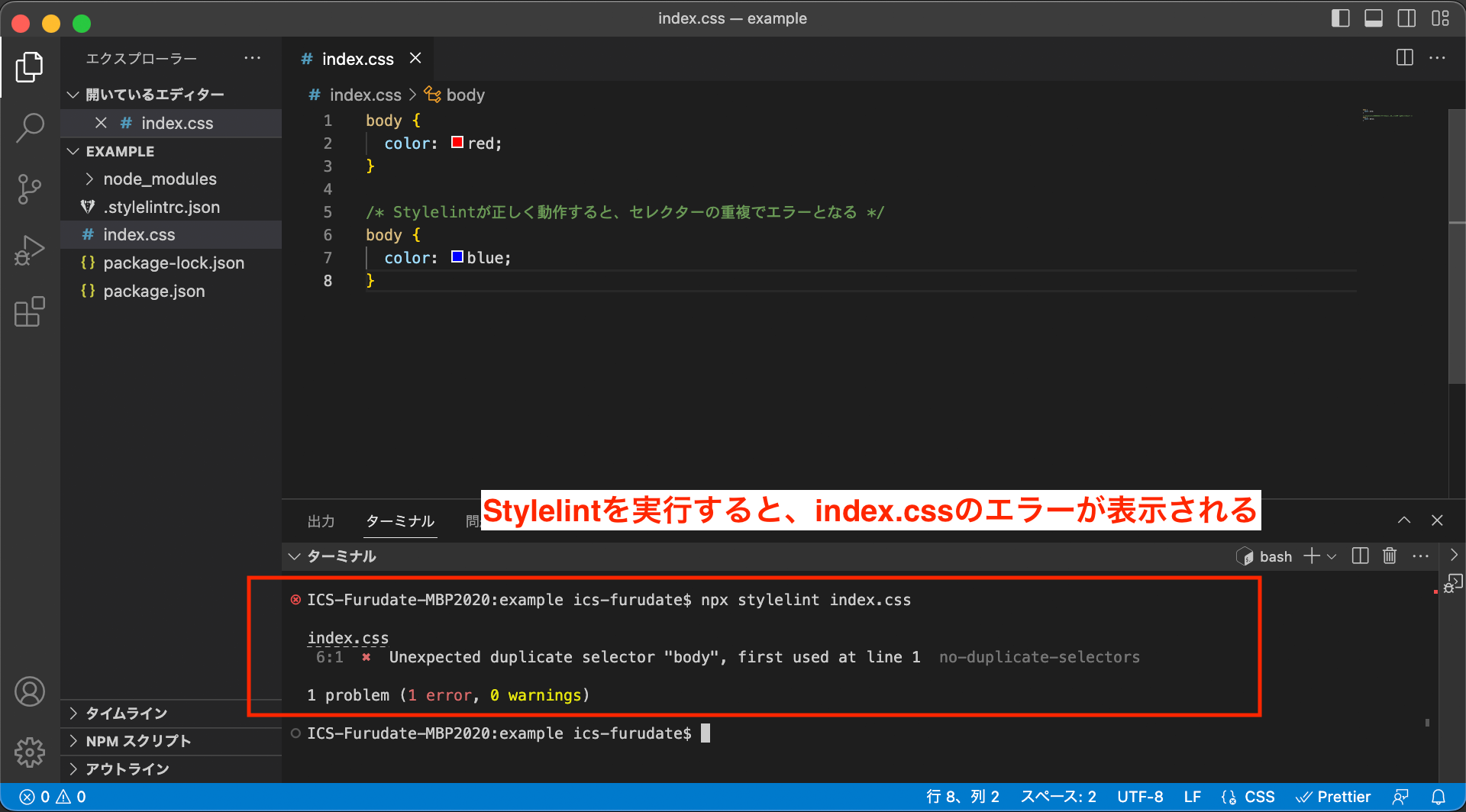
When you run the command, an error message for no-duplicate-selectors is displayed for body.
After running the command in the terminal, an error message for the no-duplicate-selectors rule is displayed.
That completes the setup steps.
Settings for practical use
You can specify coding style in detail by adding more Stylelint rules, but there are many rules, so configuring them one by one is not realistic.
This section briefly introduces what kinds of settings are useful for practical use.
Stylelint’s official create-stylelint package can handle setup through the introduction of stylelint-config-standard, which is intended for CSS.
npm create stylelint@latest
To help explain what the configuration contains, the following section introduces the manual flow for adding a shareable config.
Use shareable configs
Specifying rules one by one for each project is labor-intensive. For that reason, in most cases, use a configuration file that already groups rules together, then extend rules as needed.
In Stylelint, configuration files created by the official maintainers or the community are published to npm under names such as stylelint-config-[any name]. The following official repository introduces published configuration files and plugins.
By specifying one of these configuration files in the extends field, you can use the same settings in your own project.
In the following example, the official configuration file stylelint-config-standard is installed and added to the extends field.
npm install -D stylelint-config-standard
stylelint.config.mjs
export default {
  extends: ["stylelint-config-standard"],
};
If you want to extend rules after setting extends, or override rules that are not suitable for the project, you can do so by specifying the rules field. The following example disables no-duplicate-selectors, which is enabled in stylelint-config-standard.
stylelint.config.mjs
export default {
  extends: ["stylelint-config-standard"],
  rules: {
    "no-duplicate-selectors": false,
  },
};
Some configuration files depend on other configuration files internally. For that reason, if you want to understand a configuration file in detail, you need to follow its dependencies.
For example, the official configuration files include stylelint-config-recommended and stylelint-config-standard, and stylelint-config-standard uses stylelint-config-recommended internally.
| Config | Features |
|---|---|
stylelint-config-recommended |
Less strict rule set |
stylelint-config-standard |
Somewhat stricter rule set. Extends stylelint-config-recommended |
At ICS, the following configuration files are often used.
- stylelint-config-standard-scss
- A configuration file that extends
stylelint-config-standardand stylelint-config-recommended-scss. It allows Stylelint to be used with Sass (SCSS syntax) in addition to CSS. ICS often uses Sass (SCSS syntax), and this config is adopted to operate with a strict rule set.
- A configuration file that extends
- stylelint-config-recess-order
- Sorts CSS properties based on the order defined in the configuration file.
Manage commands with auto-fixing
To make commands easier to run, it is useful to register npm scripts.
For details on npm scripts, see the Japanese article “Node.jsユーザーなら押さえておきたいnpm-scriptsのタスク実行方法まとめ”.
Stylelint can automatically fix some rules. Add the --fix argument to the command to run auto-fixing. It is convenient to manage a command with --fix so you can fix errors produced by supported rules.
Example package.json
{
  "scripts": {
    "fix": "stylelint \"**/*.css\" --fix"
  }
}
To support SCSS files, specify the extensions as follows.
{
  "scripts": {
    "fix": "stylelint \"**/*.{css,scss}\" --fix"
  }
}
Command to run
npm run fix
ESLint also has a --fix option, and the idea of designing when to run lint commands, such as in the editor, before commits, or in CI, is shared across linting tools. For details, see the article “Using ESLint effectively with the right rules and workflow”.
Run Stylelint automatically in an editor
Some applications can automatically run Stylelint by adding an extension or configuring the environment. This is useful when you want to check errors in the file you are working on.
This section uses Visual Studio Code as an example.
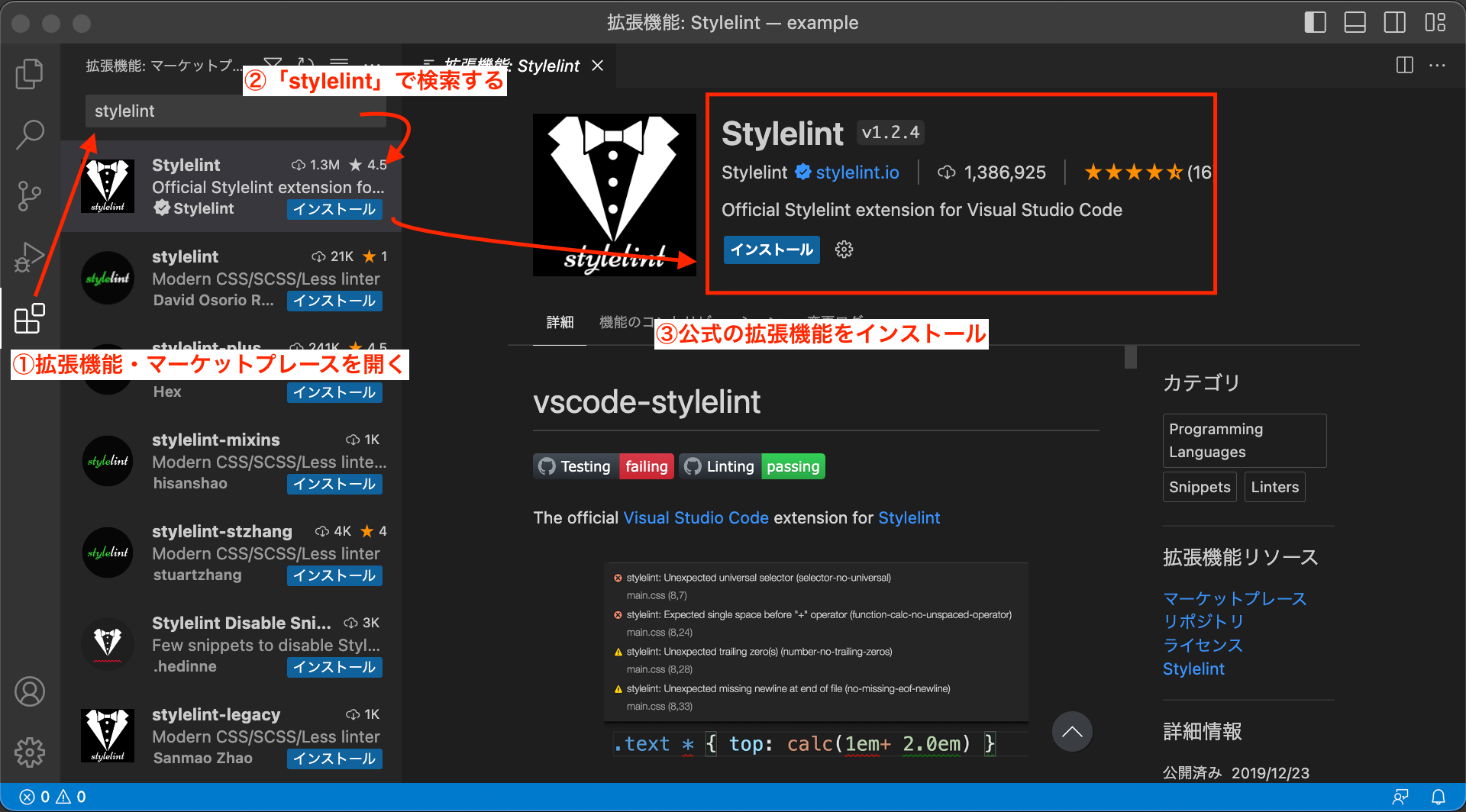
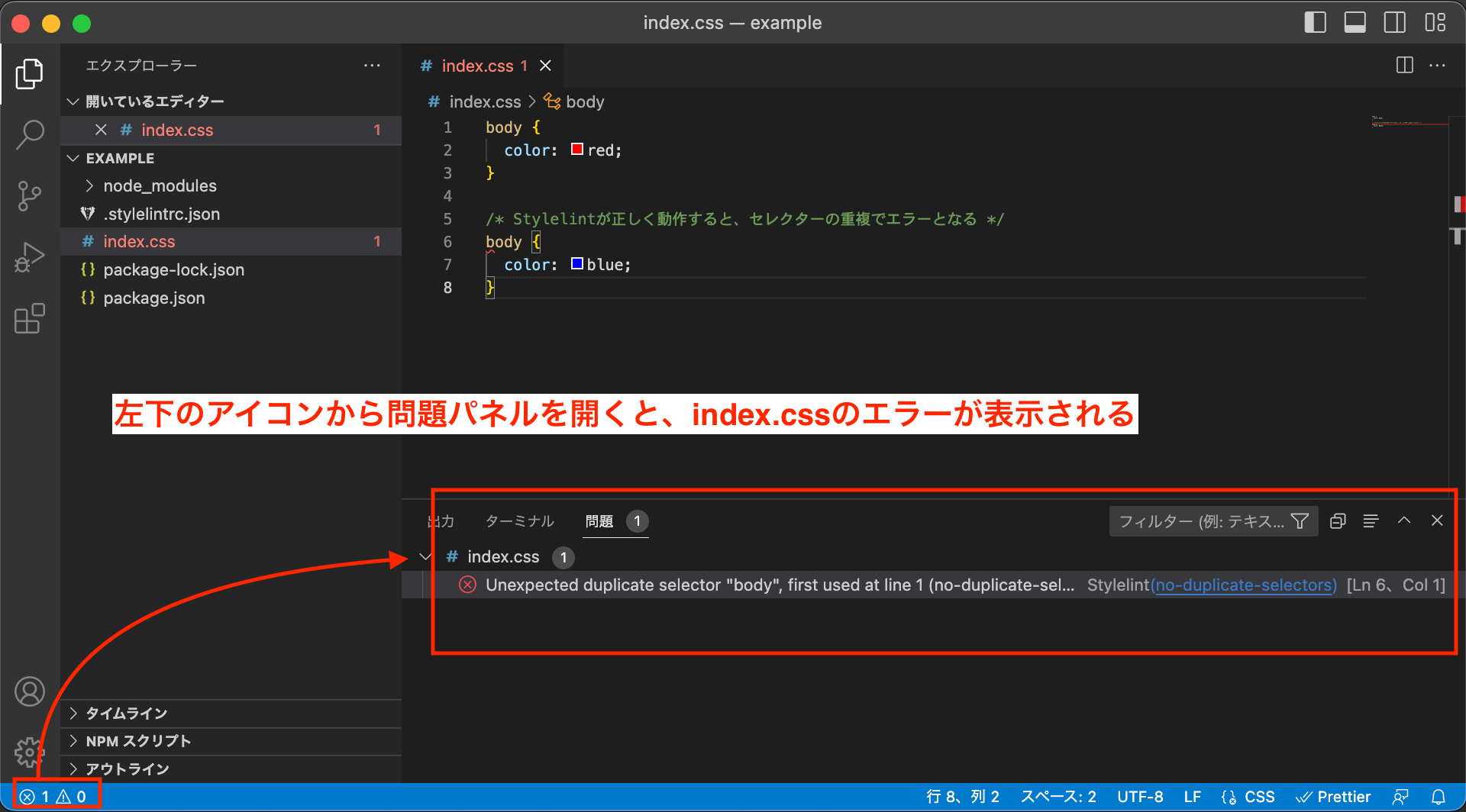
- Search for “stylelint” in the Visual Studio Code Marketplace or Extensions view. The official Stylelint extension appears, so install it.
- With a file containing errors open, open the Problems panel to check the errors in the current file.
Column: using Stylelint in more complex environments such as web frameworks
Stylelint can be customized for each project.
- In the configuration file, specify fields such as
customSyntax(add a custom syntax for the language),plugins(add plugins), andoverrides(override settings for specific files) - Specify excluded files with
ignoreFiles, or prepare a.stylelintignorefile
Some published configuration files already include environment settings like the following.
The details are omitted here, but sample files are available for Vue.js and React environments, with React using Emotion. Use them as references.
Conclusion
This article introduced how to set up Stylelint and the settings needed for practical use. Stylelint is useful for improving the code quality of CSS and SCSS, so it is worth using in projects.
The setup may feel somewhat difficult if you do not usually use Node.js. Since Stylelint is often used in projects, understanding the overall picture should make it easier to adopt.