
In Part 4 of this introduction to GSAP, we’ll cover opacity, advanced tween control, and utility functions that assist implementation.
Changing opacity
If you want to change CSS opacity, use opacity. You can also use alpha as a shorthand for opacity.
gsap.to(".rect", {
  opacity: 0
})
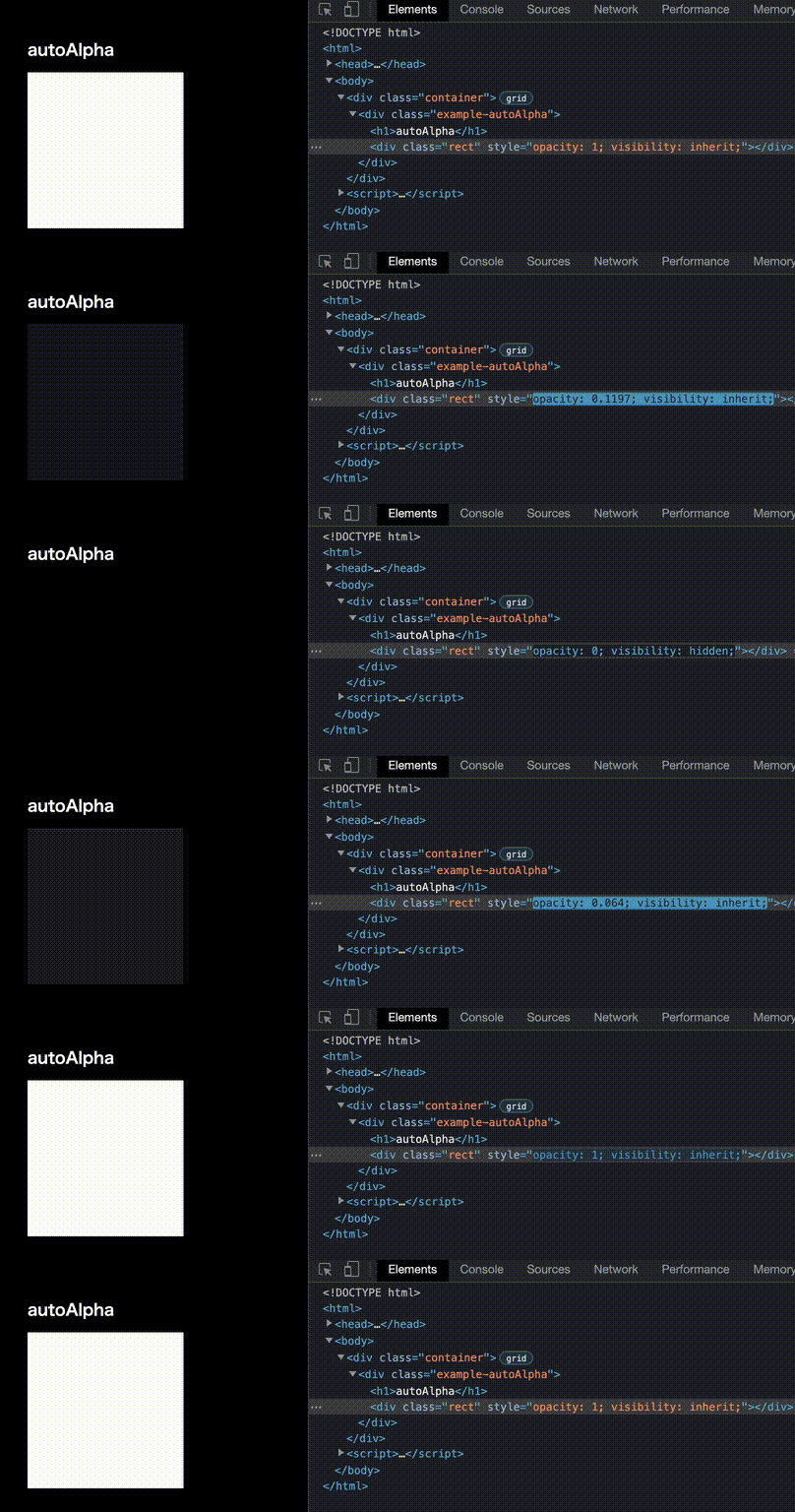
When you use autoAlpha, GSAP automatically sets visibility: hidden when the opacity reaches 0. At opacity: 0, text can still be selected, and screen readers may still read it. Use autoAlpha when you want the element to be effectively hidden.
gsap.to(".rect", {
  autoAlpha: 0
})
visibility changes along with opacity.
Relative values
With gsap.to(), you can specify values relative to the current value using strings such as "+=number" and "-=number".
// Add 30 to the current value
gsap.to(".example-scale .rect", {
  rotate: "+=30",
  duration: 1,
});

// Reduce the hue by 45 degrees from the current value
gsap.to(".example-color .rect", {
  backgroundColor: "hsl(-=45, 50%, 50%)",
  duration: 0.3,
});
Personally, I rarely use relative values because they can make behavior less stable, but it’s good to keep the feature in the back of your mind.
Tween callbacks
You can observe tween timing with callback functions. Here’s how to specify behavior for when a tween starts, updates, and completes.
// Specify callbacks
gsap.to(".rect", {
  x: 200,
  duration: 2,
  onStart: () => {
    console.log("start");
  },
  onUpdate: () => {
    console.log("update");
  },
  onComplete: () => {
    console.log("complete");
  },
});
※ This demo outputs to the console, so please check the Console panel in your browser’s developer tools.
There are also events for when a tween is interrupted (onInterrupt) or repeated (onRepeat). For details, see the documentation.
Tweening objects
GSAP can tween more than DOM elements. You can tween arbitrary objects as well. For example, let’s think about motion that moves around a circle. If the value you want to manage is the angle of rotation, create an object that contains radian.
const params = { radian: 0 };
To tween the params object, use the onUpdate callback introduced in the previous section. Inside onUpdate, calculate the XY coordinates from the value of radian. By applying those XY coordinates to another HTML element, you can place it on the circle.
const params = { radian: 0 };

gsap.to(params, {
  radian: Math.PI * 2,
  duration: 2,
  ease: "power4.inOut",
  onUpdate: () => {
    const { radian } = params;
    // Calculate Cartesian coordinates
    const x = Math.cos(radian) * 100;
    const y = Math.sin(radian) * 100;
    gsap.set(".circle", { x, y }); // Apply the coordinates
  },
  repeat: -1,
});
In my own projects, I often tween an intermediate object when controlling Three.js or PixiJS. It’s especially useful for managing 3D camera coordinates.
Overwrite
When you start a new tween, if that object is already being tweened, GSAP provides an overwrite feature that can replace the existing tween.
Let’s think about button hover behavior. Suppose the mouseover tween is still playing when mouseout fires and a new tween starts. You might expect the latter tween to take precedence and play naturally. However, depending on how the tweens are written, the display can become unnatural.
In the next demo, you can compare the difference with and without overwrite. If you rapidly move the pointer in and out over the button, the button at the top of the screen starts to look wrong. If the mouseout tween finishes before the mouseover tween, the remaining part of the original mouseover tween gets applied afterward.
To fix this, enable overwrite.
gsap.to(element, {
  scale: 1.2,
  duration: 0.5,
  overwrite: true, // Enable overwrite
});
- If set to
true, all tweens of the same target are stopped immediately, regardless of which properties they affect. - If set to
auto, GSAP checks active tweens for conflicts when the tween first renders. It stops only conflicting properties on other tweens, leaving non-overlapping ones intact. - If set to
false, no overwriting occurs.
The default is false, so if you think motions may conflict, set it to "auto" or true.
Overwrite is implemented in many tween libraries and is one of their important features.
quickSetter
GSAP is also useful for implementing a cursor follower effect. In cases that update very frequently, use the gsap.quickSetter() method. A minimal implementation looks like this.
// Get the element
const circle = document.querySelector(".circle");
const xSet = gsap.quickSetter(circle, "x", "px");
const ySet = gsap.quickSetter(circle, "y", "px");

window.addEventListener("mousemove", (event) => {
  xSet(event.x);
  ySet(event.y);
});
In the following sample, the cursor follower becomes larger only when it touches a button.
Useful utility functions
GSAP provides various utility functions.
| Method | Description | Example |
|---|---|---|
| clamp() | Limit a value to a specified range | clamp(0, 100, -12) → 0 |
| getUnit() | Extract a unit from a string | getUnit("30px") → "px" |
| interpolate() | Interpolate between two values, including colors | interpolate("red", "blue", 0.5) → "rgba(128,0,128,1)" |
| mapRange() | Map one range to another | mapRange(-10, 10, 0, 100, 5) → 75 |
| normalize() | Normalize a number to a value between 0 and 1 | normalize(100, 200, 150) → 0.5 |
| pipe() | Chain functions and pass each result to the next | pipe(clamp(0, 100), snap(5))(8) → 10 |
| random() | Generate random numbers or select a random array item | random(["red", "green", "blue"]) → "red" (one possible result) |
| shuffle() | Shuffle an array in place | shuffle([1, 2, 3, 4, 5]) → [4, 2, 1, 5, 3] (one possible result) |
| snap() | Snap to the nearest increment or array value | snap(5, 13) → 15 |
| splitColor() | Split a color into RGB components; pass true for HSL |
splitColor("red") → [255, 0, 0] |
| toArray() | Convert array-like values or selectors into an array | toArray(".class") → [element1, element2] |
| wrap() | Wrap values back to the start of a range | wrap(5, 10, 12) → 7 |
| wrapYoyo() | Reflect values back through a range | wrapYoyo(5, 10, 12) → 8 |
For people who can write their own code, the numerical utility functions may not feel especially novel. However, I think the utility functions for working with color are powerful. For example, interpolate() can calculate an intermediate color.
const value4 = gsap.utils.interpolate(
  "red", // Color name
  "rgb(0, 0, 255)", // RGB notation
  0.5, // Calculate the 50% value
); // rgba(128,0,128,1)
The selector() utility function
The gsap.utils.selector() method lets you search only within a specific element.
const container = document.querySelector(".container");
const q = gsap.utils.selector(container);

gsap.to(q(".box"), {
  x: 100,
  stagger: 0.1,
});
Using useGSAP() with React
In React, you can use the useGSAP() hook from the @gsap/react package. Passing a useRef() reference as scope limits selector text inside the callback to descendants of that element. It also automatically cleans up the GSAP animations when the component unmounts.
import React, { useRef } from "react";
import { gsap } from "gsap";
import { useGSAP } from "@gsap/react";

gsap.registerPlugin(useGSAP);

const Box = ({ children }) => <div className="box">{children}</div>;
const Container = () => (
  <div>
    <Box>Nested Box</Box>
  </div>
);

const App = () => {
  const el = useRef(null);

  useGSAP(
    () => {
      gsap.to(".box", {
        x: 100,
        stagger: 0.33,
        repeat: -1,
        repeatDelay: 1,
        yoyo: true,
      });
    },
    { scope: el },
  );

  return (
    <div className="app" ref={el}>
      <Box>Box</Box>
      <Container />
      <Box>Box</Box>
    </div>
  );
};
Reference article: Getting Started with GSAP + React. - Learning Center - GreenSock
Integrating with other libraries
GSAP pairs well with Canvas- and WebGL-related rendering libraries, and it can control them flexibly. To close, here are a few demos I created.
A PixiJS + GSAP integration demo.

A Three.js + GSAP integration demo.
GSAP license (100% free)
GSAP is 100% free, including commercial use. In the past, some use cases required a paid license, but since April 2025, even the bonus plugins have been available for free. For details, see the following official pages.
Conclusion
GSAP is invaluable when creating creative websites. The features introduced in this article are only a small subset of what it offers. Master GSAP and put it to use in creating better content.
Side note
Counting from the release of TweenMax for Flash in 2008, GSAP has an 18-year history as of 2026. The roots of GSAP’s features can also be seen in Tweener, an ActionScript library that was widely used at the time.
There is an article on the Gijutsu-Hyoron site that introduces Tweener, and rereading it brings back a sense of nostalgia.
Although the platform technology has changed, I feel that its DNA has been passed down across generations.