
The free, feature-rich Git client Sourcetree is easy to adopt and offers a wide range of features, making it widely used. Git has many features beyond committing and pushing, and using them well can make development more efficient. This article focuses on how to undo and adjust commits, an essential part of working with Git, and explains the following four features.
- Revising or redoing a commit with amend
- Undoing a commit with reset
- Reverting a commit with revert
- Applying a commit from another branch with cherry-pick
Note: This article uses macOS 26.5.1 and Sourcetree 4.2.18 as of June 2026. The same steps can be used in the Windows version of Sourcetree.
Amending the previous commit
After committing, have you ever noticed that a file was missing from the commit, or that the commit message was wrong and needed to be fixed? As long as you have not pushed to the remote repository yet, you can resolve this with the git commit --amend command.
git commit --amend
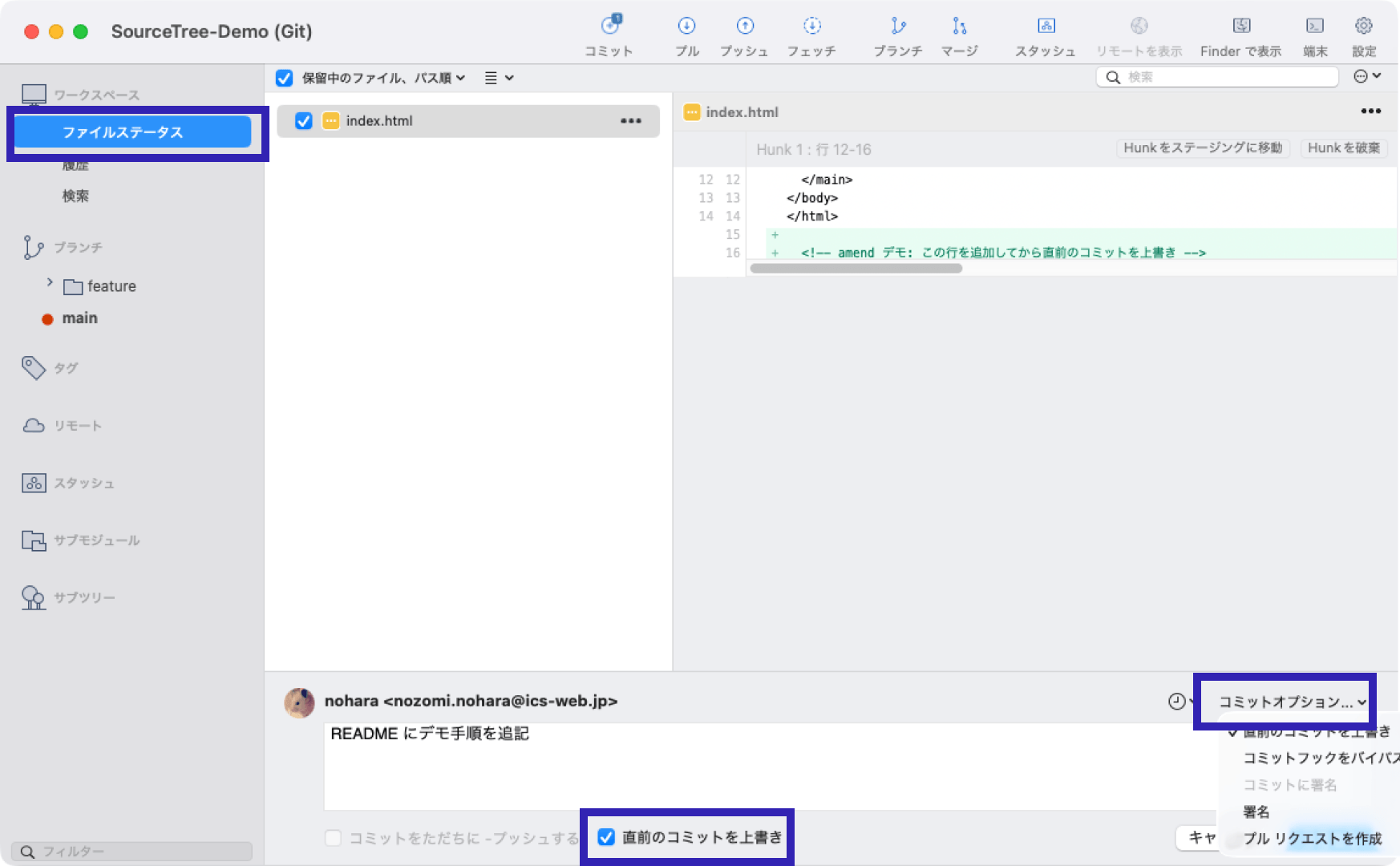
In the [File Status] screen, check [Amend last commit], or open [Commit Options] and check [Amend last commit], to edit the previous commit. When this option is enabled, the message from the previous commit appears. You can edit the message or add files, then click [Commit] to apply the changes.
Undoing a commit
Git provides a way to undo commits. Before you push to a remote repository, you can undo a commit with a simple operation. Use the git reset command when, for example, you decide after committing that you do not want to commit yet, or when you accidentally commit to the wrong branch. If you have already pushed to a remote repository, the commit history remains, but you can restore the changes by using “Reverting a commit” in the next section.
git reset (--soft | --mixed | --hard)
The git reset command has three options, which you can choose based on your purpose.
- soft
Moves the branch back to the selected commit while keeping all changes in the index. This is useful when you want to combine small commits or reorganize them. - mixed
Moves the branch back to the selected commit, resets the index, and keeps all changes in the working tree. This is the default option when no option is specified. - hard
Moves the branch back to the selected commit and discards all changes. This is useful when you want to remove an incorrect commit.
Note: The folder where you actually work is called the “working tree.” The “index” is the area that holds changes before they are committed, such as files selected for commit in the tool.
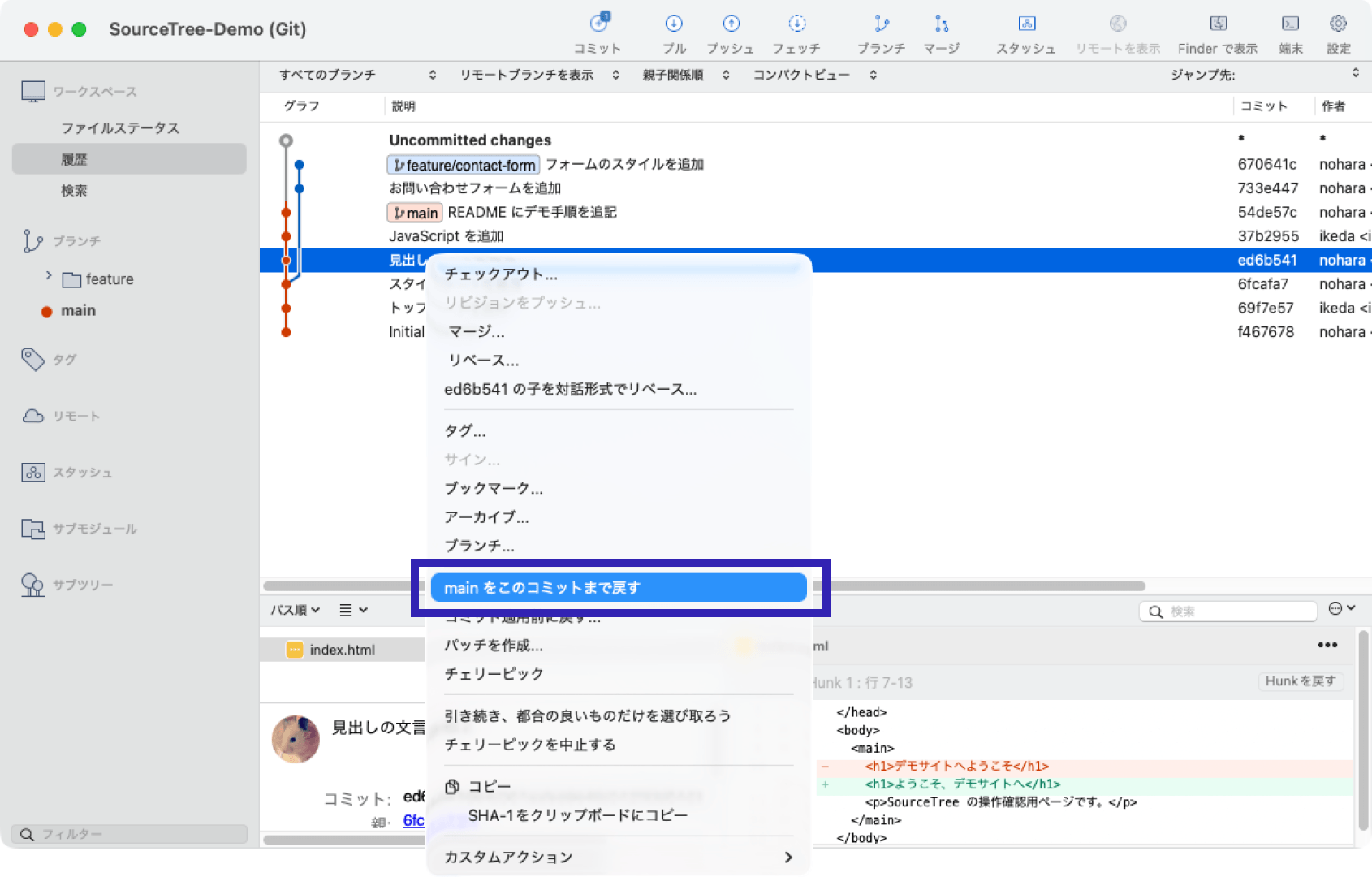
From the commit history list, right-click the commit you want to return to and select [Reset to this commit]. A screen appears where you can choose one of three options: [Soft], [Mixed], or [Hard]. Select the mode you want to use and run it.
Reverting a commit
When you want to undo a commit that has already been pushed to a remote repository, use the git revert command. This lets you restore the changes from a specific commit. Unlike git reset, however, this command does not move history back or make the commit disappear. Instead, it creates a new commit that cancels out the changes. This makes it possible to restore the changes even after pushing to a remote repository.
git revert
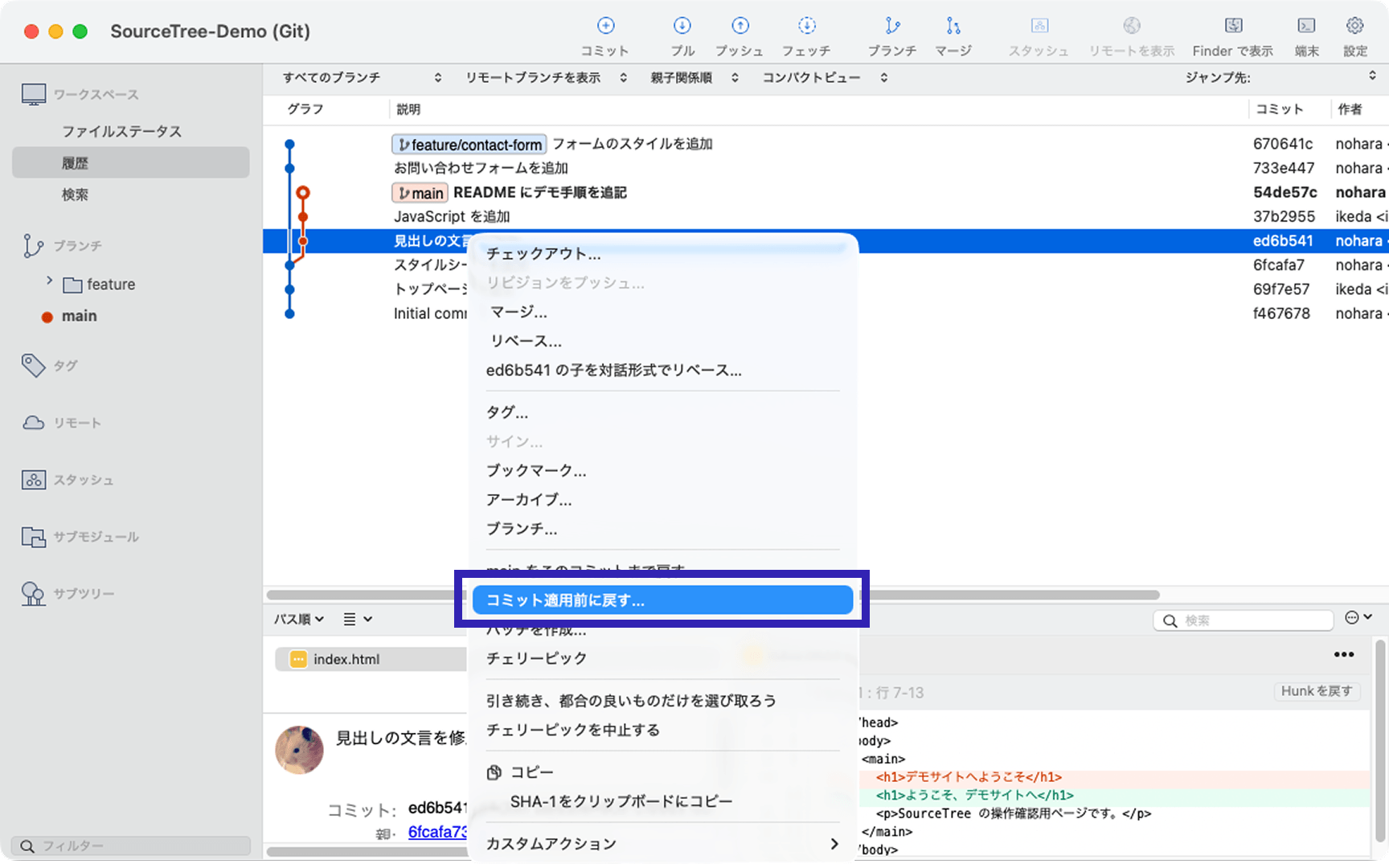
From the commit history list, right-click the commit you want to revert and select [Reverse commit…]. A commit that cancels out the selected commit is created. If there are no issues, push it to apply the change to the remote repository.
Cherry-pick
As the name suggests, cherry-pick means selecting only what you need. In Git, cherry-pick lets you apply only a specific commit from another branch to the current branch. Because you can apply changes commit by commit, it is useful when you want to apply the same fix to another branch.
git cherry-pick [-r] [-n]
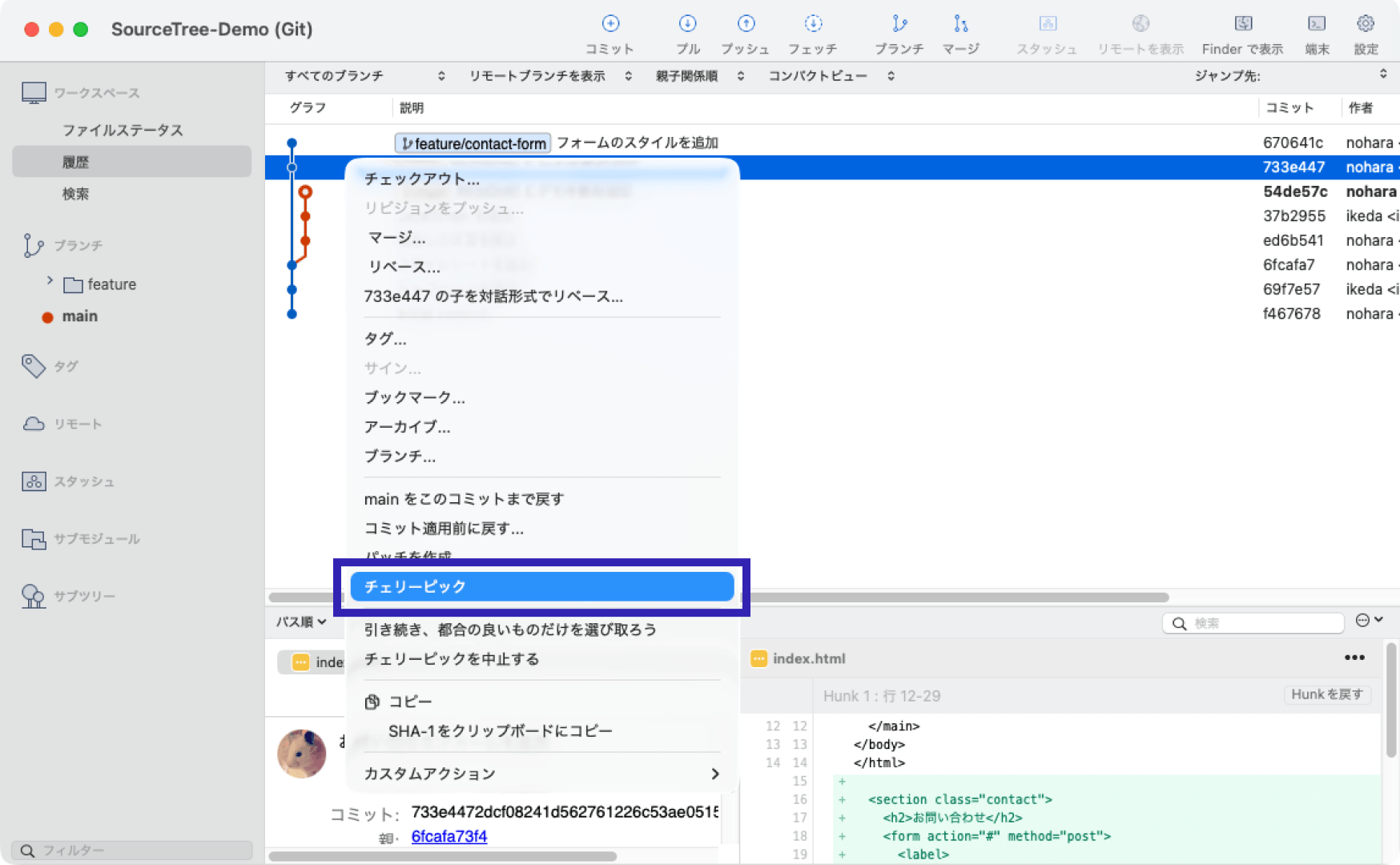
From the commit history list, right-click the commit you want to apply and select [Cherry-pick]. Sourcetree does not provide an option to choose whether to commit directly, so a dialog appears asking whether it is OK to commit. Run it if there are no issues.
Conclusion
These operations are not used constantly, but knowing them helps you respond smoothly when needed. Using them also reduces unnecessary commits and improves development efficiency.
Sourcetree has many other useful features. For more details, see the article “SourceTree入門 - 基本操作(diff, stash, tag, revert, cherry-pick).”