
The JavaScript library GSAP is useful for creating motion on websites. In Getting started with GSAP, part 1: Basics of JavaScript animation, we explained the basics of GSAP. In this second half, aimed at intermediate and advanced users, we will cover the following topics.
What you’ll learn in this article
- Timeline features
- The ScrollTrigger plugin
- The MotionPathPlugin
quickSetter- Utility functions
Timeline
A timeline is an important feature that you will definitely use when creating advanced effects with GSAP.
Because it lets you build complex motion in chronological order, it is convenient for creating and managing many tweens.
Official tutorial video. Build an entrance animation with just five lines of code.
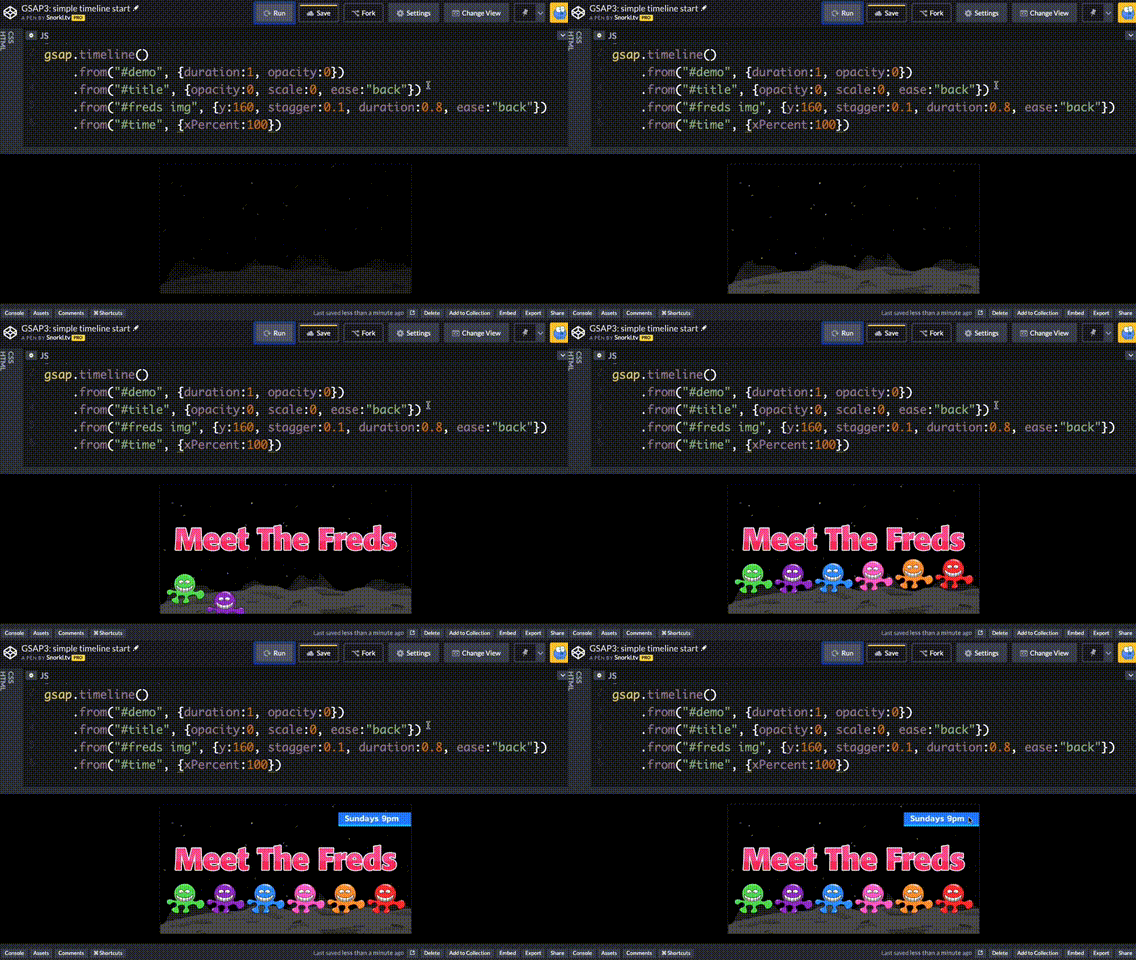
To use it, create an instance with gsap.timeline(), and then add gsap.to() tweens to the timeline with the add() method.
const tl = gsap.timeline({ repeat: -1, repeatDelay: 0.5 }); // initialize first
// add the elements you want to animate one after another
tl.add(gsap.to(".rect", { x: 100, duration: 1 })); // move horizontally
tl.add(gsap.to(".rect", { y: 100, duration: 1 })); // move vertically
tl.add(gsap.to(".rect", { rotation: 360, duration: 1 })); // rotate
tl.add(gsap.to(".rect", { x: 0, duration: 1 })); // move horizontally
tl.add(gsap.to(".rect", { y: 0, duration: 1 })); // move vertically
The timeline’s to() method is a shortcut for add(gsap.to()), so you can also write it like this.
const tl = gsap.timeline({ repeat: -1, repeatDelay: 0.5 }); // initialize first
// add the elements you want to animate one after another
tl.to(".rect", { x: 100, duration: 1 }); // move horizontally
tl.to(".rect", { y: 100, duration: 1 }); // move vertically
tl.to(".rect", { rotation: 360, duration: 1 }); // rotate
tl.to(".rect", { x: 0, duration: 1 }); // move horizontally
tl.to(".rect", { y: 0, duration: 1 }); // move vertically
You can also write it as a chain of methods. In every case, the only difference is the style of writing; the execution result is the same.
gsap
  .timeline({ repeat: -1, repeatDelay: 0.5 }) // initialize first
  // add the elements you want to animate one after another
  .to(".rect", { x: 100, duration: 1 }) // move horizontally
  .to(".rect", { y: 100, duration: 1 }) // move vertically
  .to(".rect", { rotation: 360, duration: 1 }) // rotate
  .to(".rect", { x: 0, duration: 1 }) // move horizontally
  .to(".rect", { y: 0, duration: 1 }); // move vertically
Timeline methods
The following are the main methods used when creating timelines.
| Method | Description |
|---|---|
| add() | Adds a tween, timeline, callback, or label to the timeline. |
| to() | Adds a gsap.to() tween to the end of the timeline. |
| from() | Adds a gsap.from() tween to the end of the timeline. |
| fromTo() | Adds a gsap.fromTo() tween to the end of the timeline. |
| set() | Sets values at a specific timing. |
| call() | Calls a function at a specific timing. |
Specifying time on a timeline
If you connect motion strictly in series, it tends to become stiff, step-by-step motion. To make the presentation feel smoother, you often overlap motions. In the following example, the first half uses step-by-step motion, and the second half overlaps the animations.
gsap
  .timeline({ repeat: -1, repeatDelay: 0.5 })
  // 🌟step-by-step motion
  .set("h1", { textContent: "show" })
  .from(".rect1", { y: -32, opacity: 0, duration: 0.5 })
  .from(".rect2", { y: 32, opacity: 0, duration: 0.5 })
  .from(".rect3", { y: -32, opacity: 0, duration: 0.5 })
  .from(".rect4", { y: 32, opacity: 0, duration: 0.5 })
  .from(".rect5", { y: -32, opacity: 0, duration: 0.5 })
  .from(".rect6", { y: 32, opacity: 0, duration: 0.5 })
  // 🌟from here, the motions overlap
  .set("h1", { textContent: "hide" }, "+=1") // wait 1 second
  .to(".rect1", { y: -32, opacity: 0, duration: 0.5 })
  .to(".rect2", { y: 32, opacity: 0, duration: 0.5 }, "-=0.4") // start 0.4 seconds earlier
  .to(".rect3", { y: -32, opacity: 0, duration: 0.5 }, "-=0.4")
  .to(".rect4", { y: 32, opacity: 0, duration: 0.5 }, "-=0.4")
  .to(".rect5", { y: -32, opacity: 0, duration: 0.5 }, "-=0.4")
  .to(".rect6", { y: 32, opacity: 0, duration: 0.5 }, "-=0.4");
Timeline timing can be specified with the third argument, position, of the to() or from() methods.
If you pass a number as the third argument, you specify the absolute time on the timeline at which it should start. If you pass a string such as "-=2", it starts 2 seconds before the time it would normally have started based on the previous setting. If you specify a percentage such as "-=50%", it starts when 50% of the previous tween has elapsed.
Values you can specify for timing besides numbers:
| Value | Example | Description | Frequency |
|---|---|---|---|
number |
1 |
Start this many seconds from the beginning of the timeline. | ★ |
+=number |
+=1 |
Leave this many seconds after the previous tween ends. | ★ |
-=number |
-=1 |
Overlap this many seconds with the end of the previous tween. | ★ |
< |
< |
Start when the previous tween starts. | ★ |
<number |
<1 |
Start this many seconds after the previous tween starts. | |
> |
> |
Start when the previous tween ends. | |
>number |
>1 |
Leave this many seconds after the previous tween ends. |
Personally, I recommend mastering the ones marked with “★” (I do not use the others very often myself).
There are many other ways to specify positions as well, so please refer to the official guide, Timeline Tip: Understanding the Position Parameter - Learning Center - GreenSock.
Nesting timelines
Timelines can also be nested. GSAP timelines tend to become long, so it is a good idea to organize your code by using nesting effectively.
Use the gsap.timeline.add() method to add another timeline instance into a timeline.
// function that creates a timeline
function createChildTimeline(target) {
  const tl = gsap.timeline();
  tl.to(target, { x: 100, duration: 1 });
  return tl; // return the timeline
}

// create the root timeline
const rootTl = gsap
  .timeline()
  .add(createChildTimeline(".a")) // add a child
  .add(createChildTimeline(".b")); // add a child
Controlling timeline time
You can seek a GSAP timeline with the timeline.seek() method. In general, “seek” means moving the playback position to any desired point in a playing video or animation.
In the following sample, an input element is used as a seek bar. Move the seek bar and confirm that you can freely move back and forth through the timeline’s time. You can also change the playback speed.
The demo is built interactively with Vue.js.
The following methods are related to time. time(), duration(), and progress() are all provided as both getters and setters.
| Method | Description |
|---|---|
| time() | Gets or sets the local position of the playhead (basically the current time; repeats and repeatDelay are not included). |
| duration() | Gets the duration (in seconds) of the timeline. When used as a setter, it adjusts the timeline’s timeScale so that it fits within the specified duration. |
| progress() | Gets or sets the timeline’s progress. It is a value from 0 to 1, representing the position of the virtual playhead (0 is the start, 0.5 is halfway, and 1 is complete). |
| seek() | Jumps to a specific time. |
Tweening timeline time
You can apply a tween to a timeline’s time axis. Use the tweenTo() method. It can be useful as a staging technique for timelines that control multiple objects.
// apply to a grid
const tl = gsap
  .timeline()
  .from(".rect", {
    scale: 0,
    rotation: -360,
    duration: 0.5,
    stagger: {
      each: 0.1,
      grid: "auto", // start in a grid pattern
    },
  })
  .addLabel("complete"); // add a label

// tween the time axis
tl.tweenTo("complete", {
  duration: 4,
  // specify easing for the time axis
  ease: "slow(0.4, 0.9, false)",
  // note: slow requires the EasePack plugin
});
| Method | Description |
|---|---|
| addLabel() | Adds a label to the timeline so that important positions/times can be marked easily. |
| tweenTo() | Creates a linear tween that scrubs the playhead to a specific time and then stops. |
Timeline timeScale
Using a timeline’s timeScale() method, you can stretch or compress its playback time. By using time scaling, you can make only part of the timeline play in slow motion. There are various names for this kind of effect, but I call it “time remapping.”
The time remapping effect is explained in detail in our article 高機能なモーション制作用JSライブラリGSAPを使ったタイムリマップ表現.
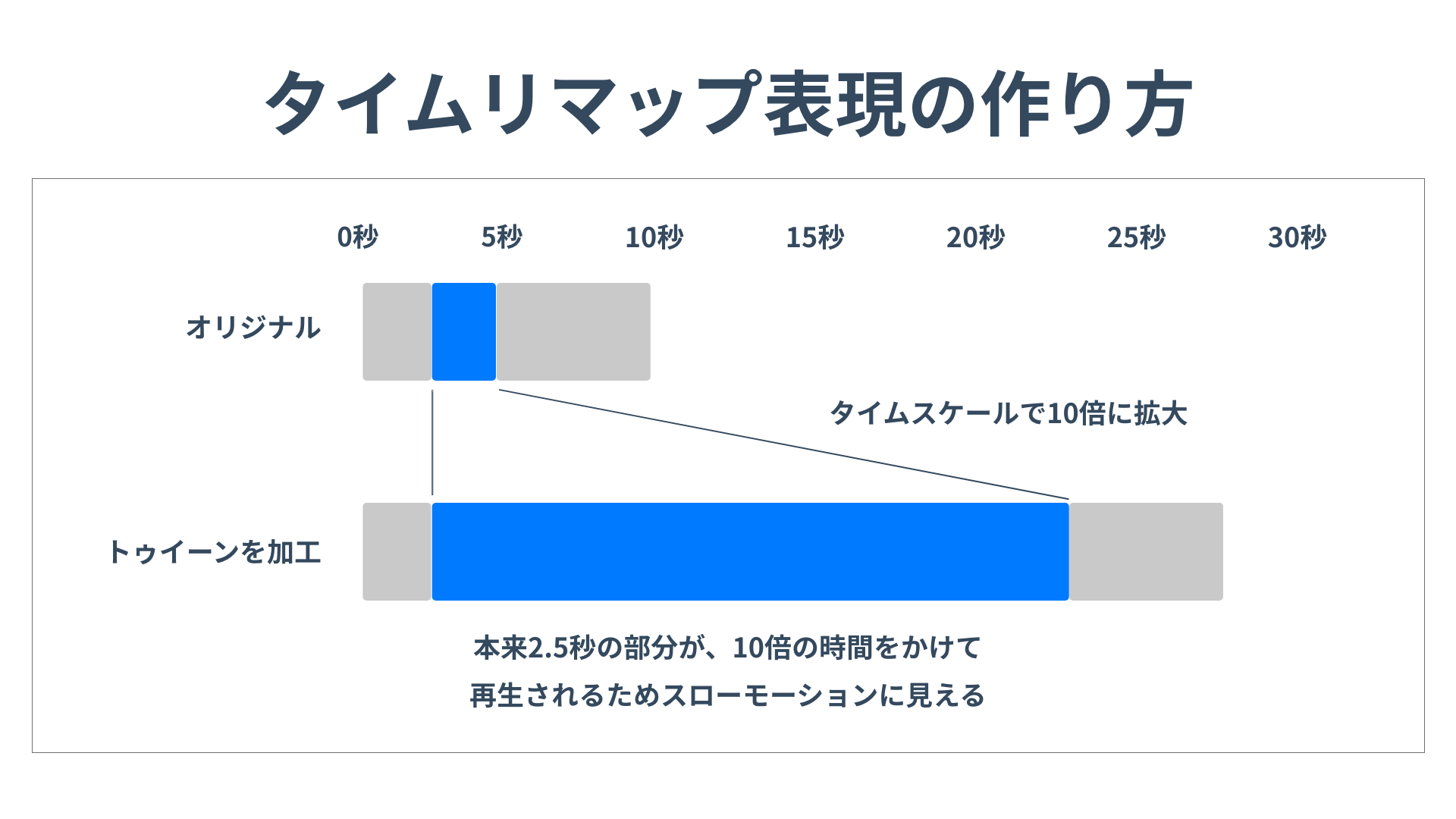
It may look somewhat similar to the tweenTo() method introduced earlier, but the control approach is different. The code style and flavor of the effect are also different, so feel free to choose whichever you prefer.
Scroll control
To control animations in sync with scrolling, use the GSAP plugin ScrollTrigger. ScrollTrigger is one of GSAP’s flagship features and is frequently used on creative websites.
Here is an example of what it can do. In the following sample, try scrolling downward. As the paragraphs enter the viewport, they appear in a flowing sequence.
With ScrollTrigger, you can easily create effects such as playing an animation when an element enters the viewport. If you want to do something when an element enters the viewport, you might think of JSでのスクロール連動エフェクトにはIntersection Observerが便利, but ScrollTrigger can handle more complex control.
What ScrollTrigger can do:
- Specify trigger timing
- Specify retriggering rules (for example, whether it should play again after it has already played)
- Specify whether elements should be pinned during scrolling
- Enable scrubbing tied to scroll position
How to use ScrollTrigger
A simple implementation example is as follows.
If you load it with a script tag, import the plugin from a CDN.
<script src="https://cdn.jsdelivr.net/npm/gsap@3.13.0/dist/ScrollTrigger.min.js"></script>
If you use npm, please refer to GreenSock | Docs | Installation.
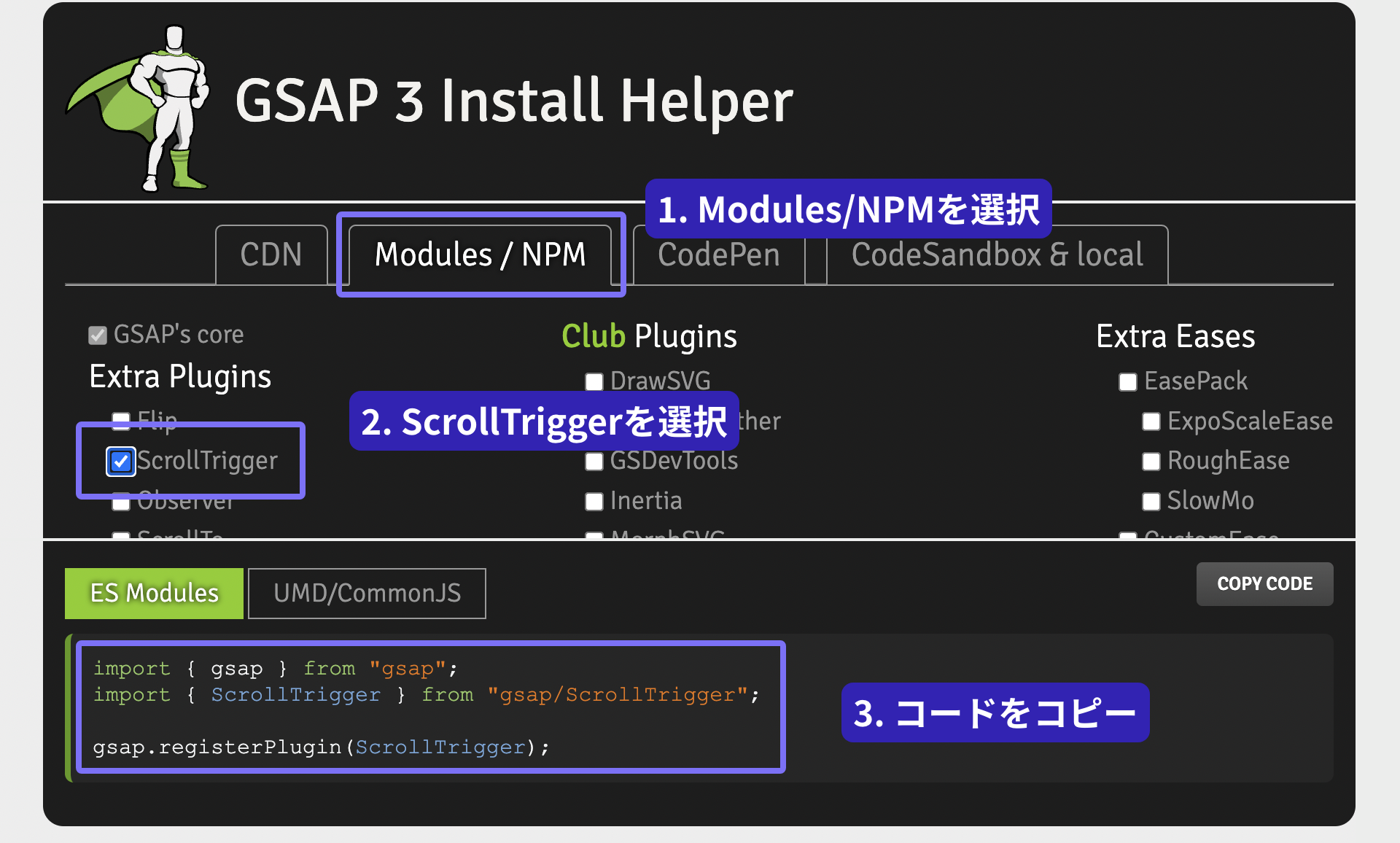
In JavaScript, register the plugin with the gsap.registerPlugin() method. Plugin registration only needs to happen once when JavaScript runs, so avoid calling gsap.registerPlugin() repeatedly.
// register the plugin
gsap.registerPlugin(ScrollTrigger);
Where you want to use it, specify the scrollTrigger property.
// get the elements to animate
gsap.utils.toArray("section").forEach((el) => {
  gsap.from(el, {
    x: 128,
    opacity: 0,
    duration: 1.5,
    ease: "power4.out",
    // ScrollTrigger settings
    scrollTrigger: {
      trigger: el, // target
    },
  });
});
The result is as follows (the effect is simpler than the demo above and the code is shorter).
For a detailed explanation of ScrollTrigger, please refer to our article トレンドウェブサイトから学べ! JavaScriptで作る本格スクロール演出.
Note: How is it different from CSS Scroll-driven Animations?
Chrome and Edge support a feature called “Scroll-driven Animations.”
ScrollTrigger in GSAP is more full-featured, but Scroll-driven Animations has the advantage of letting you create scroll animations with CSS alone, without using a JavaScript library.
Move along a curve
For tweens that follow a curve, use the GSAP plugin MotionPathPlugin.
It allows an element to move along an SVG path. A key highlight is that the dot rotates as it follows the path.
// register the plugin
gsap.registerPlugin(MotionPathPlugin);

gsap.to("#rect", {
  duration: 3,
  ease: "power4.inOut",
  // specify the path
  motionPath: {
    // move along the SVG path
    path: "#path",
    align: "#path",
    autoRotate: true,
    alignOrigin: [0.5, 0.5],
  },
});
You can also create curved tweens for arbitrary parameters. Personally, I use MotionPathPlugin more for this purpose than for the SVG-path use case introduced above. The key point is that you can apply curves not only to XY coordinates but also to various other properties.
// register the plugin
gsap.registerPlugin(MotionPathPlugin);
// (excerpt)
// move them all together
const list = gsap.utils.toArray(".rect");
list.forEach((rect, index) => {
  gsap.fromTo(
    rect,
    {
      x: "-40vw",
      scale: 0.0,
    },
    {
      duration: 2 + Math.random() * 3,
      repeat: -1,
      ease: "power1.inOut",
      x: "40vw",
      motionPath: [
        { y: (Math.random() - 0.5) * 20 + "vh", scale: 1 },
        { y: (Math.random() - 0.5) * 50 + "vh", scale: 0 },
      ],
      delay: Math.random(),
    },
  );
});
How to install MotionPathPlugin
MotionPath requires plugin registration. If you use a CDN, write it as follows.
<script src="https://cdn.jsdelivr.net/npm/gsap@3.13.0/dist/MotionPathPlugin.min.js"></script>
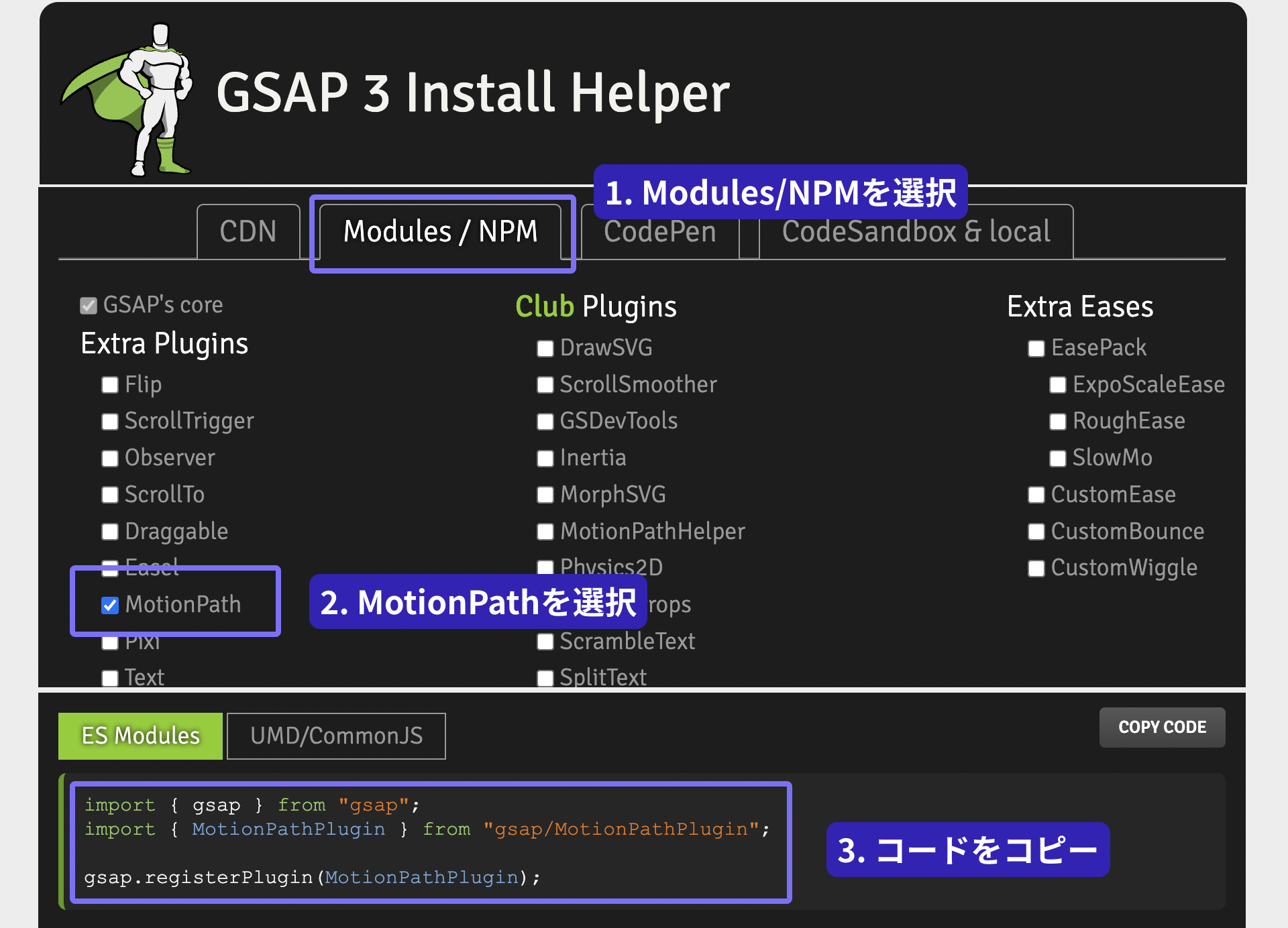
If you use npm, it is included in GSAP itself, but pay attention to the ES Modules import statement. It is helpful to refer to Install Helper.
FLIP plugin
For details, please refer to the article JavaScriptで実現するFLIPアニメーションの原理と基礎.
quickSetter
GSAP is also useful for implementing a cursor follower effect. In cases that update very frequently, use the gsap.quickSetter() method. A minimal implementation looks like this.
const xSet = gsap.quickSetter(circle, "x", "px");
const ySet = gsap.quickSetter(circle, "y", "px");

window.addEventListener("mousemove", (event) => {
  xSet(event.x);
  ySet(event.y);
});
In the following sample, the cursor follower becomes larger only when it touches a button.
Useful utility functions
GSAP provides various utility functions.
| Method | Description | Example |
|---|---|---|
| clamp() | Clamps a value so that it stays within a range. | clamp(0, 100, -12) → 0 |
| getUnit() | Gets the unit from a string. | getUnit("30px") → "px" |
| interpolate() | Interpolates between two values (including colors). | interpolate("red", "blue", 0.5) → "rgba(128,0,128,1)" |
| mapRange() | Maps one range to another. | mapRange(-10, 10, 0, 100, 5) → 75 |
| normalize() | Normalizes a value. Converts a number in a range to a ratio from 0 to 1. | normalize(100, 200, 150) → 0.5 |
| pipe() | Chains function calls, passing each result to the next function. | pipe(clamp(0, 100), snap(5))(8) → 10 |
| random() | Generates random numbers from parameters, or randomly selects elements from an array. | random(["red", "green", "blue"]) → "red" |
| shuffle() | Shuffles the contents of an array (mutates the original array). | shuffle([1, 2, 3, 4, 5]) → [4, 2, 1, 5, 3] |
| snap() | Snaps a value to the nearest value in a stepped sequence or array. | snap(5, 13) → 15 |
| splitColor() | Splits any color into red, green, and blue components (and alpha optionally). Passing true as the second argument converts it to HSL. |
splitColor("red") → [255, 0, 0] |
| toArray() | Converts various things into an array. Similar to Array.from(). |
toArray(".class") → [element1, element2] |
| wrap() | Converts values that exceed a range back to the beginning. Similar to wrapping with %. |
wrap(5, 10, 12) → 7 |
| wrapYoyo() | A variation of wrap(). When the value exceeds the range, it bounces back in a yoyo-like manner. |
wrapYoyo(5, 10, 12) → 8 |
For people who can write their own code, the numerical utility functions may not feel especially novel. However, I think the utility functions for working with color are powerful. For example, interpolate() can calculate an intermediate color.
const value4 = gsap.utils.interpolate(
  "red", // color name
  "rgb(0, 0, 255)", // RGB notation
  0.5, // calculate the 50% value
); // rgba(128,0,128,1)
The selector() utility function
The gsap.utils.selector() method is a utility function around querySelectorAll(). In plain JavaScript, you could just use document.querySelectorAll(), so it may not seem necessary at first glance, but it can be used together with React’s useRef().
import React, { useEffect, useRef } from "react";

const Box = ({ children }) => <div className="box">{children}</div>;
const Container = () => <div><Box>Nested Box</Box></div>;

const App = () => {
  const el = useRef();
  const q = gsap.utils.selector(el);

  // mount-time processing
  useEffect(() => {
    gsap.to(q(".box"), {
      x: 100,
      stagger: 0.33,
      repeat: -1,
      repeatDelay: 1,
      yoyo: true
    });
  }, []); // be careful during development when using <React.StrictMode>

  return (
    <div className="app" ref={el}>
      <Box>Box</Box>
      <Container/>
      <Box>Box</Box>
    </div>
  );
}
Reference article: Getting Started with GSAP + React. - Learning Center - GreenSock
Integrating with other libraries
GSAP pairs well with Canvas- and WebGL-related rendering libraries, and it can control them flexibly. To close, here are a few demos I created.
A PixiJS + GSAP integration demo.
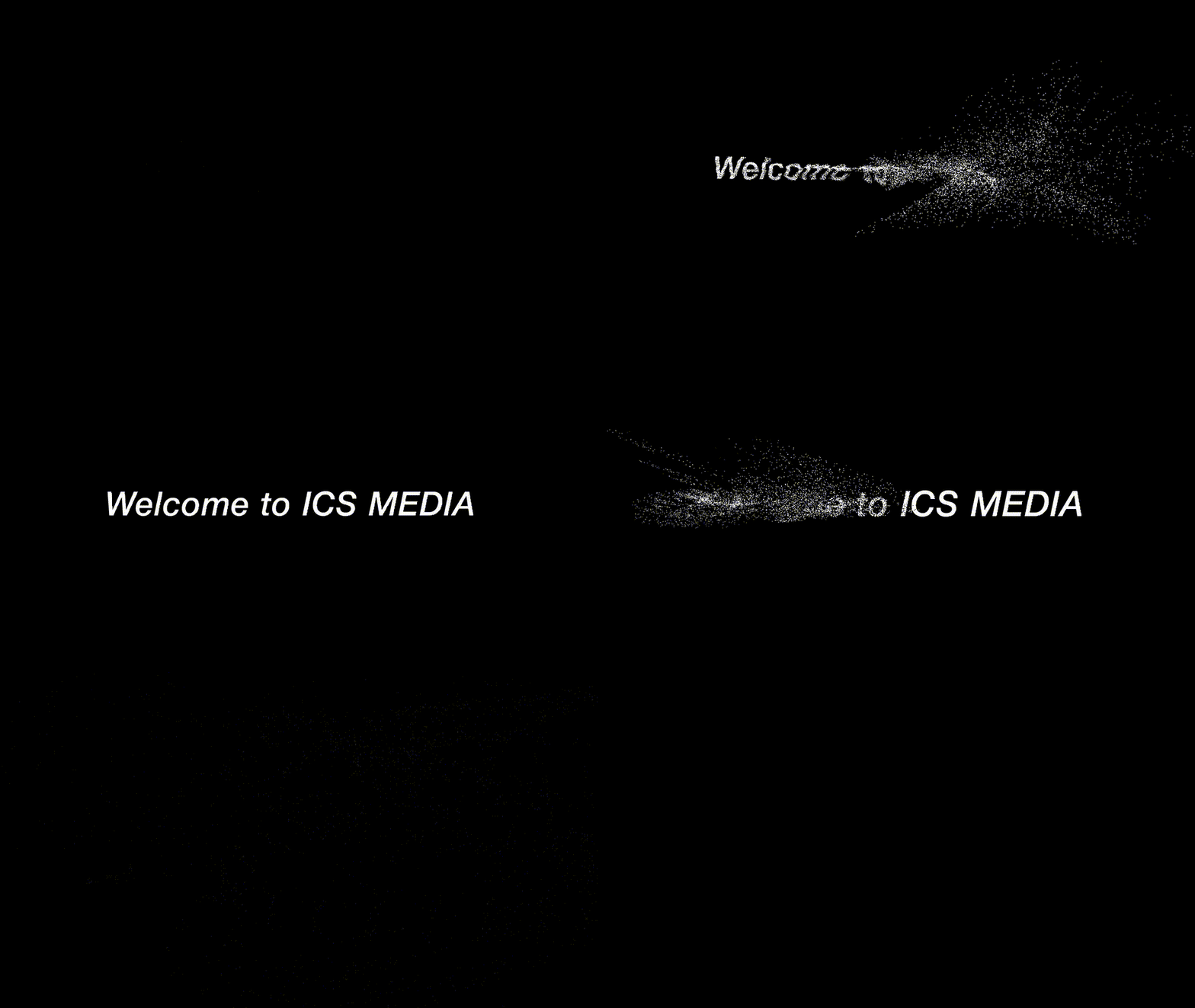
A Three.js + GSAP integration demo.
Conclusion
GSAP is extremely useful when creating creative websites. The features introduced in this article are only a small subset of the many features it offers. Master GSAP and put it to use in creating better content.
ICS MEDIA has published articles about GSAP as well. Please also refer to the following articles.
- 現場で使えるアニメーション系JSライブラリまとめ - GSAP, Anime.js, Motion, Tween.js, WebAnimationなど
- 最速のアニメーションライブラリはこれだ! JSライブラリの性能をDOMとWebGPUで比較検証
- 高機能なモーション制作用JSライブラリGSAPを使ったタイムリマップ表現
- フロントエンドから始めるアニメーション 最強のライブラリGSAPを手に入れよう
- トレンドウェブサイトから学べ! JavaScriptで作る本格スクロール演出
Side note
GSAP has a 15-year history if you count from the TweenMax era of Flash. Even now, I still think the API—where the target to animate and the configuration values are specified together in the same object—is unique, and perhaps that comes from its origin in the tweening library Tweener. There is an article on the Gijutsu-Hyoron site that introduces Tweener, and rereading it brings back a sense of nostalgia.
Although the platform technology has changed, I felt that the DNA has been passed down across generations.