
JavaScript has a module system. It was standardized in ECMAScript 2015 and is now available in all browsers. You may see it called ECMAScript Modules, ES Modules, or ESM. This article uses the name ES Modules.
Many developers already use ES Modules through frontend tools such as Vite and webpack. This article focuses on native browser support and the problems ES Modules solve and the benefits they offer.
HTML and JavaScript originally had no module system
In the early 2010s, JavaScript had no standard way to load one JavaScript file from another. To load external files, you added script elements to the HTML, as in this example:
<script src="js/vender/jquery.min.js"></script>
<script src="js/vender/jquery.cookie.js"></script>
<script src="js/vender/jquery.easing.1.3.js"></script>
<script src="js/common.js"></script>
<script src="js/utils.js"></script>
<script src="js/app.js"></script>
This approach has several drawbacks:
- JavaScript files are tightly coupled to the HTML.
- You cannot manage the JavaScript files independently.
- You need to pay attention to the loading order.
Several approaches emerged to address these problems, including AMD and CommonJS. ES Modules provide a standard alternative to these approaches.
Learning ES Modules through an example
There are a few steps to using ES Modules in a browser. Let’s go through them with an example.
Supported browsers
Current browsers support ES Modules. According to Can I use, support starts with the following versions:
- iOS Safari 10.1 (released in March 2017)
- macOS Safari 10.3 (released in March 2017)
- Chrome 61 (released in August 2017)
- Edge 16 (released in October 2017)
- Firefox 60 (released in May 2018)
Writing the module to be imported
First, create an external JavaScript file to use as a module. This example simply displays an alert in the browser.
sample-alert.js
export function sayMessage(message) {
  alert(message);
}
Use an export statement to expose a definition in the external file. Only exported definitions can be accessed from other JavaScript files.
Loading the module
Add the following code to the HTML. Older scripts used type="text/javascript"; ES Modules use type="module". Without type="module", declarations such as import and export cause an error.
Option 1
<html>
<head>
  <meta charset="UTF-8" />
  <script type="module">
    import {sayMessage} from "./sample-alert.js";
    sayMessage("Hello, world");
  </script>
</head>
<body>
</body>
</html>
You can also use the src attribute to specify an external file. ES Modules work with both inline scripts and external files.
Option 2
<html>
<head>
  <meta charset="UTF-8" />
  <script type="module" src="index.js"></script>
</head>
<body>
</body>
</html>
import { sayMessage } from "./sample-alert.js";
sayMessage("Hello, world");
In the from part of an import statement, specify a path beginning with ./, ../, or /. Use "./xxx.js", rather than "xxx.js", to make the file path explicit. The file extension is also required. Although Node.js has allowed extensions to be omitted, always include them when importing files in the browser.
Open the page in a browser to see the code from the JavaScript file run.
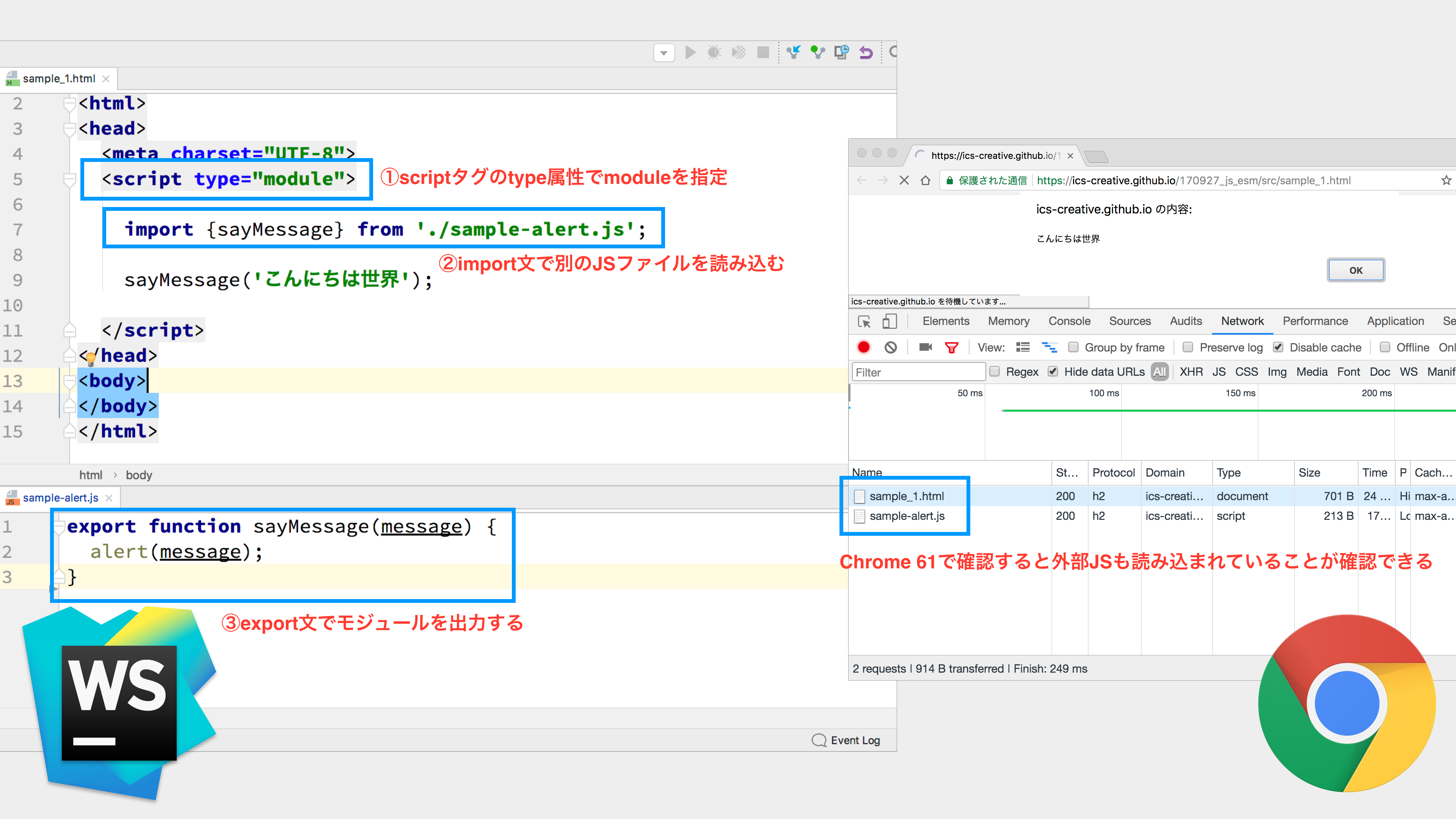
Writing import and export statements
ES Modules use import and export statements to share code between modules. The following sections cover the different forms. If you are new to modules, you can return to these details when you need them.
Export statements
There are several ways to export definitions from a module.
Named exports
Named exports expose definitions under specific names. Here are some examples:
// Export a function
export function sayMessage(message) {
  alert(message);
}

// Export a constant
export const PI = 3.14159;

// Export a class
export class User {
  constructor(name) {
    this.name = name;
  }
}

// Export an object
export const config = {
  apiUrl: 'https://api.example.com',
  timeout: 5000
};
Exporting multiple definitions together
You can define items individually and export them together afterward.
// Define items individually
function sayHello() {
  console.log('Hello');
}

const VERSION = '1.0.0';

// Export them together
export { sayHello, VERSION };
export default
Use export default to export one definition as the module’s default export.
export default function sayMessage(message) {
  alert(message);
}
Import statements
There are several ways to import definitions from a module.
Importing individual exports
You can select just the definitions you need from a module. This has several benefits:
- Importing only what you need makes the code’s intent clear.
- It can help optimize bundle size through tree shaking.
- It makes name conflicts easier to avoid.
// Import only the definitions you need
import { sayMessage, PI } from './sample-alert.js';

sayMessage('Hello');
console.log(PI);
Importing all exports
You can import all of a module’s exports at once. This is useful when:
- You use many of the module’s exports.
- You want to make the module’s namespace explicit.
- You want to avoid name conflicts.
// Import all exports from the module
import * as utils from './sample-alert.js';

utils.sayMessage('Hello');
console.log(utils.PI);
const user = new utils.User('Taro');
Keep the following points in mind:
- Importing all exports may increase the bundle size.
- Tree shaking may become less effective.
- As the module grows, it can become harder to see which exports are actually used.
Importing with aliases
You can give an imported definition a different name, or alias. This is useful when:
- The original name is too long.
- A variable or function with the same name already exists.
- You want a name that is easier to understand.
// Import with an alias
import { sayMessage as showMessage } from './sample-alert.js';

showMessage('Hello');
You can also assign aliases to multiple imports:
import {
  sayMessage as showMessage,
  PI as mathPI,
  User as UserClass
} from './sample-alert.js';
Importing a default export
When importing a default export, omit the braces ({ }).
You can choose any name for a default import; it does not have to match the name used when exporting it. Since the name can change between the export and the import, this style offers no advantage during development.
// Import the same function under different names
import showMessage from './sample-alert.js';
import displayMessage from './sample-alert.js';
import alertUser from './sample-alert.js';

// All three refer to the same function
showMessage('Hello');
displayMessage('Hello');
alertUser('Hello');
Re-exporting
You can import definitions from one module and re-export them from another. This is useful when you want to:
- Combine exports from multiple modules into one module.
- Organize a module’s structure.
- Give a definition a different name when re-exporting it.
// Import a definition and re-export it
import { sayMessage } from './sample-alert.js';
export { sayMessage };

// Or use the shorter form
export { sayMessage } from './sample-alert.js';

// Re-export with an alias
export { sayMessage as showMessage } from './sample-alert.js';

// Re-export multiple definitions
export {
  sayMessage,
  PI,
  User
} from './sample-alert.js';
Loading external libraries
An import statement can also use a URL. If an external library supports ES Modules, you can load it from a CDN as follows:
<html>
<head>
  <meta charset="UTF-8" />
  <script type="module">
    import * as THREE from 'https://cdn.jsdelivr.net/npm/three@0.175.0/build/three.module.js';

    // Three.js startup code omitted
  </script>
</head>
<body>
</body>
</html>
This demo uses Three.js, a JavaScript library for WebGL.
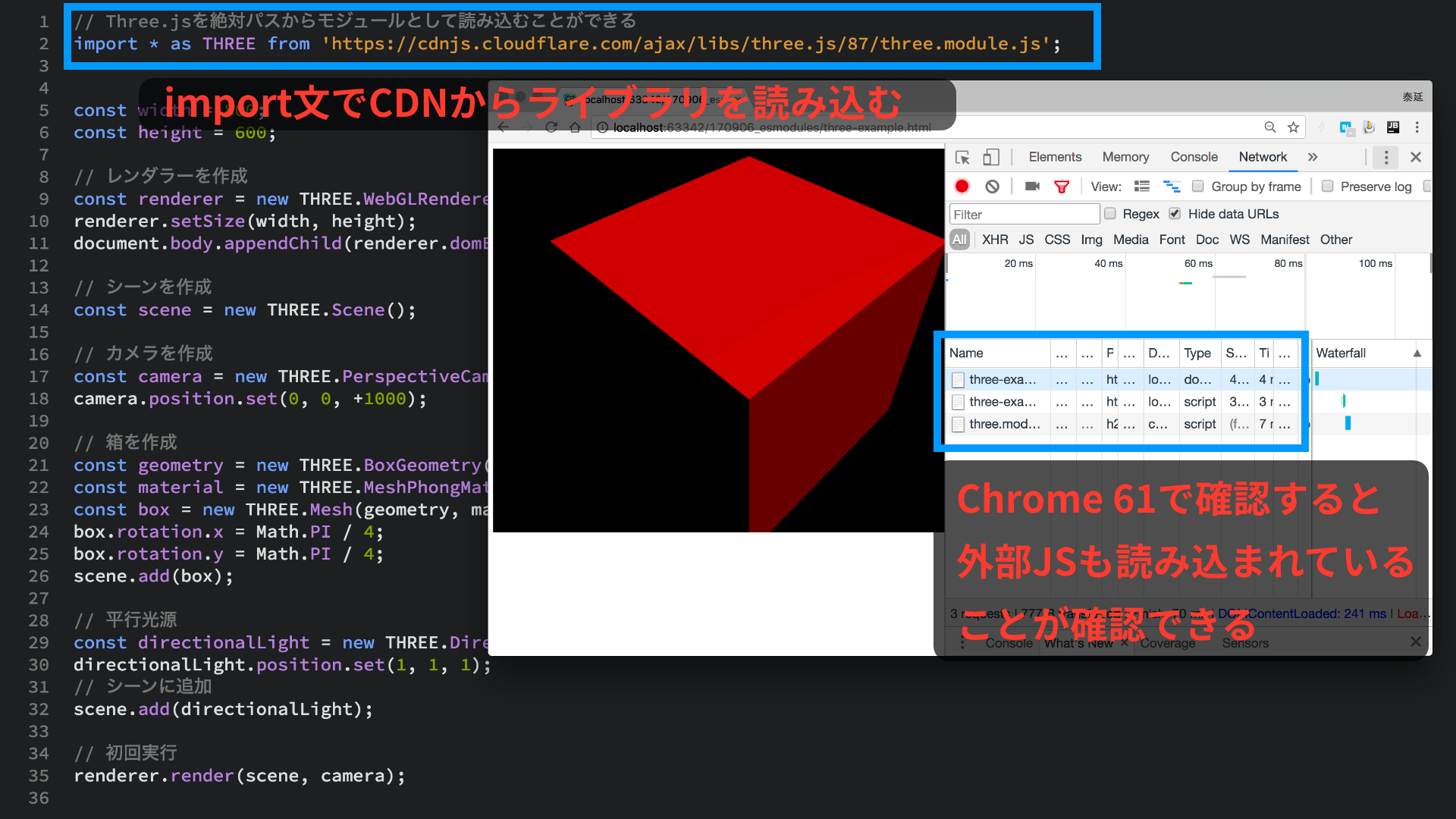
This article and other ICS MEDIA examples use a CDN to make the demos easy to try. However, a CDN outage can prevent a library from loading. There have also been cases where the JavaScript being served contained malicious code.
- CDN「Fastly」に障害が発生、多くのウェブサービスのコンテンツに影響 (INTERNET Watch, 2021; in Japanese)
- JSライブラリ「Polyfill.io」がマルウェアに改変、10万サイト以上に影響 (TECH+, 2024; in Japanese)
For production, it is best to serve libraries from your project’s own server to reduce these risks.
Note that not every JavaScript library can be loaded as an ES Module. Three.js is one of the libraries designed for ES Modules.
Using import maps to give ES Modules aliases
In a browser, you can also import a library by name, using a statement such as from "three" or from "vue".
Add type="importmap" to a script element to register aliases for import URLs. Inside the <script type="importmap"> element, use JSON to associate each alias with its URL.
<script type="importmap">
{
  "imports": {
    "lodash": "https://cdn.jsdelivr.net/npm/lodash-es@4.17.21/lodash.min.js",
    "@" : "./sample-alert.js"
  }
}
</script>

<script type="module">
  import * as _ from 'lodash';
  import {sayMessage} from '@';

  const a = {'a': 1};
  const b = {'a': 3, 'b': 2};
  const c = _.defaults(a, b);

  sayMessage(JSON.stringify(c));// {a: 1, b: 2}
</script>
Aliases work for both libraries loaded from a CDN and files specified with relative paths.
jQuery
Here is an example using jQuery. jQuery has supported ES Modules since version 4.0, released in January 2026.
<script type="importmap">
  {
    "imports": {
      "jquery": "https://cdn.jsdelivr.net/npm/jquery@4.0.0/+esm"
    }
  }
</script>
<script type="module">
  import $ from "jquery";

  $(document).ready(() => {
    console.log("jQuery Start");
  });
</script>
Vue.js
Here is an example using Vue.js.
<script type="importmap">
{
  "imports": {
    "vue": "https://unpkg.com/vue@3/dist/vue.esm-browser.prod.js"
  }
}
</script>
<script type="module">
  import {
    ref,
    computed,
    createApp,
  } from "vue";

  const app = createApp({
    setup() {
      // Your application logic
    },
  });
  app.mount("#app");
</script>
Three.js
Here is an example using Three.js.
<script type="importmap">
{
  "imports": {
    "three": "https://cdn.jsdelivr.net/npm/three@0.175.0/build/three.module.js"
  }
}</script>
<script type="module">

  import * as THREE from "three";
  // Create the renderer
  const renderer = new THREE.WebGLRenderer();

  // Remaining code omitted
</script>
Browser support
See Import maps | Can I use… for browser support. All current browsers support import maps.
Column: import attributes in ES2025
ES2025 introduces attributes for import statements. Use with to specify a type, such as json or css. This lets you import files such as CSS and JSON from JavaScript.
import styles from "./style.css" with { type: "css" };
import data from "./data.json" with { type: "json" };

console.log(styles); // A CSSStyleSheet object
console.log(data); // The object parsed from the JSON file
Column: loading modules dynamically
In addition to ordinary static import statements, ES Modules support dynamic imports that load modules as needed. Dynamic imports load modules asynchronously at runtime. They can reduce the initial load and let you load resources only under specific conditions.
In this example, clicking the button dynamically loads a module and runs a function from it. The await import() expression performs the dynamic import.
<button id="loadModule">Load the module dynamically</button>
<script type="module">
  document.querySelector('#loadModule').addEventListener('click', async () => {
    const { sayMessage } = await import('./sample-alert.js');
    sayMessage("This module was loaded dynamically");
  });
</script>
The import() expression returns a Promise, so you can combine it with async/await to write asynchronous code in a straightforward way.
Challenges when using ES Modules
Splitting JavaScript into many small modules tends to increase the number of files that the web server needs to send.
HTTP/1.1 limits the number of simultaneous connections, making it less suited to transferring many files. Web developers have used techniques such as CSS sprites and combining JavaScript files to reduce the number of files transferred.
One way to address this is to move to a web server that supports HTTP/2. With HTTP/2, increasing the number of JavaScript files through ES Modules is less of a concern.
Cache management becomes more difficult
One way to work around browser caching is to add a parameter to the request URL, as shown below. Using a date or another value makes the URL unique, allowing a new version of the file to be delivered instead of the cached version.
<script src="main.js?2022_09_15"></script>
With ES Modules, file references are part of the import statements in the code. To use this approach, you need to change those statements. Having to edit the JavaScript makes this less convenient.
import { sayMessage } from './main.js?2022_09_15';
sayMessage('Hello, world');
Why module bundlers are still needed
A module system is essential for larger JavaScript projects. Most frontend developers use tools such as Vite or webpack to work with JavaScript modules.
Tools such as Vite can combine just the JavaScript files you need. This is called bundling.
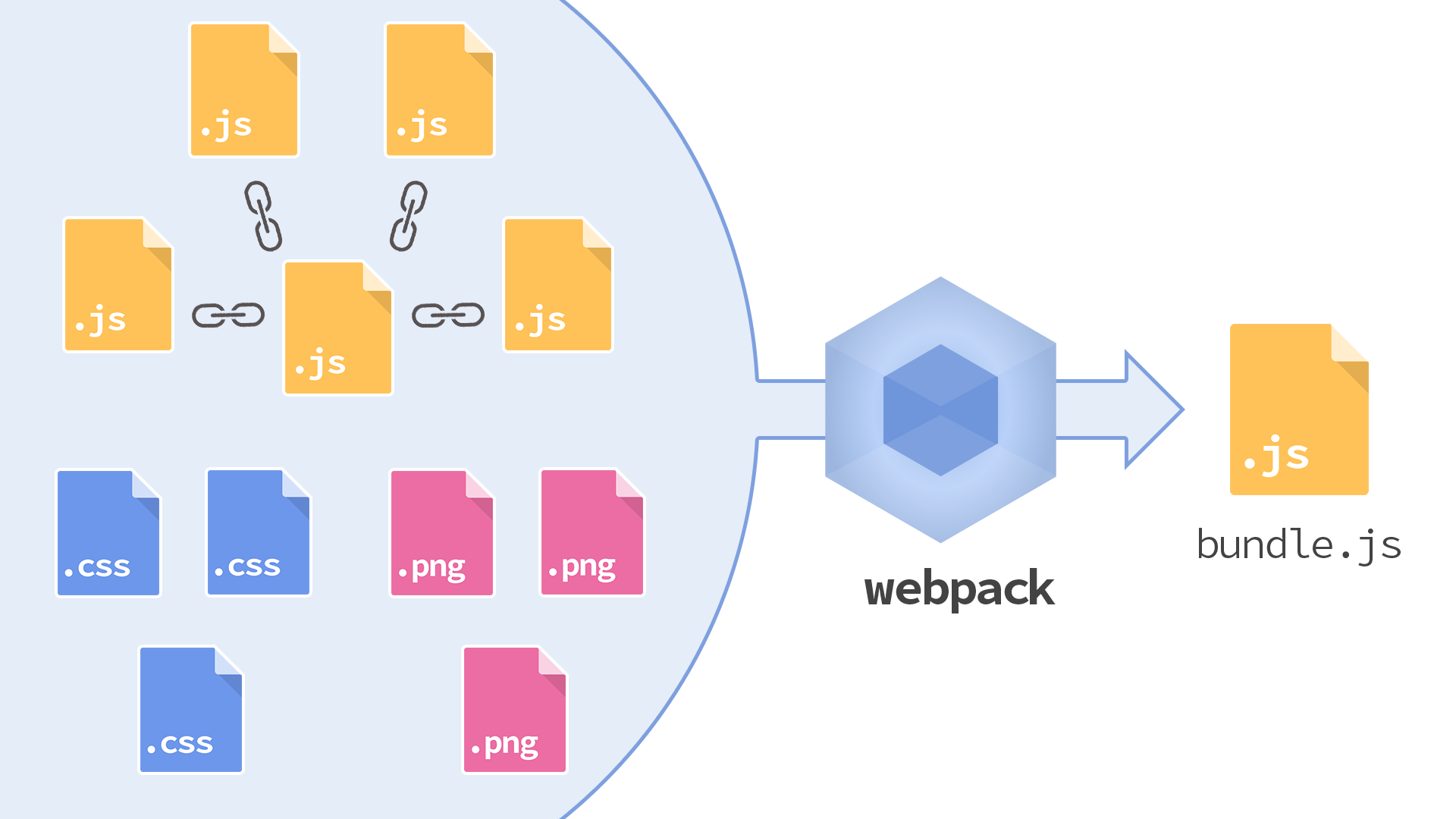
Bundling JavaScript libraries managed with the npm package manager requires a tool such as Vite. Compilers for JSX and TypeScript are essential in development. These tools continue to be used for advanced SPA development.
Conclusion
ES Modules have changed the way JavaScript is developed. There is a lot to learn, but a module system makes larger JavaScript projects possible. ES Modules are an essential part of frontend development, so take the time to learn them well.
The examples in this article are available on GitHub.
This article was originally published 9 years ago, and was maintained October 2026.