Figma is a design tool that allows teams to collaborate in the browser. This article explains how Figma workspaces are structured, including teams, projects, files, and pages.
Figma’s workspace structure is also closely tied to how billing works, so it is important to understand it properly. This information is useful not only for designers, but also for managers and other roles with purchasing authority.
Overall workspace structure
Figma’s workspace structure is centered on teams. A team can contain multiple projects, and a project can contain multiple files. Each file can also contain multiple pages.
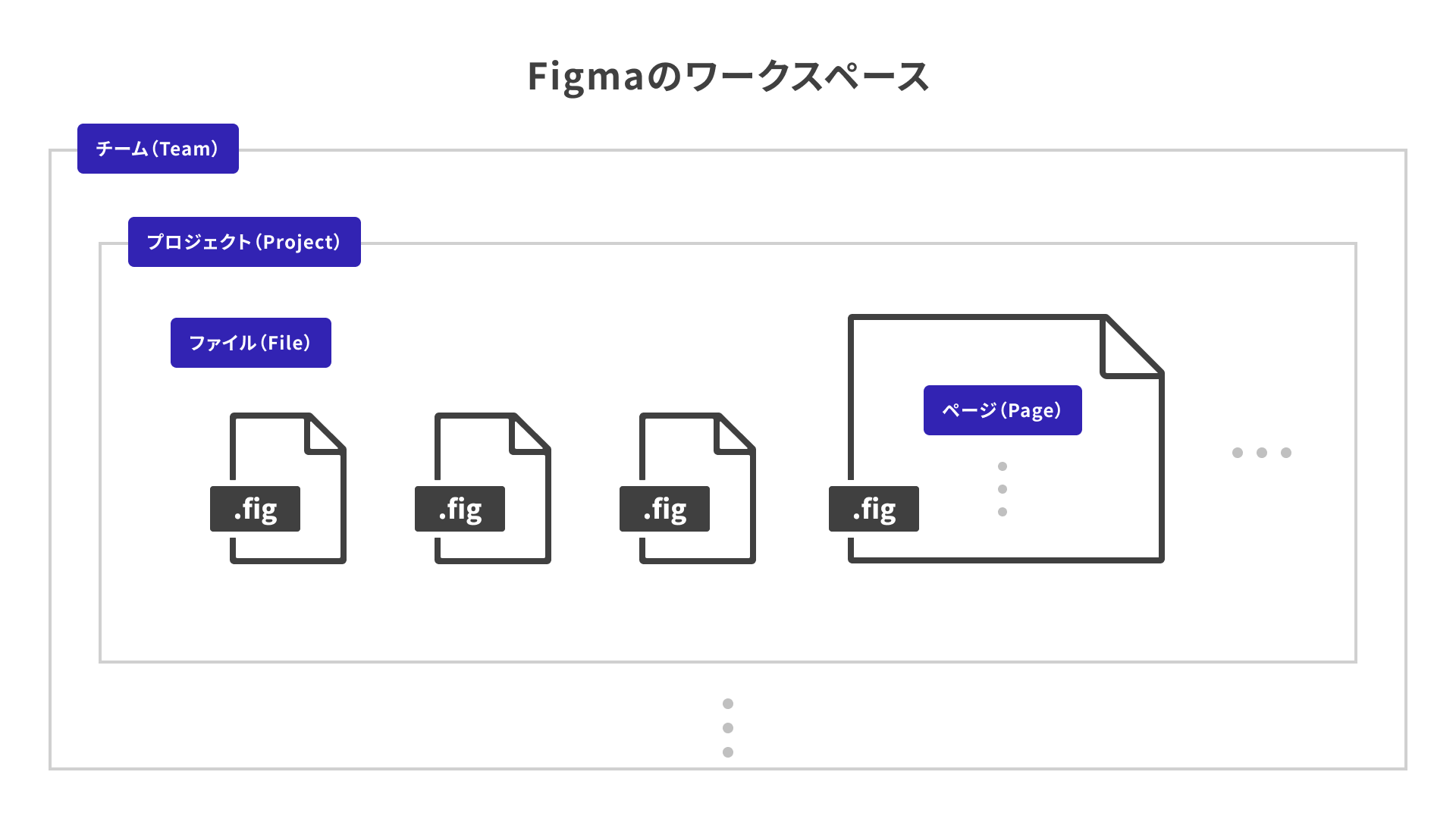
With the free Starter plan, you can create only one project, three design files, and up to three pages per file. With the paid Professional plan, these restrictions are removed.
If you use a plan above Professional, such as Organization or Enterprise, Figma can be operated as an organization that contains multiple teams. This article does not cover organizations because that would make the explanation more complex.
Team
A team is the largest unit for managing data in Figma. It may be easiest to think of it as something roughly equivalent to a department in a large company, or to a small or medium-sized company.
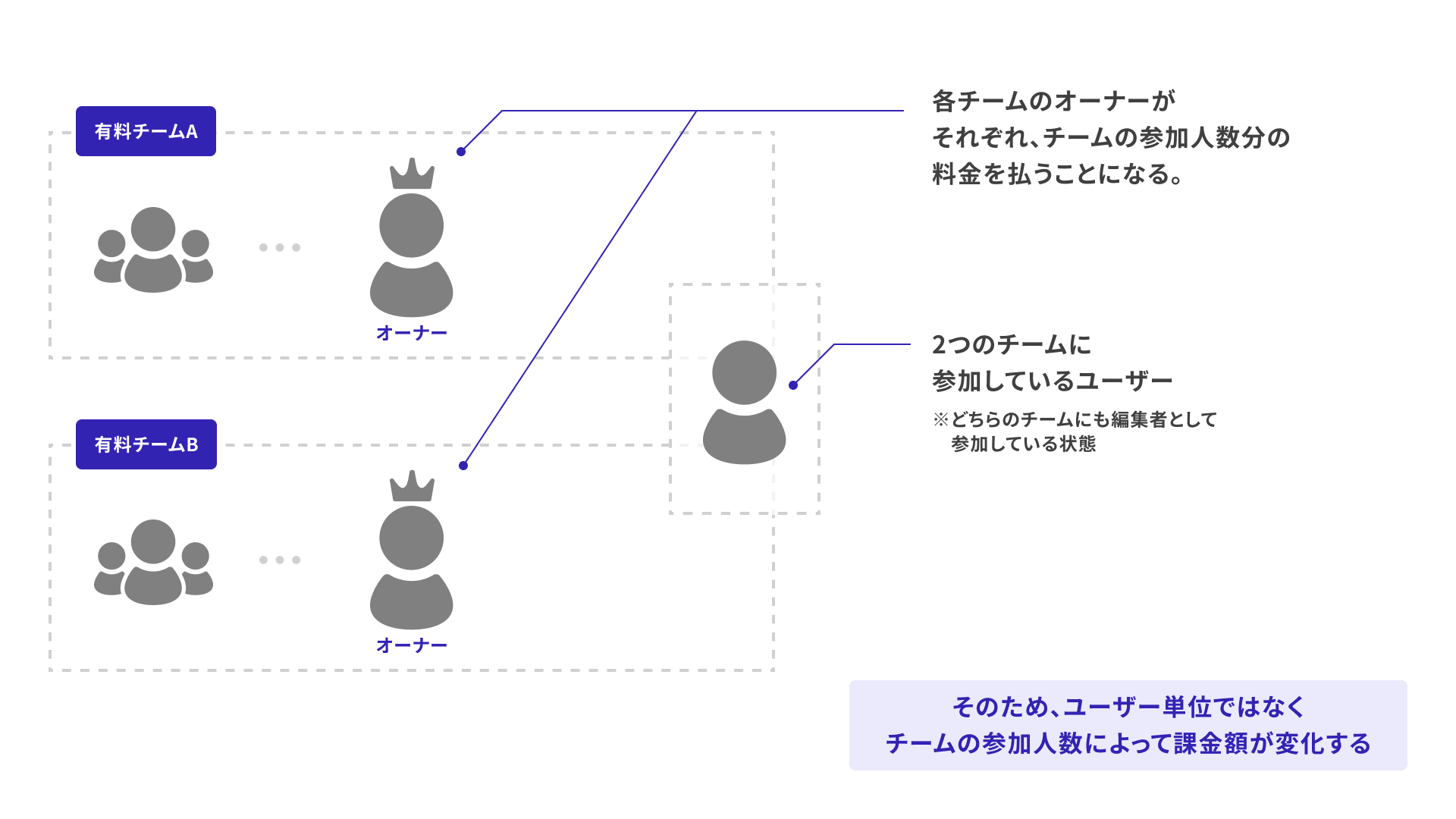
Within a team, you can create and manage projects, and manage the members who belong to the team.
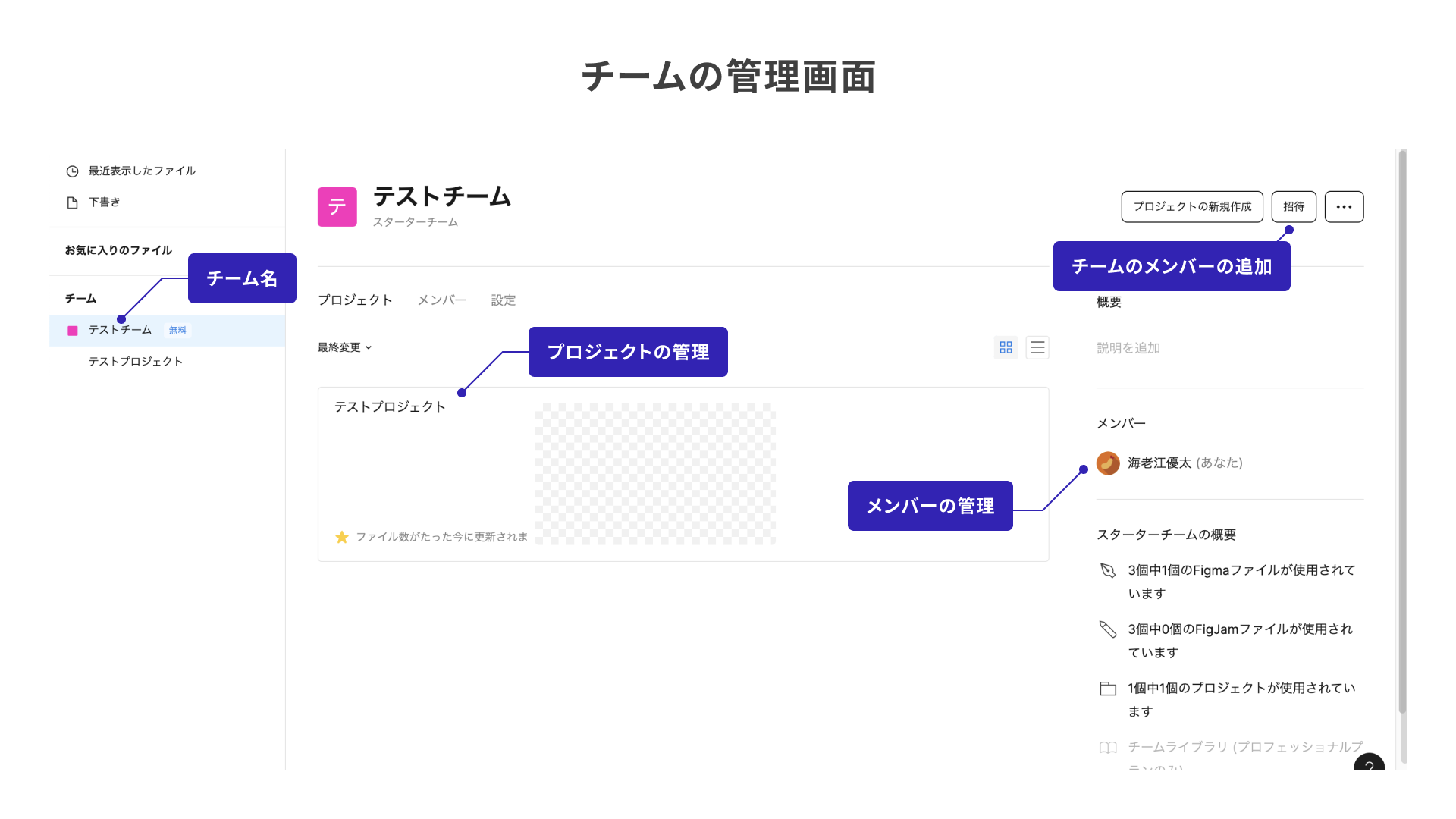
Figma billing is handled at the team level. The billing amount is determined by the number and types of paid seats assigned to the team. View seats are free.
One important point to note is that billing is not based on users alone. If one user joins multiple paid teams, the billing amount for each team increases by one seat.
Pricing also differs depending on the type of editing access. These access types are called “seats,” and the range of available features varies by seat type as shown below. The more features a seat includes, the higher the cost.
Since March 2025, adding seats or upgrading seat types has required approval from a team admin.
- View seat: Free. For viewing and commenting on design files only.
- Collab seat: Allows editing in FigJam and similar products, as well as viewing and commenting on design files.
- Dev seat: For developers. Allows viewing and commenting on design files, and includes access to Dev Mode.
- Full seat: For designers. Allows design editing in addition to Dev Mode access.
Note: This list focuses on permissions related to Figma Design files. For details, see the following official pages.
Project
A project is a mid-level grouping for managing data in Figma. It may be easiest to think of it as one business area within a department or company.
Members added to a team can access projects within that team. You can also invite users outside the team to a project as collaborators.
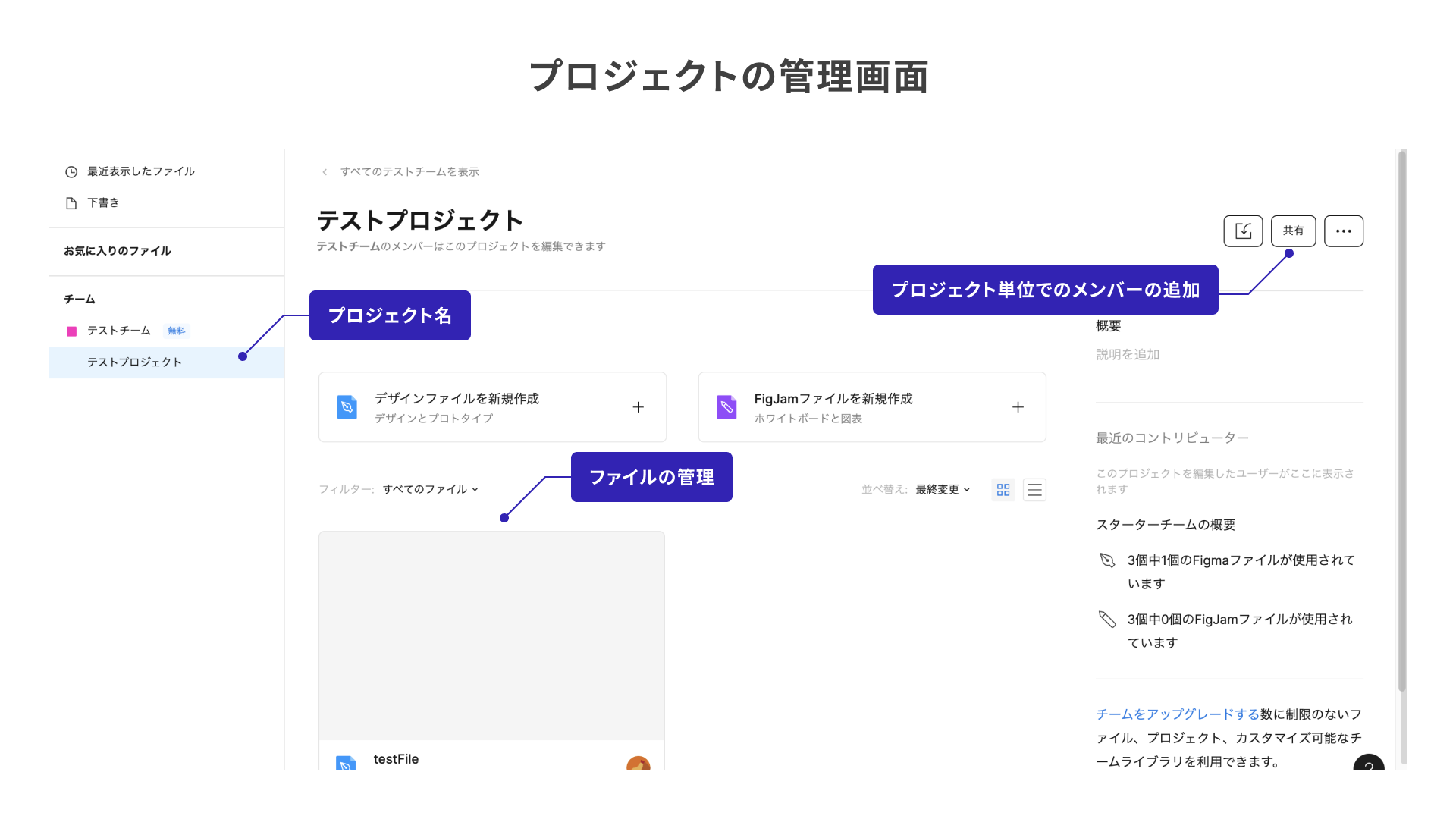
Currently, the free plan allows you to create only one project. Paid plans allow unlimited projects.
File
A file is a smaller unit for managing data in Figma. It refers to the design file itself, which any Figma user will be familiar with.
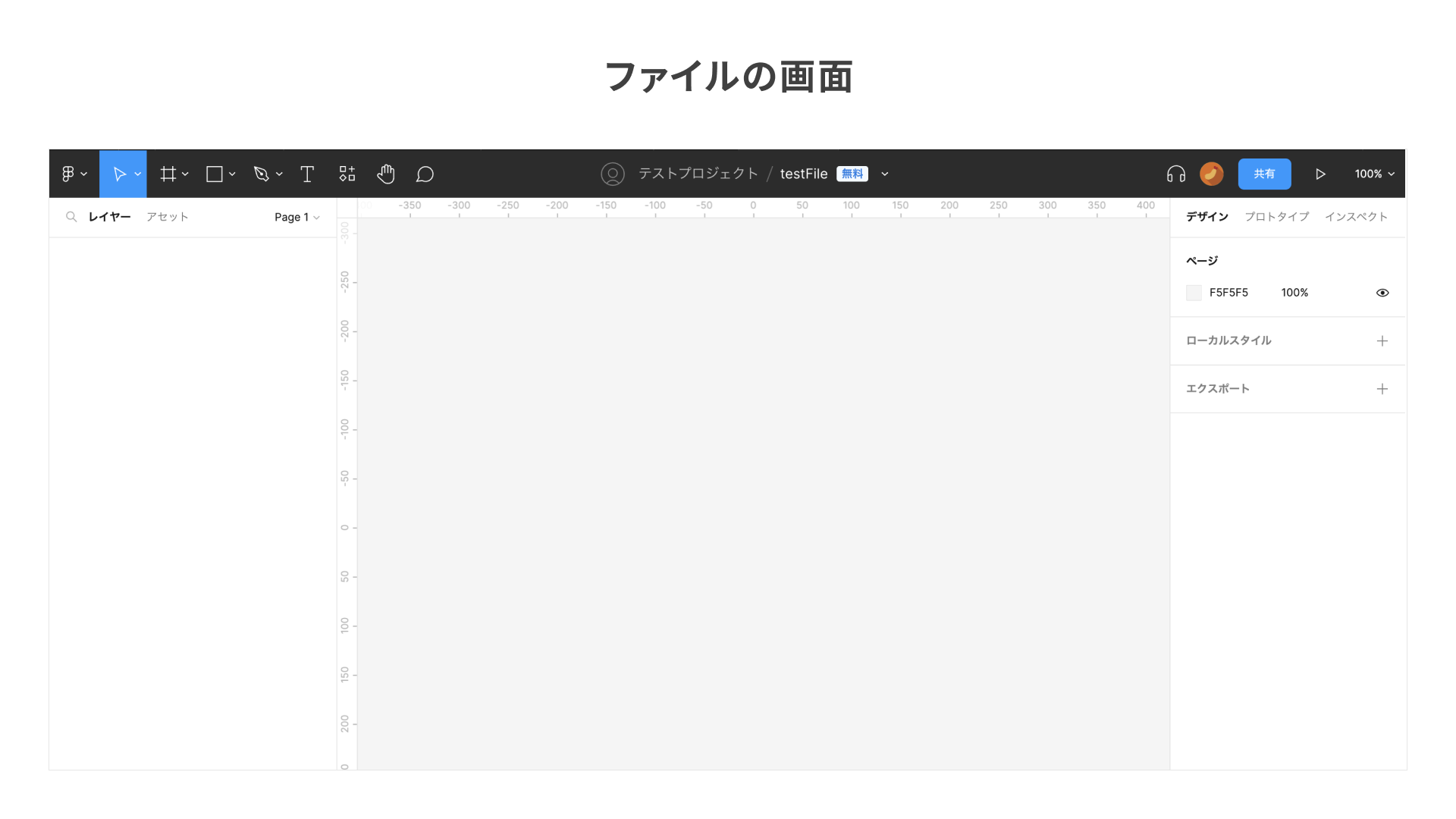
Members who belong to a team or project can access the file. You can also add collaborators separately at the file level.
In a design file, you can add collaborators by pressing the Share button, then creating a link or sending an invitation.
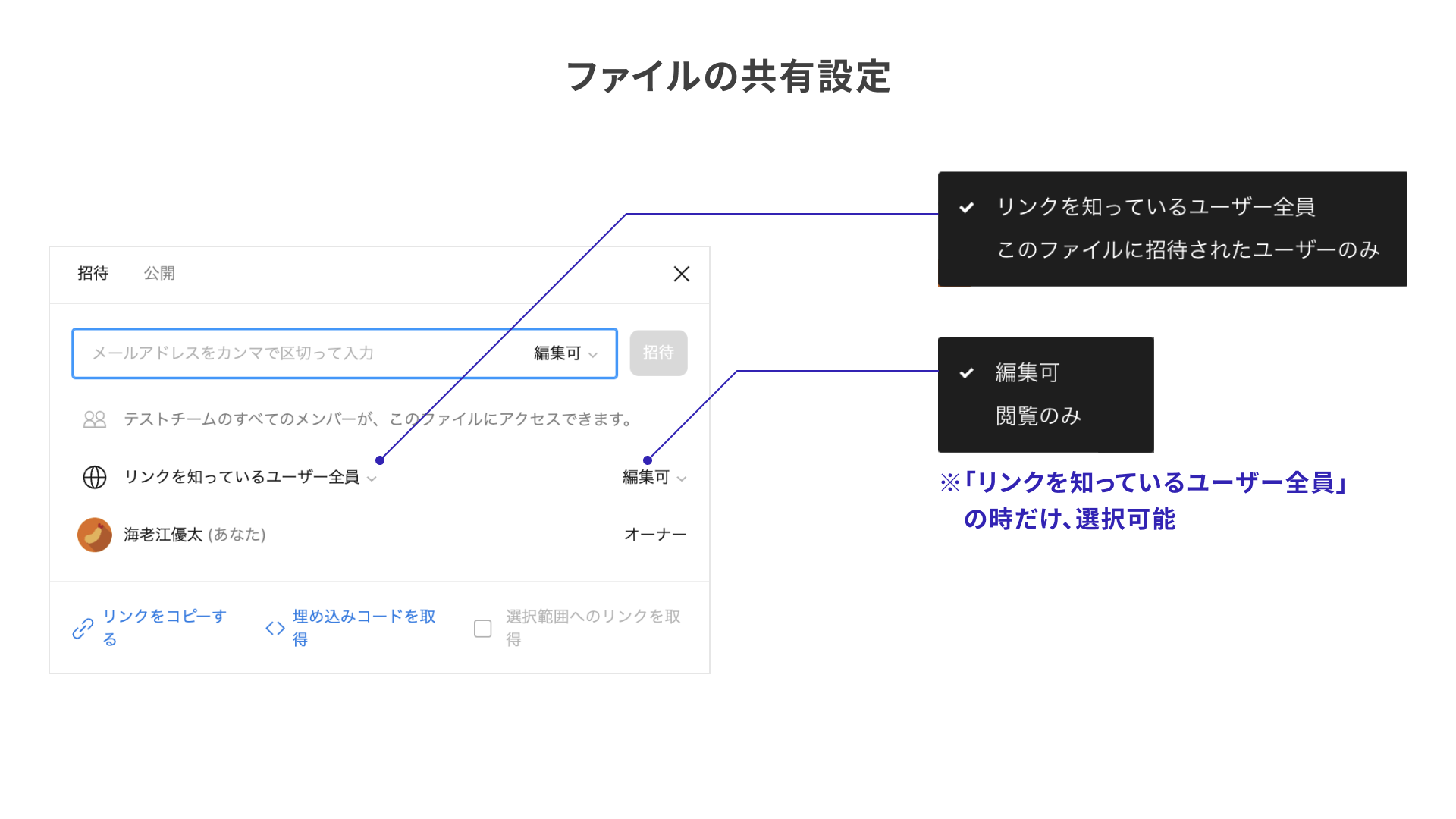
When “Only people invited to this file” is selected, only team members, project members, and users who have received an invitation can view or edit the file. Users without a Figma account cannot view it.
When “Anyone with the link” is selected, users other than team or project members can also view or edit the file. Users without a Figma account can also view it.
- Only people invited to this file
- Access allowed: users can view or edit, but users without an account cannot access the file
- Anyone with the link
- Can edit: users without an account cannot edit
- View only: users without an account can view
One important caution: if you select “Anyone with the link” and the generated link leaks from somewhere, a third party may be able to edit the file. For this reason, it is generally best to select “Only people invited to this file.”
Currently, the free plan allows you to create up to three design files within a project. Paid plans allow unlimited files.
Page
A page is an even smaller unit for managing data in Figma. Pages allow you to create hierarchy within a design file.
For example, you can create pages for collecting components, or pages for organizing design variations within the same design file.
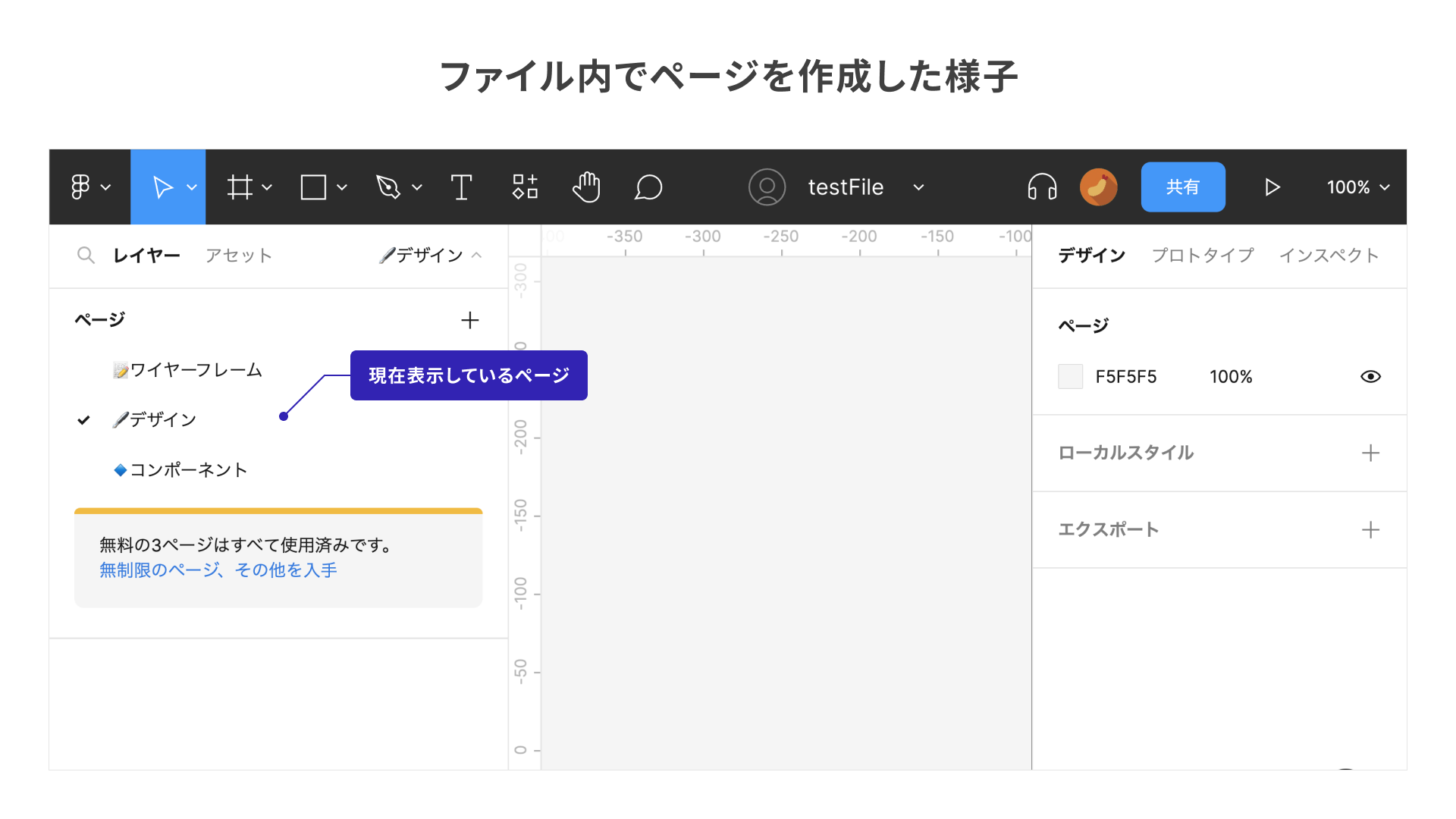
You can add and switch between pages from the page panel at the top of the layers panel. Page names can be changed freely, and some teams use emojis and other conventions to make pages easier to manage.
Currently, the free plan allows you to create only three pages per file. Paid plans allow unlimited pages.
Frame
A frame is the smallest unit for managing data in Figma. It is an artboard, or design container, placed inside a page.
Frames can be created inside a page at any width and height, such as sizes for mobile devices or desktop screens. The number of frames you can place inside a page is effectively unlimited, regardless of whether you are using a free or paid plan.
Conclusion
At ICS, we subscribe to a paid plan and create a team that all employees can access in order to manage internal projects. Within that team, we create multiple projects such as “ICS MEDIA,” “corporate site,” “in-house apps,” and other internal work, and use them to manage design files.
For “ICS MEDIA” in particular, we prepare templates that collect icons and easy-to-read layouts for article visuals. When information in an article is updated and a visual on ICS MEDIA needs to be revised, someone other than the article owner can make the update. This allows us to deliver accurate information to readers quickly.
By understanding Figma’s workspace structure, you can find file management and collaboration methods that fit your team, and use Figma more effectively.
The workspaces introduced in this article are also explained in detail in the official documentation. See the following pages for more information.