Rippling input forms, glowing buttons, dramatic glitch effects and transitions applied across an entire web page… Demos featuring effects like these have become increasingly common on social media. Many of them use a new technology called the HTML-in-Canvas API. Although it is not yet available as a standard browser feature, libraries such as VFX-JS and Canvas UI are already actively supporting it, and interest in the API is growing. Established libraries such as three.js and PixiJS have also begun experimenting with support.
▼ An HTML-in-Canvas demo from VFX-JS, a visual effects library
https://x.com/amagitakayosi/status/2059716302059847881
The example below applies a range of effects, including a cathode-ray-tube look and realistic raindrops, to an otherwise ordinary web page and input form.
https://x.com/vittorioretrivi/status/2041299652939542657
As the post notes, this API could become essential in areas of web design that prioritize visual expression, such as the work featured by Awwwards.
In simple terms, HTML-in-Canvas lets you display HTML elements inside a canvas. Each example above renders HTML elements into a canvas with HTML-in-Canvas, then processes the result in real time with WebGL or a similar graphics API. As more striking examples have appeared that go far beyond what CSS alone can achieve, interest in the API has risen rapidly.
These effects are certainly impressive, but they are not the real point of the API. This article focuses on the less glamorous issues: what has traditionally made Canvas difficult, how this API addresses those problems, and what limitations and concerns remain.
Note: HTML-in-Canvas is a proposal being discussed in the Web Incubator Community Group (WICG), a W3C Community Group. As of August 2026, Chrome is running an origin trial. The site hosting the demos in this article is registered for the trial, so they can be tested in supported versions of Chrome without changing any flags. However, the feature is not yet ready for production use.
The Canvas problem: severely limited text rendering
Anyone who has tried to build a rich interface with Canvas, such as a game UI or an infographic, has probably run into text rendering problems first.
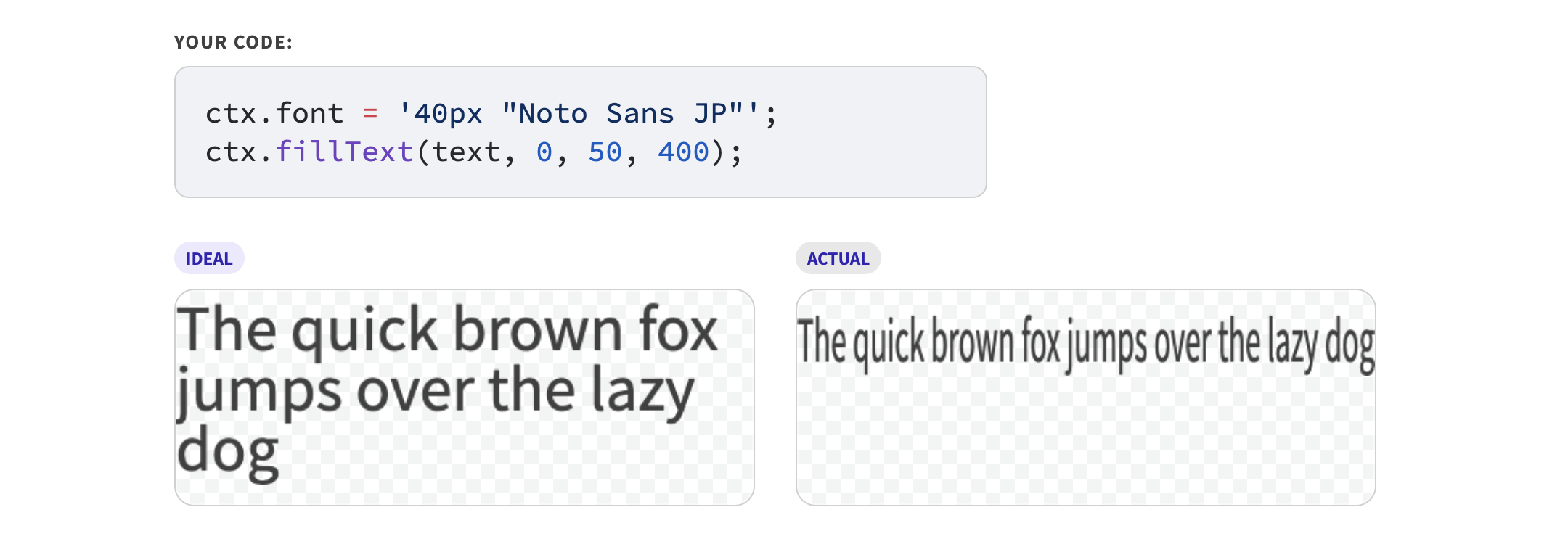
The Canvas API provides the fillText() method for text rendering, but it is a simple API that only draws a single line of text at specified coordinates.
ctx.font = '40px "Noto Sans JP"';
ctx.fillText("I Am a Cat", 0, 50, 400); // text, x, y, maxWidth (optional)
The fillText() method can display text, but it does not wrap overflowing text automatically. It cannot make only part of a sentence bold either. To truncate a line with an ellipsis, you have to measure the text with measureText() and shorten it yourself.
▼ Drawing text with fillText() alone compresses it like the example on the right (ACTUAL) instead of wrapping it
Generating Open Graph images, adding axis labels to charts, or building a game UI: each task starts as “just add a little text,” but before long, you are writing your own text layout engine. Anyone who has done this will recognize the frustration.
Reference: 【Node.js】つらみを解消しながら動的なOGP画像を生成する (in Japanese). This article explains how to generate dynamic Open Graph images with Canvas on the server and shows how difficult the results can be to preview and adjust compared with CSS.
Multilingual support makes the problem even harder. Different languages and writing systems require different processing rules, including Arabic letter joining and complex text shaping for Thai and Hindi. Japanese also has many rules that readers use without consciously noticing them, including vertical writing, ruby annotations, and line-breaking conventions. Browser HTML layout engines have evolved to handle these language-specific processes with relatively little effort from developers, but the Canvas API has barely kept pace. It is practically impossible for every website developer to implement this language processing from scratch.
The Canvas problem: building UI controls from scratch
Text is not the only source of difficulty. Try building a button with Canvas that behaves correctly.
Drawing a rectangle takes only a few lines. But then you need to add hit testing, change the cursor on hover, support keyboard focus with the Tab key, respond to the Enter key, and expose the control to screen readers. HTML handles all of this with a <button> element, but Canvas requires you to build every part yourself.
The Canvas API was originally designed as a low-level mechanism for drawing graphics. Building interactive UI on top of it was never going to be easy. Developers have spent nearly 20 years discussing how to make it possible and how responsibilities should be divided between Canvas and HTML.
How HTML-in-Canvas works
That was a long introduction. The following code shows how the API works. Creating an attractive demo takes work, but the HTML-in-Canvas API itself is straightforward. The basic process has only three steps:
- Add the
layoutsubtreeattribute to the<canvas>element - Place the HTML elements you want to draw as direct children of the
<canvas>element - Draw them with the
drawElementImage()method
The following three simple demos all use the HTML below. They focus on the API rather than visual effects, so they do not use WebGPU or WebGL.
▼ HTML used in the demos:
<canvas id="canvas" width="720" height="260" layoutsubtree>
  <article id="content">
    <p id="clock">12:34:56</p>
    <p>
      <ruby>I<rp> (</rp><rt>Wagahai</rt><rp>)</rp></ruby> am a cat.
      As yet I have no name. I have no idea where I was born. ...
    </p>
    <input type="text" placeholder="Enter some text">
    <button type="button">Click</button>
  </article>
</canvas>
<script>
  // A simple clock that updates the text once per second
  // This code may also be moved into an external file
  const clock = document.getElementById("clock");
  window.setInterval(() => {
    clock.textContent = new Date().toLocaleTimeString("en-US");
  }, 1000);
</script>

Demo 1: one-shot rendering
This is the simplest way to use the API. Call the drawElementImage() method once.
<button id="draw-btn">Draw to canvas</button>
<script>
  const canvas = document.getElementById("canvas");
  // Get the element to render
  const content = document.getElementById("content");
  const drawButton = document.getElementById("draw-btn");
  const ctx = canvas.getContext("2d");

  drawButton.addEventListener("click", () => {
    ctx.reset();
    ctx.drawElementImage(content, 0, 0);
  });
</script>
The demo below shows how this works. Initially, the card’s HTML is still outside the <canvas> element. Click [▼ Move into canvas], then click [Draw to canvas]. You can also confirm that attempting to draw the card while it remains outside the <canvas> element causes an error.
▼ Demo 1 in action
Ruby annotations, line wrapping, CSS-defined fonts, and the rest of the layout are all preserved. The browser’s built-in layout engine can now render all of that directly into an image. For uses such as generating Open Graph images or chart labels, this basic approach may be all that is needed. The result can also be processed with Canvas 2D, WebGPU, or WebGL, making it possible to apply glitch, blur, and other effects.
However, this example is incomplete for some uses. The clock and input field continue to change after drawElementImage() is called, but the content already drawn to the canvas does not update. The rendered result is only a static image of the HTML at that moment.
Demo 2: automatic repainting
The next step is to update the demo in real time and make it interactive. This may sound complicated, but it only requires the <canvas> element’s requestPaint() method and the paint event.
// Element lookups and other setup are omitted
// Run ctx.drawElementImage() for every paint event
canvas.addEventListener("paint", () => {
  ctx.reset();
  ctx.drawElementImage(content, 0, 0);
});

// Request the first paint
canvas.requestPaint();
With this change, the HTML inside the canvas becomes fully functional. Text entered into the input field appears on the canvas immediately, and the button can be pressed. Changing only a few lines turns the canvas content into a “live UI.”
But why is the button clickable when the content is being redrawn automatically? The pixels drawn to the canvas are still only an image, so hover and click events should have to be handled by the original HTML elements.
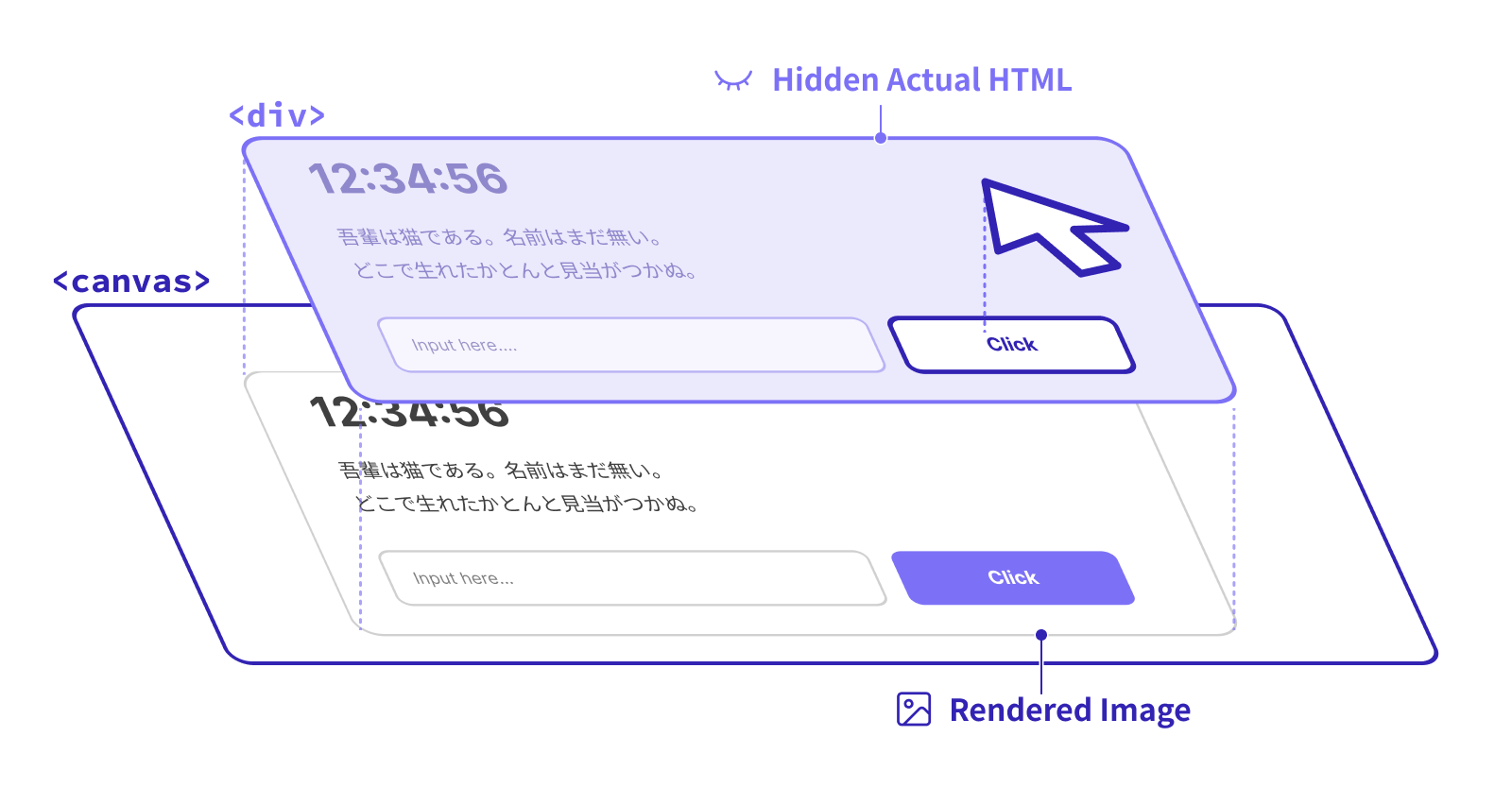
The explanation is simple. HTML elements such as buttons placed inside the <canvas> element are invisible, but they still exist at their original positions. Just as a <button> inside a <div> receives events before its parent, clicking those coordinates allows the child button to receive the event and perform its normal behavior. If that behavior changes the display, the paint event fires and the canvas is repainted.
Note: This is a conceptual explanation rather than an exact description of the HTML-in-Canvas specification. Treat it as a rough mental model.
Demo 3: synchronizing the rendered position with the DOM
The last pitfall is keeping the coordinate systems aligned. The previous demos rendered the element at the upper-left corner with drawElementImage(content, 0, 0). What happens if the drawing position changes to (100, 100)? The canvas coordinate system can also rotate and scale content, so the real element that is invisible but still present can become misaligned with its rendered image, preventing clicks from working correctly.
The solution is straightforward: move the HTML element to match the coordinates where it was rendered. To make this alignment easier, drawElementImage() returns the transformation matrix applied during rendering as a DOMMatrix object. Assign that return value directly to the HTML element’s style.transform property, and its position and transformation will match the rendered result.
canvas.addEventListener("paint", () => {
  ctx.reset();
  // Move, scale, and rotate the card around its center
  // Details of the transformations are omitted

  // The rendering coordinate system is returned as a transformation matrix,
  // so assign it to the HTML element's style
  const transform = ctx.drawElementImage(content, 0, 0);
  content.style.transform = transform.toString();
});
The demo below lets you move, scale, and rotate the card. Confirm that the HTML remains interactive at its visible position after each transformation.
These three demos show that HTML-in-Canvas is trying to solve more than one problem. Demo 1 is enough for chart labels and Open Graph image generation. Demo 2 is needed for real-time updates and interaction at a fixed position. Demo 3 is required when forms must remain interactive after being moved, scaled, or rotated on the canvas.
Accessibility improves, but it is not a cure-all
Accessibility is often cited as one of the main benefits of HTML-in-Canvas. The improvements are substantial, but the API should not be treated as a universal solution.
The benefits are clear. As described earlier, text drawn with fillText() is only an image. It does not appear in the accessibility tree, so screen readers cannot read it. Users cannot select or copy it, and browser features such as find-in-page and translation are of little use.
Content drawn with HTML-in-Canvas comes from real HTML elements that continue to exist underneath, so find-in-page, text selection and copying, translation, screen-reader access, and similar features work automatically. This is useful even for people who do not use assistive technology. Rather than describing it only as “accessibility support,” it may be more accurate to say that Canvas is finally gaining capabilities the web should provide by default.
However, it would be misleading to say that HTML-in-Canvas solves every accessibility problem in Canvas.
Traditional Canvas content can already include fallback content as child elements. For example, placing the underlying data in a <table> inside the <canvas> element allows assistive technology to recognize and read it. This approach is rarely used in practice, but the main problem is not the mechanism itself. The difficulty is keeping the Canvas rendering and the fallback content synchronized as two separate representations.
HTML-in-Canvas reduces some of the burden of keeping both representations in sync, but it does not eliminate the need for accessibility work. Consider a pie chart drawn with Canvas. If its labels are rendered with HTML-in-Canvas, their text becomes available to screen readers. The arcs themselves, however, are still pixels drawn with ctx.arc(). To communicate the chart’s meaning correctly to assistive technology, developers may need to give the labels an appropriate semantic structure, arrange them meaningfully, or add nonvisual text descriptions. In some cases, a conventional <table> fallback may still be necessary. Just as an <img> element needs an appropriate alt attribute, the required design and implementation remain the developer’s responsibility.
Privacy: some content is not rendered inside Canvas
HTML-in-Canvas also raises privacy concerns. The issue may not be immediately obvious, but the rendered appearance of HTML can contain substantial amounts of user-specific information. If exposed, that information could be used to track or infer details about a person through fingerprinting.
Examples include operating-system theme colors and other settings that JavaScript cannot read directly, as well as the colors of visited links. Input method editor (IME) conversion candidates and subtitle or caption preferences can reveal still more information. Cross-origin resources, including <iframe> elements and images from other domains, are even more sensitive. Browsers normally prevent JavaScript from reading such information directly, but rendering an entire page into an image could expose it.
Chrome’s answer at the specification level is explicit: identify sensitive information in a list and exclude it from rendering from the outset. Under the current proposal, examples of content omitted from the Canvas rendering include the following:
Examples of excluded content:
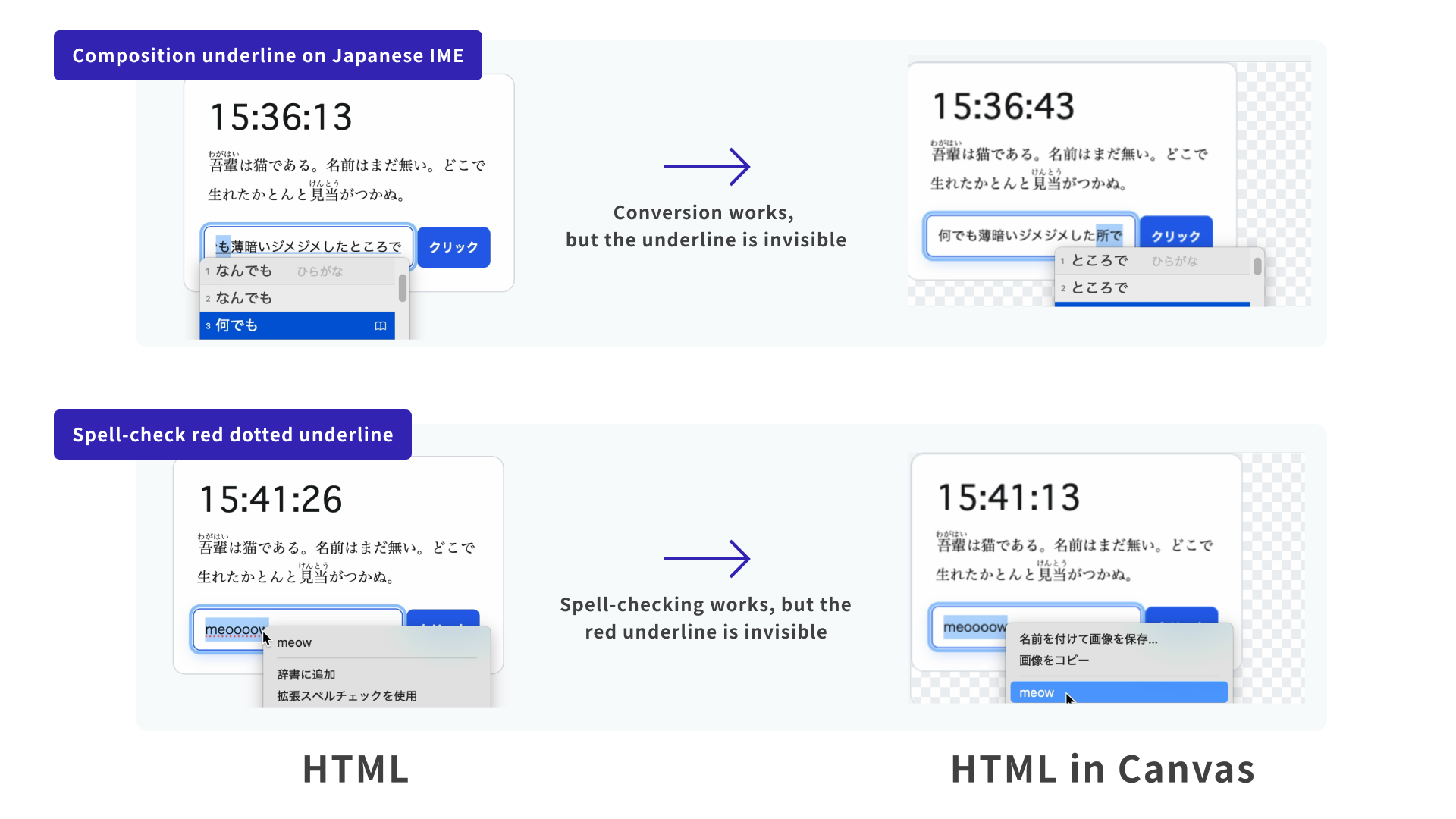
- IME-related UI: underlines and decorations for text still being composed
- Writing assistance: spell-check and grammar-check underlines
- User settings: operating-system theme colors and other settings that JavaScript cannot read directly
- Browsing history: color changes for visited links
- Security-related content: uncommitted autofill values and cross-origin content
- Media preferences: subtitle and caption display settings
▼ Comparison of Japanese IME conversion inside and outside the canvas in Demo 2. HTML-in-Canvas does not render the underlines marking conversion segments or the red dotted spell-check underline
This approach also has drawbacks. Maintaining a list means updating it whenever an operating system or browser introduces a new UI. Removing personalized displays that exist for a reason can also reduce usability and accessibility. In particular, whether an entire page should be rendered through HTML-in-Canvas merely to apply an attractive visual effect deserves careful consideration.
Browser vendors’ positions: can HTML-in-Canvas ship?
As noted at the beginning, browser vendors have not yet reached agreement on HTML-in-Canvas. The situation as of August 2026 is as follows.
Chrome is actively implementing the API. It is running an origin trial, a mechanism for exposing experimental features to real users, and collecting feedback from live websites. The trial was initially scheduled to run through Chrome 150, but in June 2026 it was extended through Chrome 154, the last release before Chrome 155, which is scheduled for October 2026. The extension was attributed to major changes in the WebGL and WebGPU APIs and in the privacy model, suggesting that Chrome intends to continue evaluating the feature while working toward agreement on the specification.
Apple has not published an official WebKit position. However, experimental implementation work began in the WebKit codebase in July 2026. Feature flags, the basic API structure, and other foundations have started to appear, indicating movement toward possible support.
Mozilla has not stated a position for Firefox either. An issue opened for review in September 2024 remains in the “Needs proposed position” state. The discussion has raised concerns about fingerprinting and web compatibility, but Mozilla has not opposed advancing the proposal to the next stage.
In other words, browser vendors broadly agree that Canvas has problems around text and UI, but they have not agreed on whether, or to what extent, this API should be accepted as the solution. It does not yet appear ready for production deployment, but web developers can begin considering where the API might be appropriate.
Conclusion: beyond eye-catching demos
The striking effects introduced at the beginning are excellent demonstrations of the API’s visual impact. As this article has shown, however, the problems HTML-in-Canvas is intended to solve are less glamorous and far more pressing: text wrapping, multilingual text shaping, and focus management. Anyone who has built something with the Canvas API has encountered these difficulties. This API is needed so that the next generation of developers does not have to repeat the same work.
At the same time, trade-offs remain in privacy and accessibility. The fact that IME indicators are removed from the Canvas rendering may have surprised some readers. Finding a reasonable balance between safety and usability is difficult.
The form this specification eventually takes will depend heavily on what users want and what the API is used for. Anyone who became interested after seeing an eye-catching demo should look through their own projects for places where the API might be useful. Participating directly in official specification discussions is not easy, but publishing demos or opinions on social media can still contribute useful feedback.
References
- https://github.com/WICG/html-in-canvas - proposal repository for the specification
- Introducing the HTML-in-Canvas API origin trial: an article on the Chrome for Developers blog introducing the HTML-in-Canvas API, including its basic usage, benefits, and use cases
- Canvas 内に直接 HTML を描画できる HTML in Canvas API について (in Japanese): a detailed explanation of how to use the API
- https://github.com/WICG/canvas-formatted-text - an earlier proposal for a rich-text API for Canvas. Its README states that further consideration moved to HTML-in-Canvas. The “Canvas placeElement() proposal” mentioned there was a predecessor to HTML-in-Canvas.