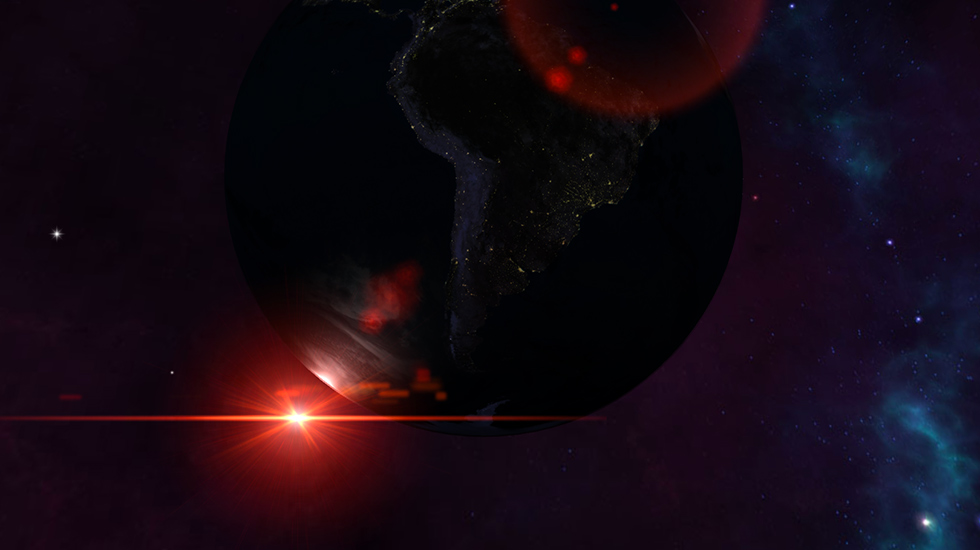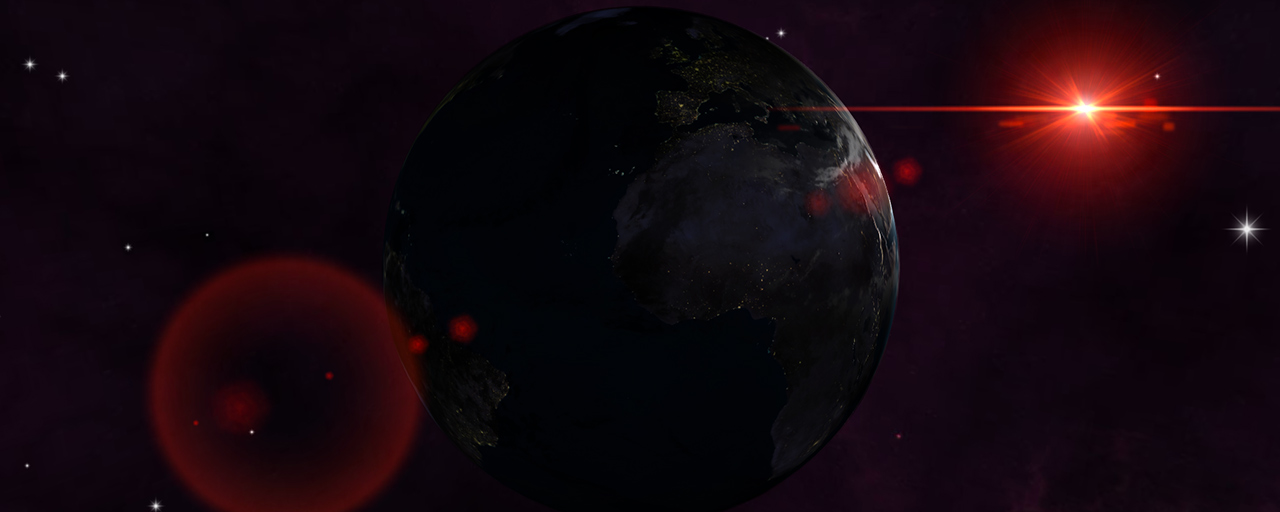
Lens flare is a visual phenomenon that appears when a light source enters the camera lens directly. It is a familiar effect in film and games, often used to make scenes feel more realistic. This article introduces a demo that recreates lens flare in Three.js.
This article uses Three.js r183 (February 2025).
Demo and sample code
Drag the mouse to inspect the lens flare from different angles.
Lens flare in Three.js
This implementation uses the Three.js WebGPU renderer together with LensflareMesh.
// Load Three.js core
import * as THREE from "three";

// Load the WebGPU renderer
import { WebGPURenderer } from "three/webgpu";

// Load the classes used for lens flare
import { LensflareMesh, LensflareElement } from "three/examples/jsm/objects/LensflareMesh.js";

// Create a WebGPU renderer
// antialias: true reduces jagged edges
const renderer = new WebGPURenderer({ antialias: true });

// Initialize the WebGPU renderer
// Rendering will not be ready unless this is awaited
await renderer.init();

// Load a texture for the lens flare
const texture = textureLoader.load(flare0TextureUrl);

// Treat the texture as sRGB
// Without matching the color space, the colors will not render as intended
texture.colorSpace = THREE.SRGBColorSpace;

// Create an object that manages the entire lens flare
const lensFlare = new LensflareMesh();

// Add one lens flare element
// The second argument is the size, and the third is the distance factor from the center
lensFlare.addElement(new LensflareElement(texture, 2000, 0));

// Attach the lens flare to the light source
// This makes it follow the light position
pointLight.add(lensFlare);
The lens flare is added as a child of the light source. When the camera moves behind the light source, the flare elements disappear automatically.
Instead of using a single flare texture, the effect layers several textures at different distances. In LensflareElement, the second argument specifies the size, and the third specifies the placement factor from the center.
// Define the settings for each flare texture in an array
// textureUrl: URL of the image
// size: size of the flare element
// dist: factor for how far the element is placed from the center
const flareTextures = [
  { textureUrl: flare0TextureUrl, size: 2000, dist: 0 },
  { textureUrl: flare5TextureUrl, size: 2500, dist: 0.1 },
  { textureUrl: flare2TextureUrl, size: 1250, dist: 0.4 },
  { textureUrl: flare4TextureUrl, size: 3750, dist: 1.8 },
];

// Iterate through the array and add each lens flare element
flareTextures.forEach((item) => {
  // Load the texture
  const texture = textureLoader.load(item.textureUrl);

  // Treat the flare texture as sRGB
  // This keeps brightness and color consistent
  texture.colorSpace = THREE.SRGBColorSpace;

  // Create an individual flare element
  // item.size controls the size
  // item.dist controls the position from the center
  const element = new LensflareElement(texture, item.size, item.dist);

  // Add the element to the overall lens flare
  lensFlare.addElement(element);
});
In the actual repository, the image assets are stored under src/assets and imported before loading.
Angle where the lens flare is visible
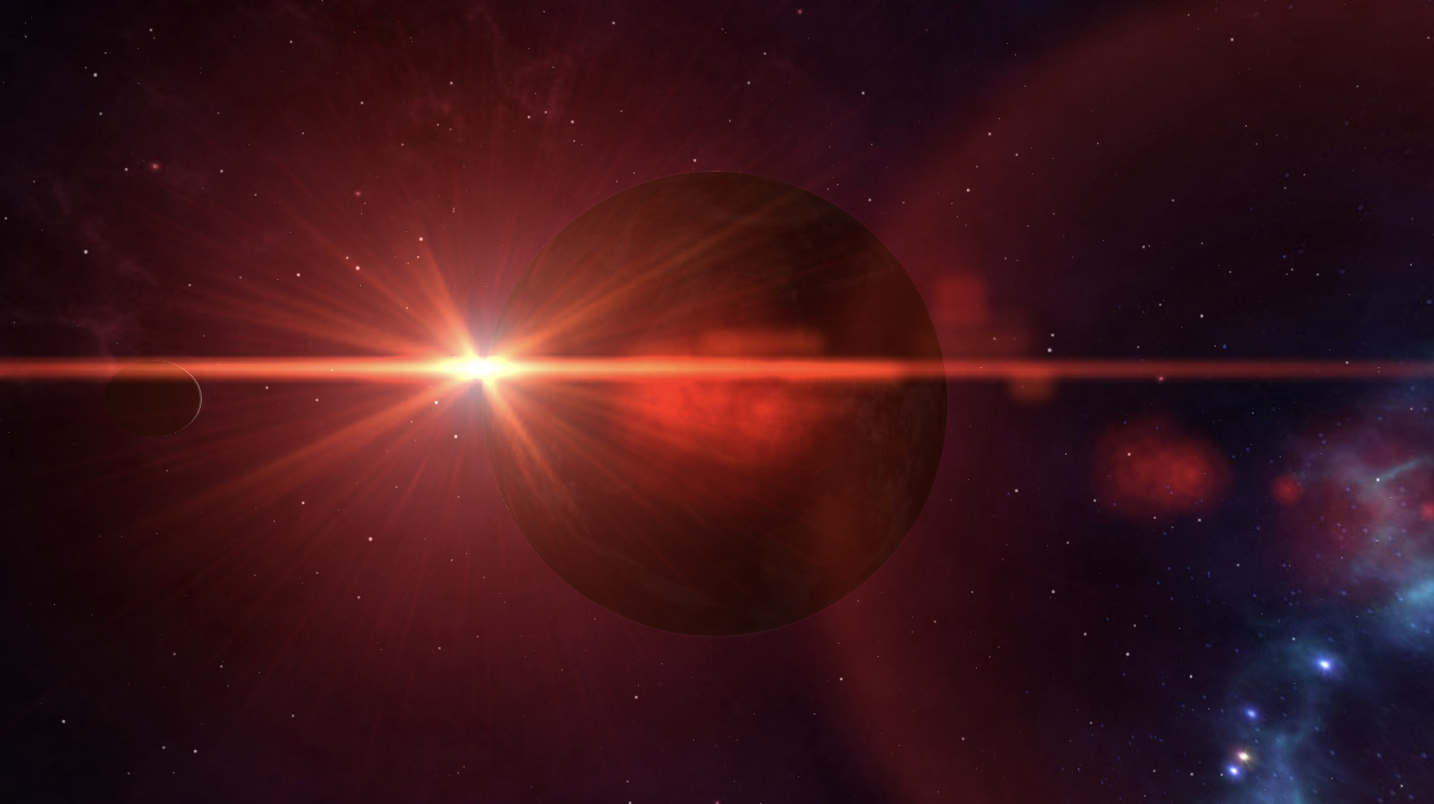
Angle where the lens flare becomes faint when the light source is barely visible
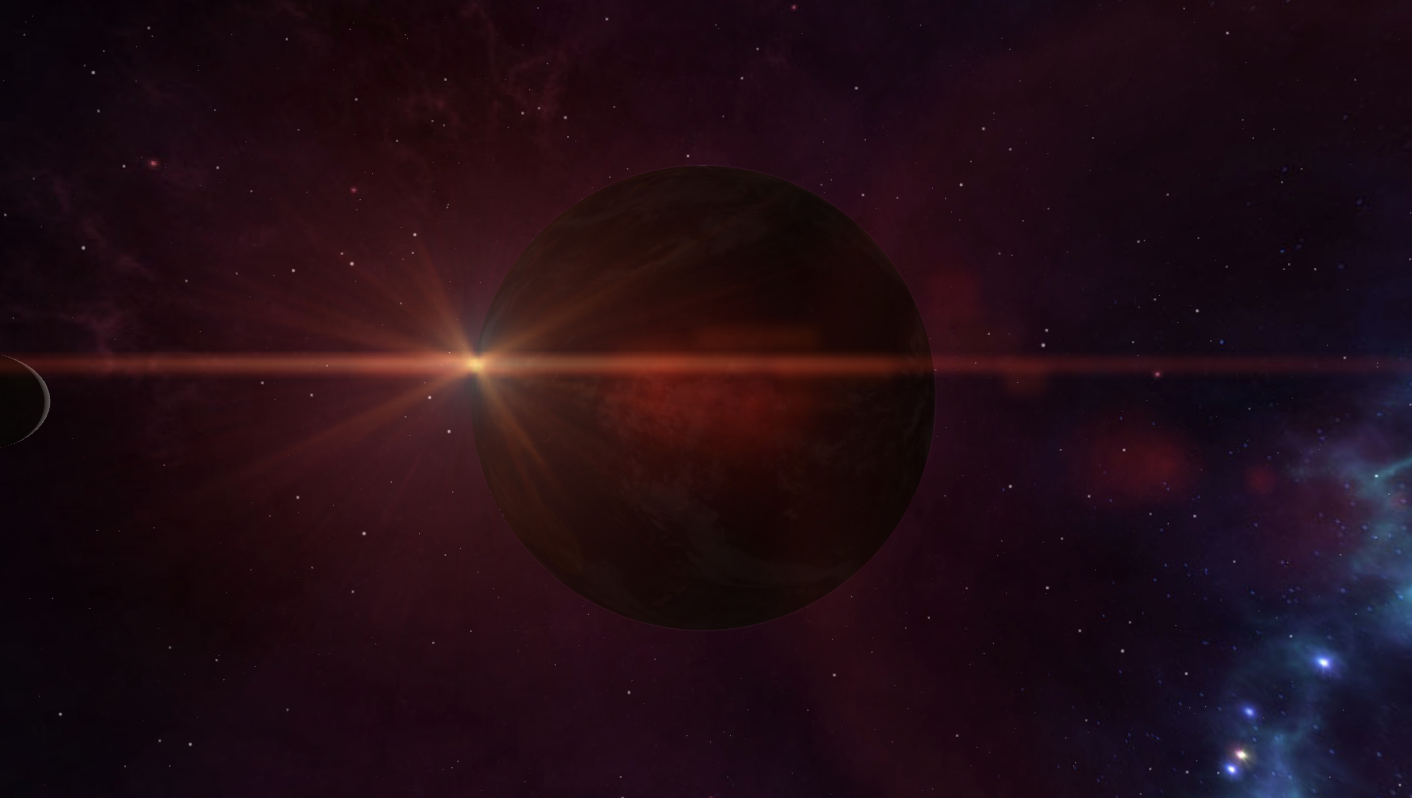
Angle where the light source is not visible
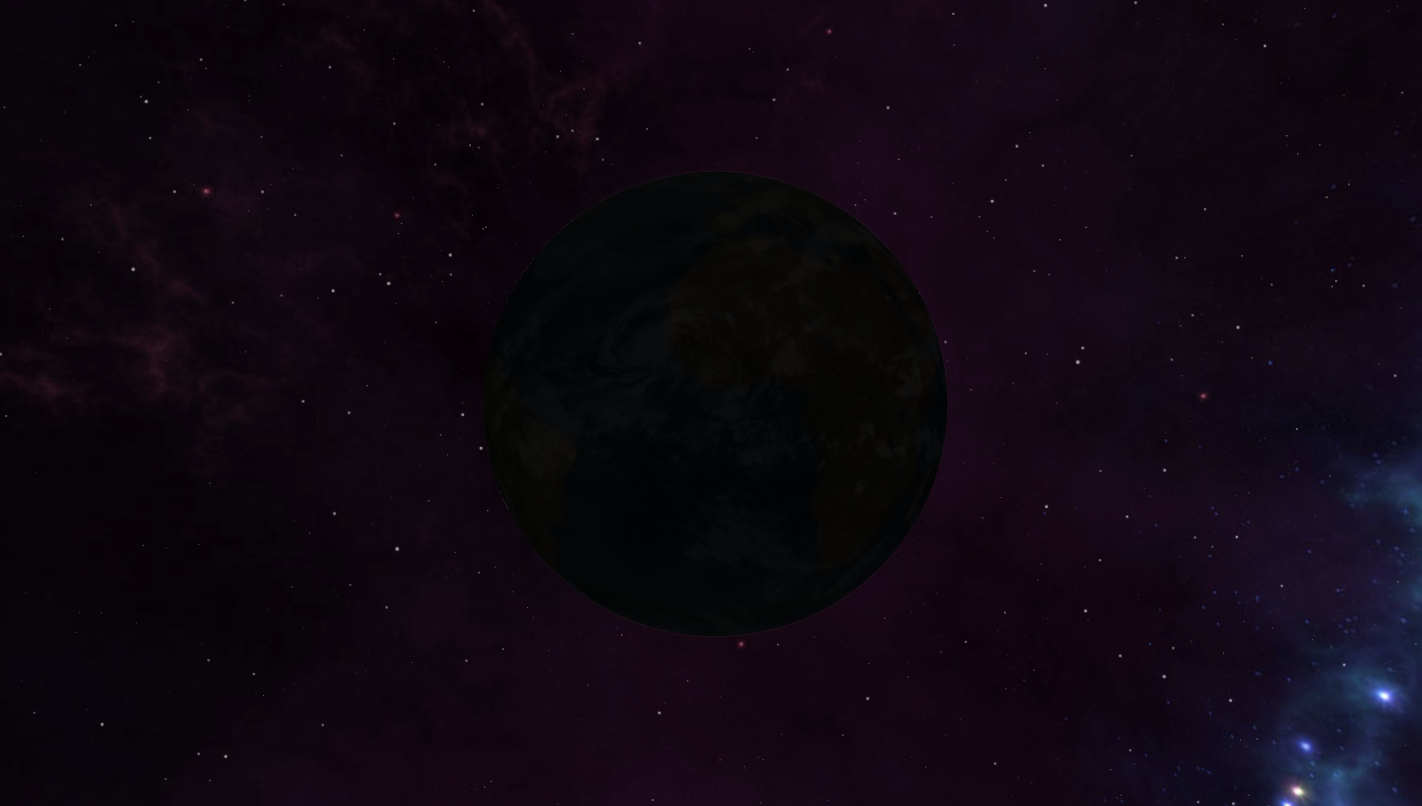
Three.js determines whether light from the source actually reaches the camera, so there is no need to reposition the lens flare elements manually. That makes the setup much easier.
How the lens flare assets were created
The lens flare assets were created with Knoll Light Factory in Adobe After Effects. The default lens flare preset was used as-is.
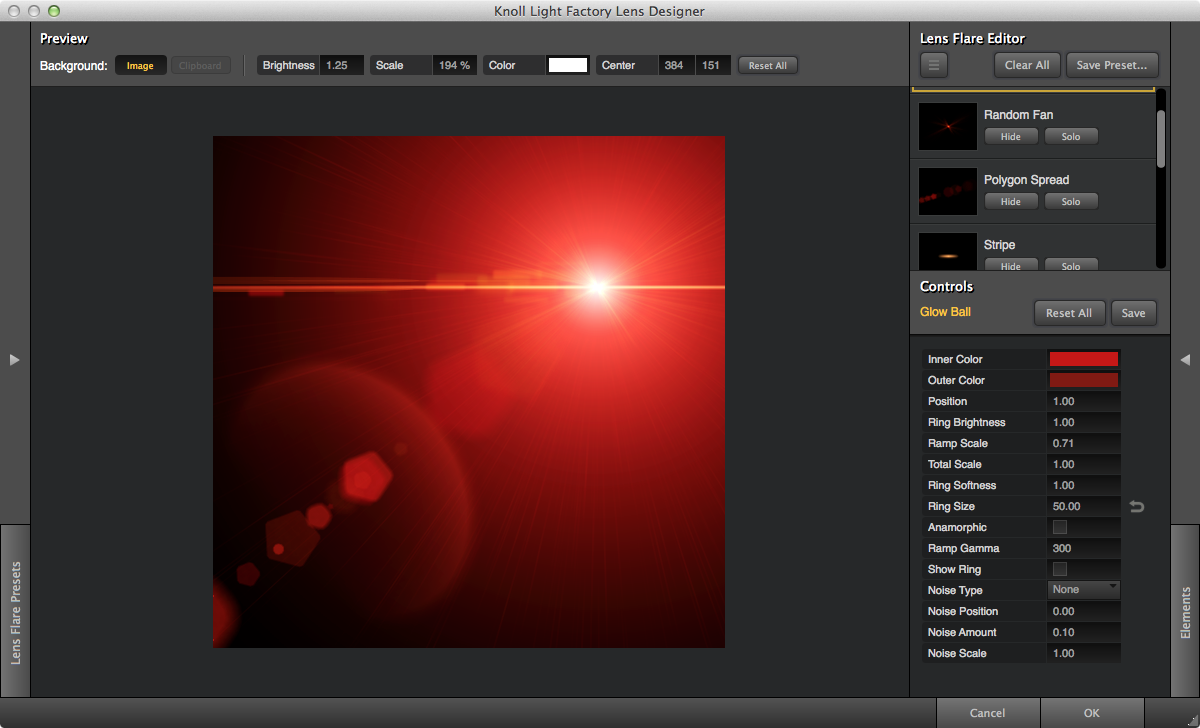
Each element of the After Effects lens flare was manually exported as a separate PNG image and then composited in code.
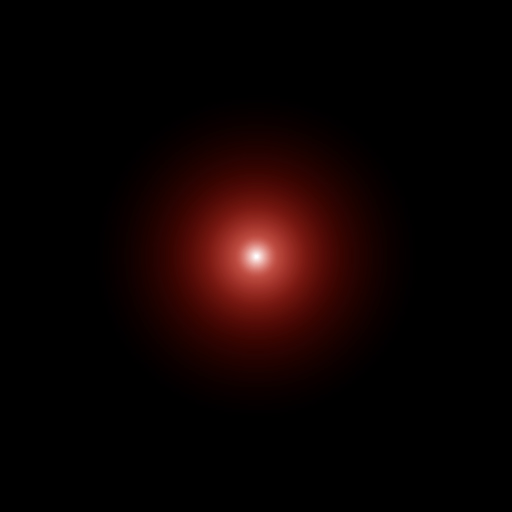
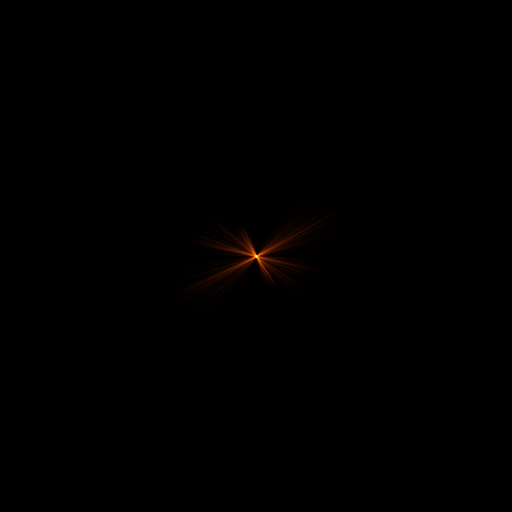

For more details, see the Photoshop file included with the source code.
HDR with the Three.js WebGPU renderer
Three.js has several rendering backends, with WebGL and WebGPU being the two main options. The WebGPU renderer also supports HDR (high dynamic range) rendering.
Because the lens flare highlights can be rendered at much higher intensities, the result feels more realistic. Try the following demo by dragging the mouse.
- Open the demo in a new window
- The code is not public.
Conclusion
Effects like lens flare depend not only on code but also on assets created in graphics software. This time the assets were made in After Effects, but similar results can be achieved with other tools as well.
In optics, lens flare is generally treated as an unwanted artifact that reduces contrast. In CG, however, it can be used intentionally as a stylistic device to make scenes feel more realistic. Expanding your range of visual techniques gives you more options when designing effects.
The original Flash version
This article was originally published under a title about creating a realistic Earth in Flash Player 11.8 with support for ultra-high-resolution textures. It introduced an Earth rendering built with Away3D for Flash. In 2025, the article was rewritten to explain how to implement lens flare in Three.js.
The original demo is kept below as an archival reference to the Flash Player 11.8 version.